
Appearance
Connect LumApps and Slack
Employee Recognition needs permission to work with your LumApps data. You give it permission with an application (an ID and a secret) and a technical account (a LumApps user it acts as). Together they form the LumApps connector.
The connector is used for:
- user and group sync: every people picker, plus birthdays, work anniversaries and newcomers
- automated awards: watching posts, comments, likes, learning and social advocacy activity
- notifications: award, approval, order and manager notifications in LumApps
If the connector stops working
If the application is deleted, its secret changes or the technical account is deactivated, sync, automated awards and notifications stop. Every admin page then shows a yellow Connector is not working banner with a Set up a new connector link.
Before you start
- You need to be a Global Administrator and open the admin panel from the extension settings.
- Create a dedicated LumApps user to act as the technical account, such as
recognition@company.com, with a random password and the Global Administrator role. Don't use a real person's account. See Create a technical account.
Step 1: Create an application
Go to System Administration → Applications and select New.
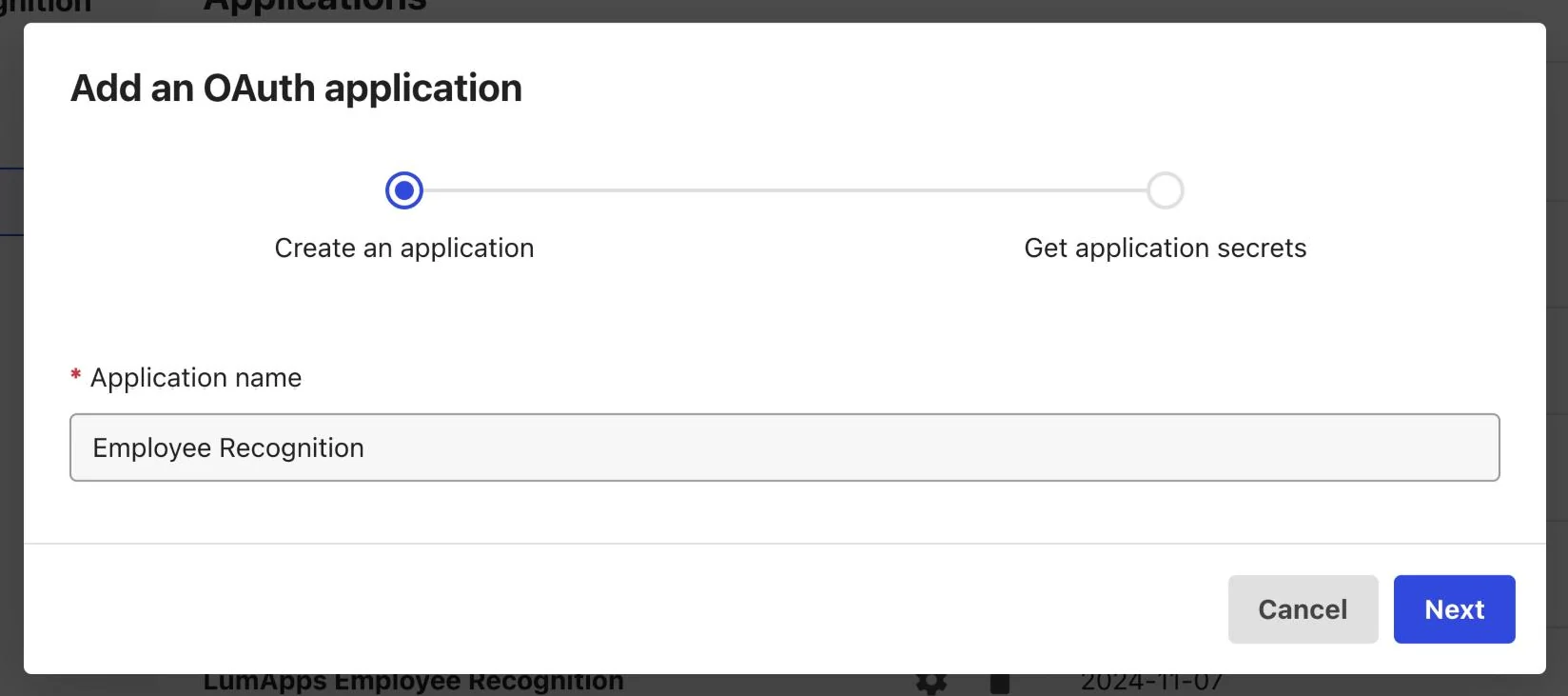
Enter an Application name, for example LumApps Employee Recognition, and select Next.
Copy the Application ID. Select show application secret and copy the secret too.
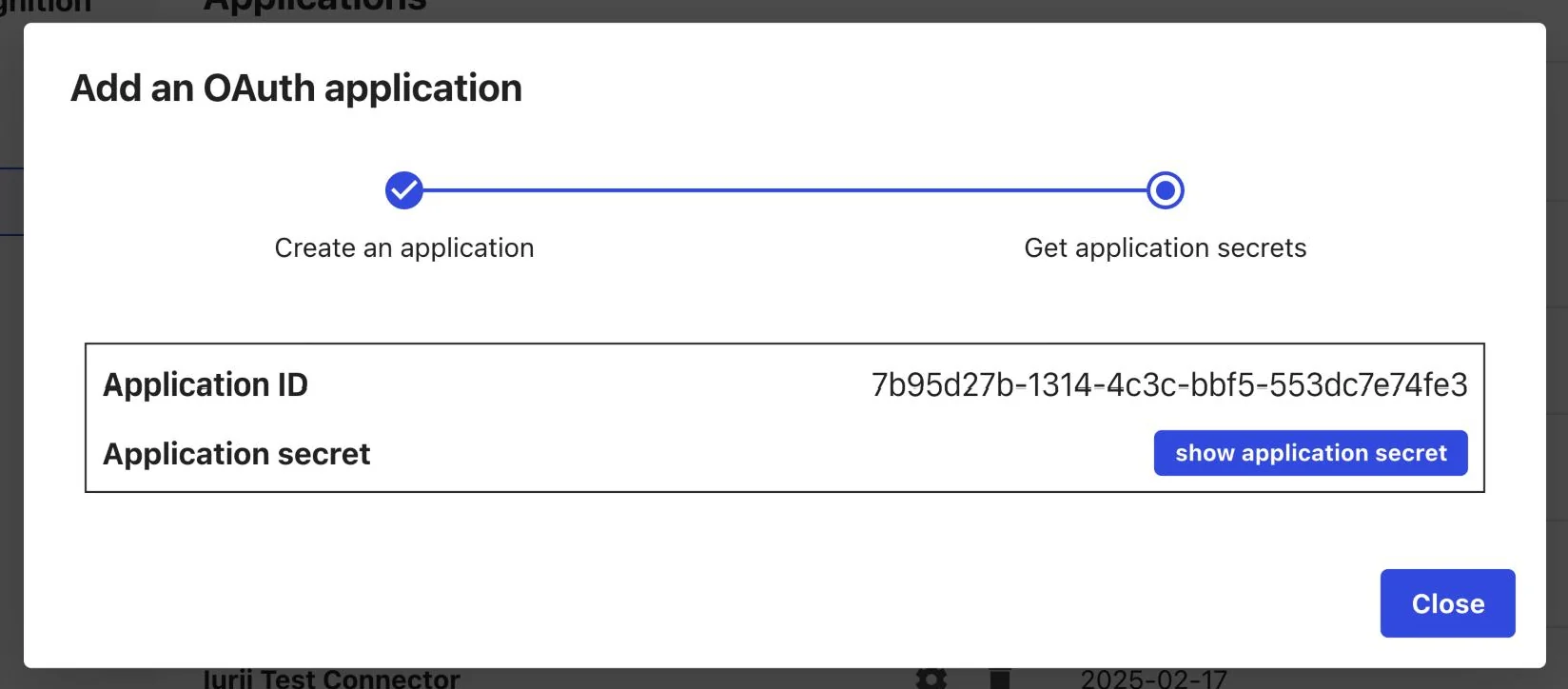
Select Close, tick I confirm that I saved the secret, and select OK.
The secret is shown only once
Store the secret somewhere safe before you close the dialog. You can't display it again. If you lose it, create a new application.
Step 2: Connect LumApps
- Go to System Administration → Connectors. The LumApps tab is open.
- Choose the Technical account.
- Choose the Application you created.
- Paste the Application Secret.
- Select Save.
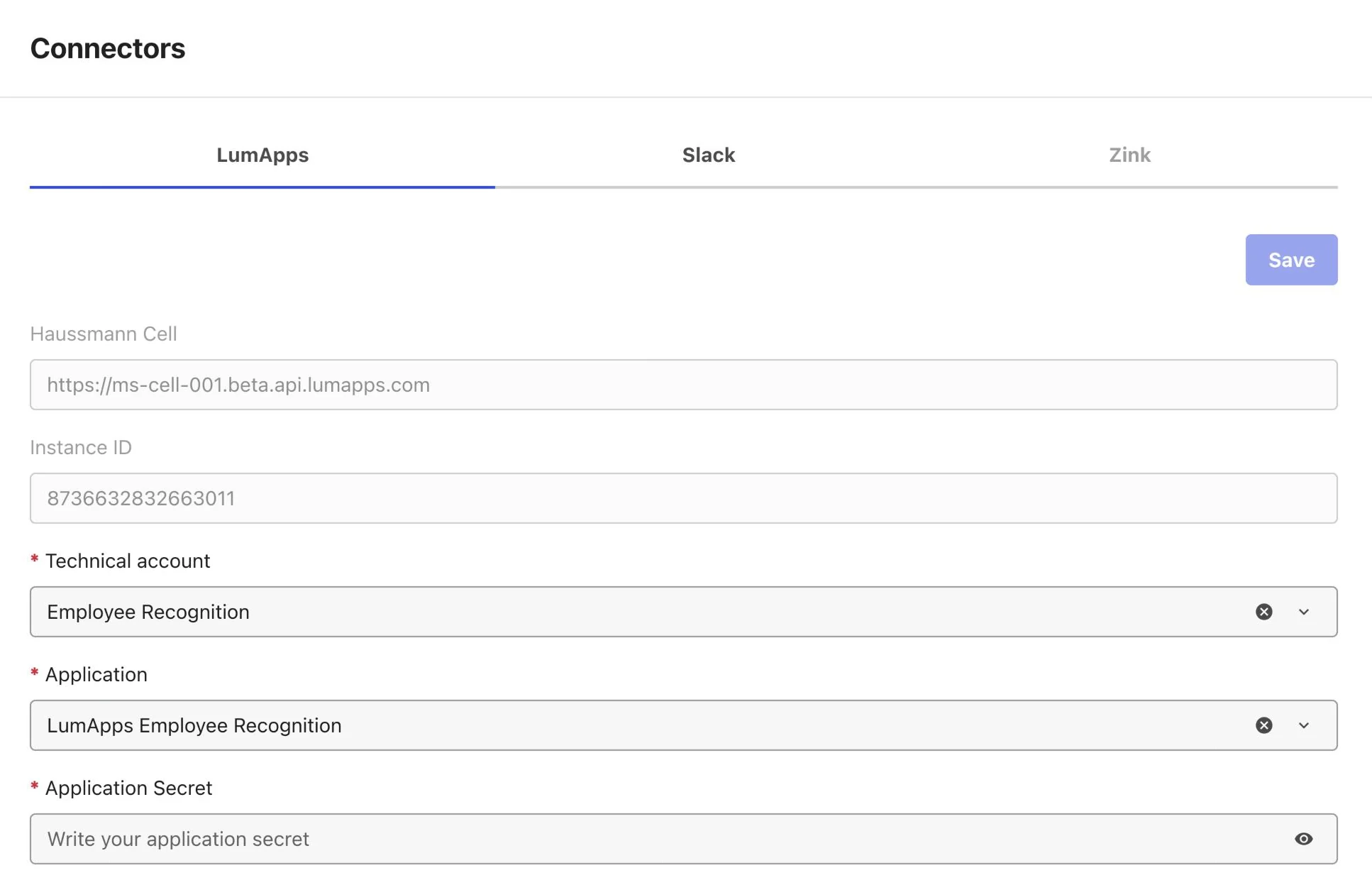
The credentials are checked with LumApps before they are saved. If they are rejected, an error appears and nothing is saved. Once saved, the yellow connector banner disappears.
Security
The secret is stored encrypted and never shown again. The Application Secret field is always empty when you open the page.
Connect Slack
You can also deliver recognition notifications in Slack.
- Go to System Administration → Connectors and open the Slack tab.
- Select Connect. Slack's authorization page opens in a new tab.
- Authorize the workspace. When you come back, the Team ID of the connected workspace is shown.
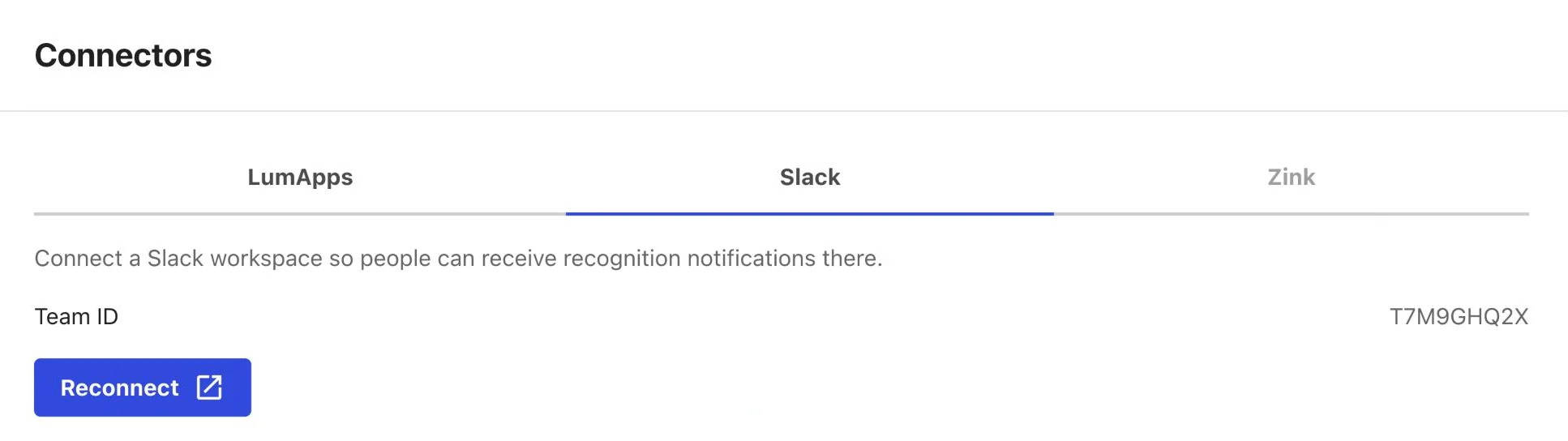
To reconnect, select Reconnect. Then turn on Send Slack notifications in Global settings.
Manage applications
On System Administration → Applications you can:
- Rename an application with the gear icon.
- Delete an application with the bin icon. This also deletes its technical account.
Don't delete the application in use
Deleting the application selected in Connectors breaks the connector immediately.
To change credentials safely: create a new application, select it in Connectors and save, then delete the old application.