
Appearance
My Recognition and profiles
Employees see their own recognition in three places:
- My Recognition: a personal hub opened from the trophy icon in the LumApps header, on every page
- their profile: the awards and skills they received, visible to colleagues
- personal widgets on pages: My Recognition and My Awards
At a glance
- Add personal widgets to pages (optional, needed for phones)
1. Add the trophy icon
The trophy icon appears on a site once the site code is installed there. A Global Administrator does this once per site: see Install on your LumApps sites.
Everyone who visits the site then sees the icon. There's nothing else to configure: the hub's content follows your other settings, as described below.
2. Show awards and skills on profiles
In the admin panel, go to Global Management → Global Settings.
Turn on what you want on every LumApps profile:
Switch Adds to profiles Display "Awards in profile" The awards the person received, with executive awards first. Display "Skills in profile" The skills recognized in the person's awards, with counts. Display "Give Award" button A button to recognize that person. Needs Awards in profile. Select Save. The change applies to every profile straight away.
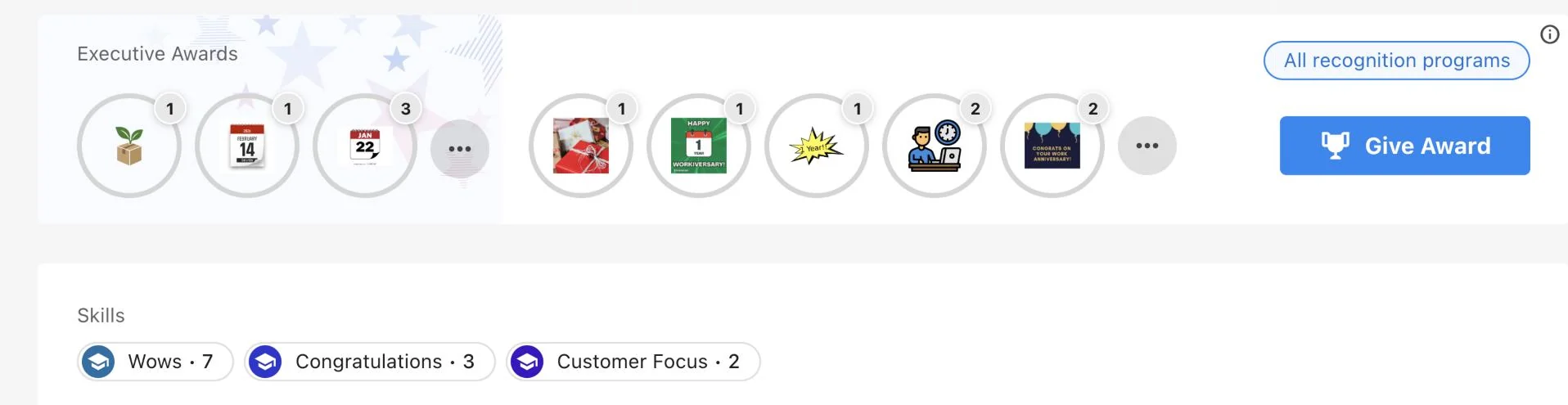
These also need the site code from step 1.
Put it on a page
Two widgets show personal recognition on a page. They always show the data of whoever is viewing the page.
To add one, open a page in edit mode, add the Employee Recognition by Linkers widget, and choose the type in Select your widget.
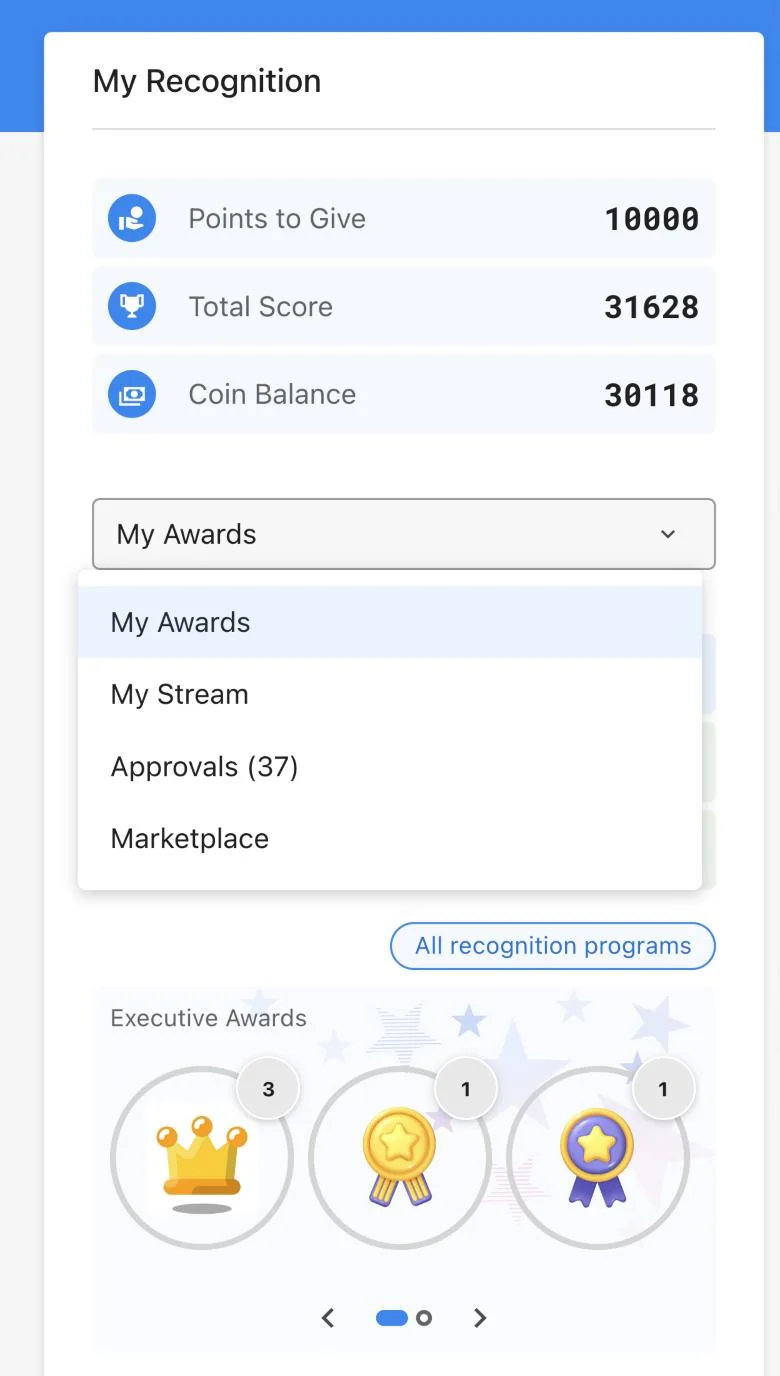
My Recognition widget
The same hub as the trophy icon, as a widget. Use it on a personal "My space" page, and for phones: the trophy icon isn't available on phones, so this widget is how mobile users reach their hub.
| Setting | Default | What it does |
|---|---|---|
| Show recognition balances | On | Shows the balance tiles. |
| Show My Awards, Show My Stream, Show Approvals, Show Marketplace | On | Shows each section. If all four are off, the widget is hidden. |
| Show only in mobile view | Off | Shows the widget only on screens narrower than 480 pixels, so desktop users keep using the trophy icon. |
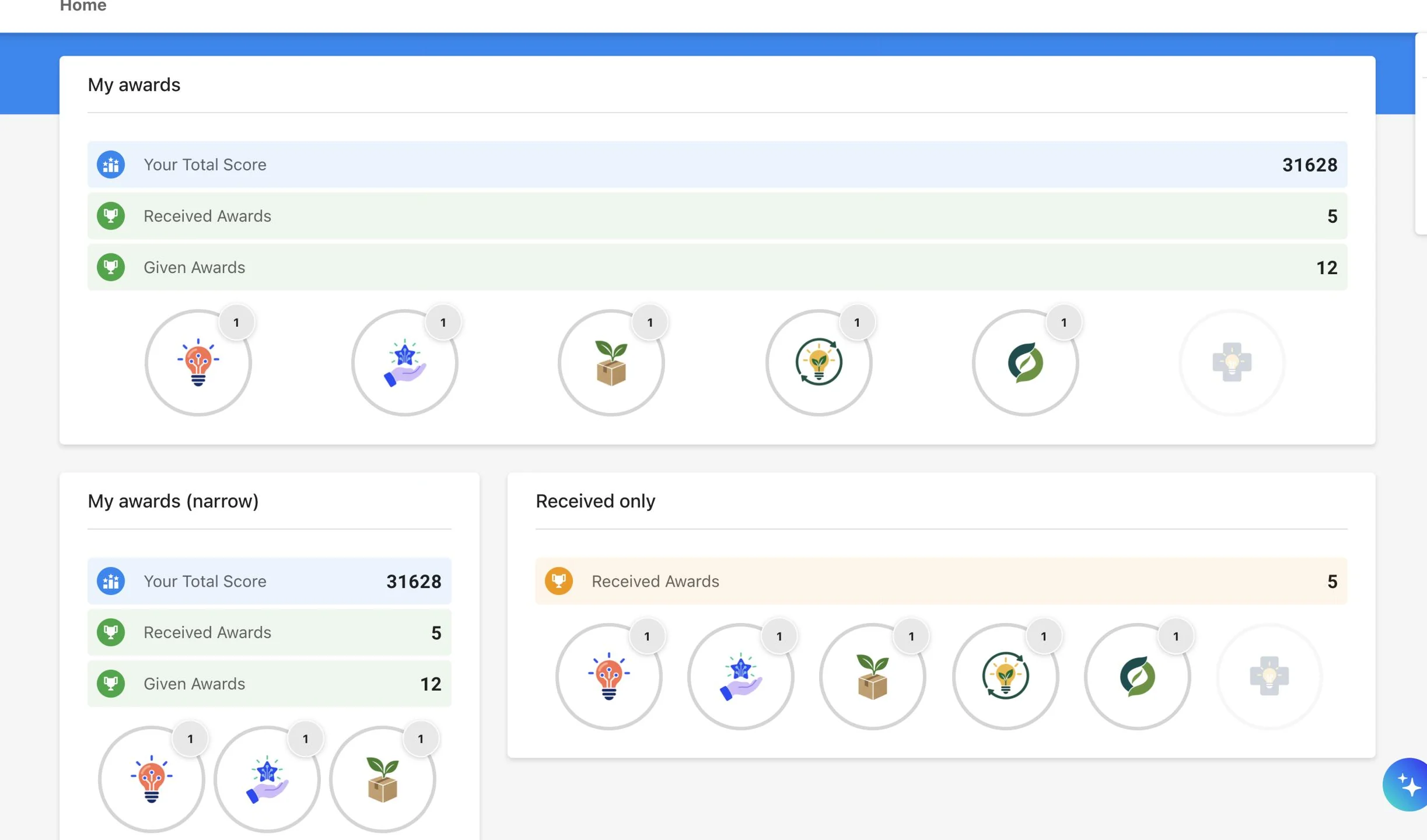
My Awards widget
A trophy case only: totals, executive awards, and the grid of awards.
| Setting | Default | What it does |
|---|---|---|
| Select a recognition program | All the viewer's programs | Limits the awards and the received and given counts to these programs. |
| Select a recognition program for branding and translation | Global settings | Wording and colors. |
| Rows count per slide | 3 | Rows of badges per page. |
| Hide widget if end-user received 0 awards | Off | Hides the widget for people with no awards yet. |
| Show Total Score, Show Received Awards, Show Given Awards | On | Shows each total. |
| Primary color, Secondary color | Branding colors |
TIP
Your Total Score always counts all programs, while the received and given counts follow the programs you select. On a page about one program, turn off Show Total Score.
What employees see in My Recognition
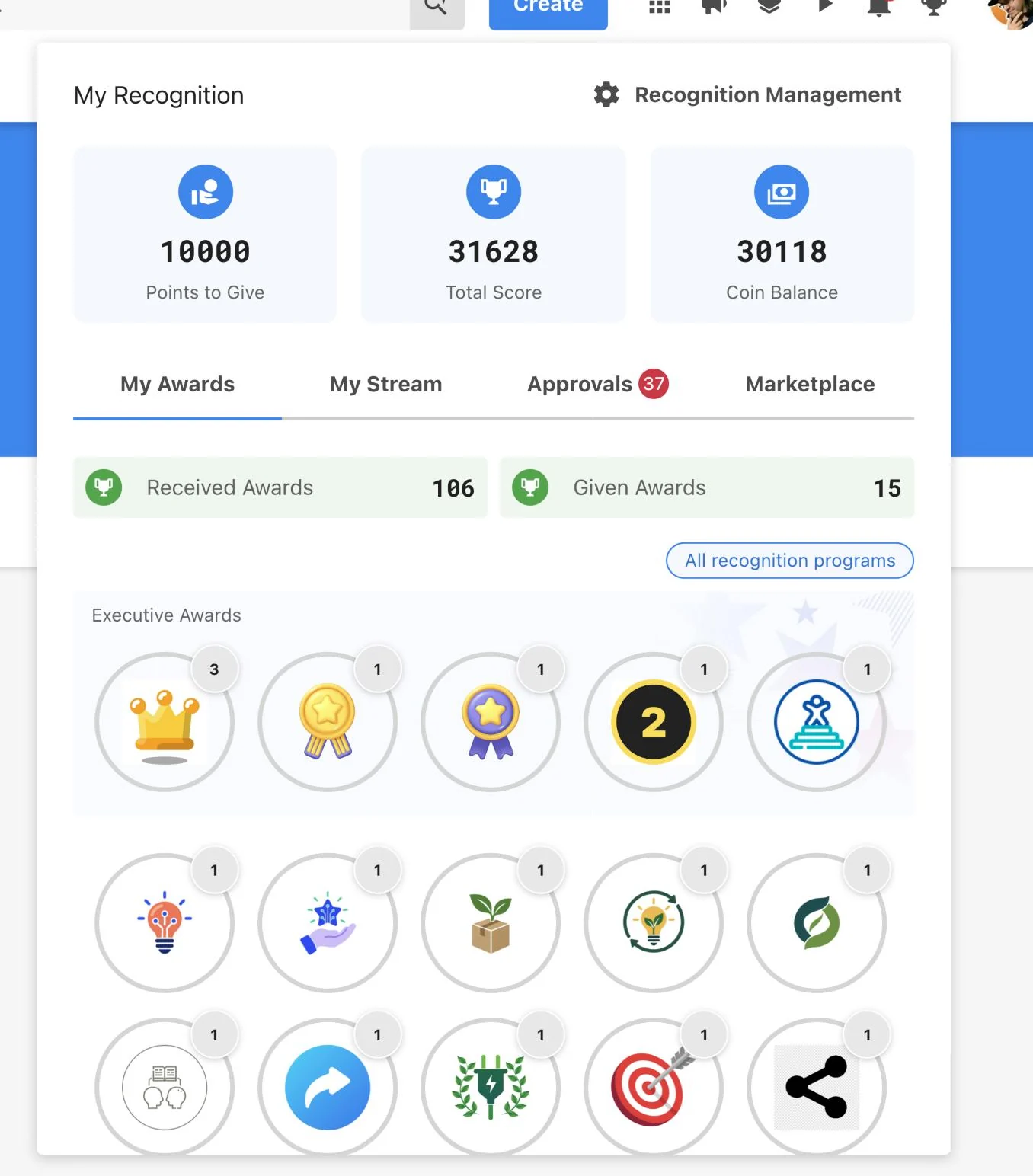
Selecting the trophy icon opens My Recognition.
Balances
| Tile | Shows | Appears when |
|---|---|---|
| Points to Give | How many points the person can still give. | The organization uses a points budget: Points expire or Points accumulate in Points and coins. |
| Total Score | The total points of the awards the person received. | Always. |
| Coin Balance | Coins to spend in the marketplace. | Enable marketplace is on in Points and coins. |
Balances update straight away when awards are given, received or approved, and when orders are placed or canceled.
Tabs
| Tab | Shows | Appears when |
|---|---|---|
| My Awards | Received and given counts, executive awards, and every award of the person's programs. | Always. |
| My Stream | The awards the person received and gave, as in the Awards Stream. | Always. |
| Approvals | Awards waiting for the person's decision, with a red count. | The person is an approver in a program. See Approvals. |
| Marketplace | The person's orders and their status. | The marketplace is on. See Shopping and orders. |
The trophy case
In My Awards, awards the person has earned are in color, with a number showing how many times. Awards they haven't earned yet are grayed out, which shows what else exists in their programs.
- Selecting an earned award shows each time it was received: who gave it, the points and the message.
- Selecting a grayed-out award shows its description, which tells the person what it's given for.
- Executive Awards, at the top, are the awards received from executives.
- All recognition programs narrows the view to one program.
The way into the admin panel
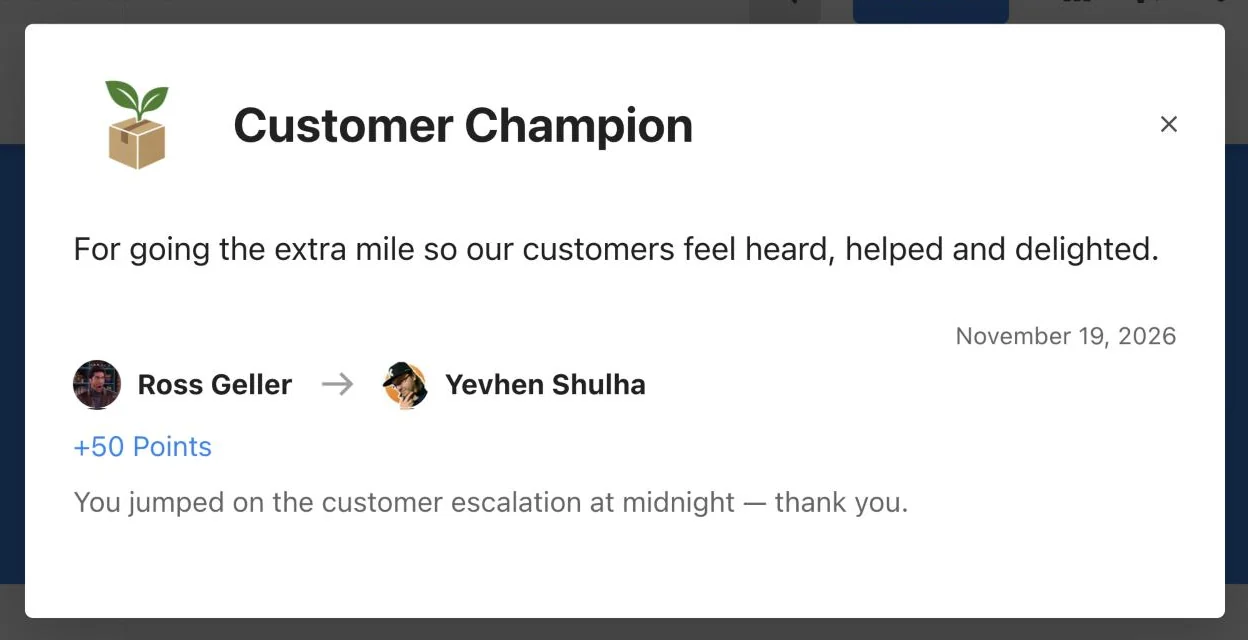
People with a recognition role (Global Manager, program manager, analyst, marketplace manager) also see Recognition Management at the top of My Recognition. It opens the admin panel. This is their only way in, so they need the trophy icon on a site they can visit.
Troubleshooting
| Symptom | Cause | Fix |
|---|---|---|
| No trophy icon | The site code isn't installed on this site. | Install it. |
| No trophy icon on phones | The header icon isn't available on phones. | Add a My Recognition widget with Show only in mobile view. |
| No awards or skills on profiles | The switches are off, or the site code isn't installed. | See Show awards and skills on profiles. |
| No Points to Give tile | The points strategy is No limit. | See Points and coins. |
| No Coin Balance tile or Marketplace tab | The marketplace is off. | See Points and coins. |
| No Recognition Management button | The person has no recognition role. | Add them as a Global Manager or to a program. |
| "Unfortunately, you aren't a participant of any recognition program; therefore, you have no Awards." | The person isn't in any program. | Add them in a program's Participants. |