
Appearance
Create and manage programs
A recognition program is a self-contained recognition scheme with its own purpose, people and rules, for example a program that recognizes behavior matching your company values, a customer-excellence program for front-line staff, or a month-long challenge.
You can run several programs in parallel, and one person can take part in several. When someone gives an award, they are offered only the awards of programs that both they and the receiver belong to.
At a glance
- Create the program: name, managers, participants, approval
- Manage the program: edit, deactivate, duplicate
A program with no awards, or with no widget offering its awards, is invisible to employees.
What a program controls
Almost everything employees see about recognition traces back to a program setting:
| Program setting | What it decides for employees | Read more |
|---|---|---|
| Participants | Who can give, and who can receive, the program's awards | Participants |
| Awards | Which awards exist, with their names, icons and values | Awards and giving |
| Approvers | Whether awards are published immediately or wait for approval | Approvals |
| Nomination form | Extra questions asked when giving an award | Approvals |
| Birthday, Workiversary & Newcomers, Automated | Awards given automatically | Birthdays, Work anniversaries and newcomers, Automated awards |
| Top-Down Recognition | Whose awards are highlighted as executive awards | Executive recognition |
| Branding and Translations | The program's own words and icon | Branding and wording |
| Permissions | Who manages the program and sees its analytics | Permissions |
Before you start
- You need to be a Global Manager to create programs. Program Managers can edit the programs they manage, but can't add or remove other Program Managers.
- Think about who should give and receive awards, and whether awards should be approved first.
Create a program
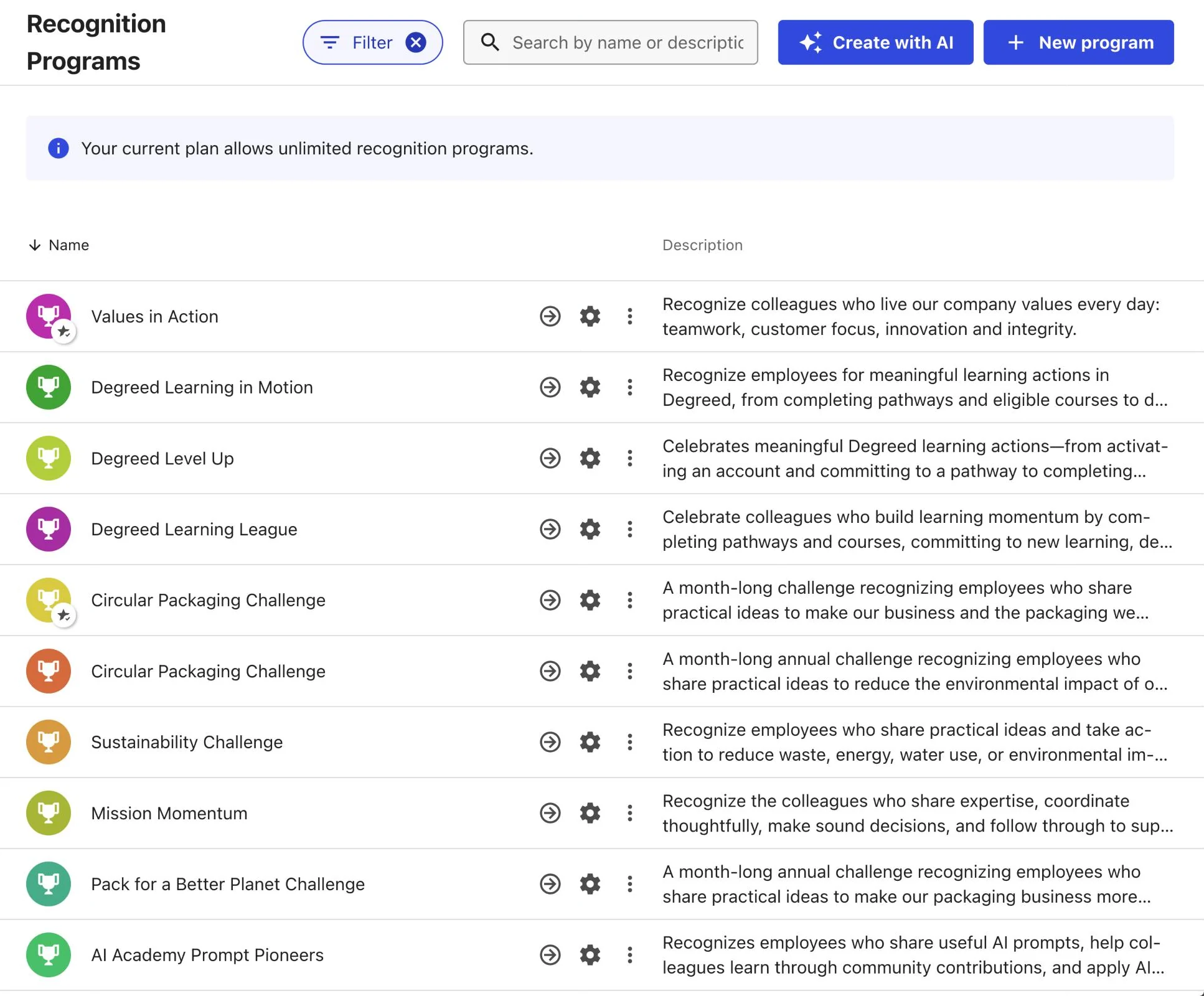
- In the admin panel, go to Global Management → Recognition Programs.
- Select + New program. A four-step wizard opens.
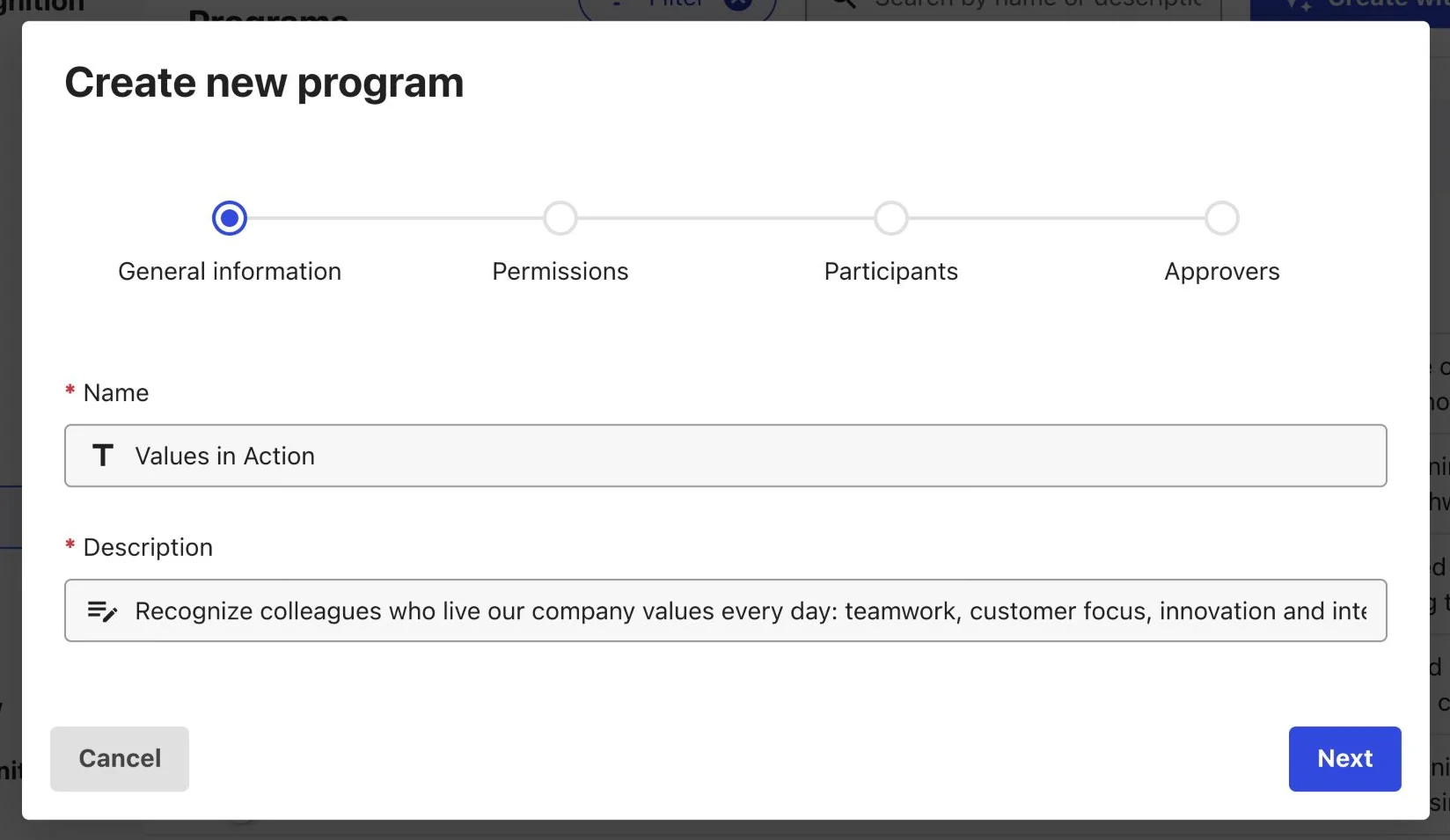
Step 1: General information
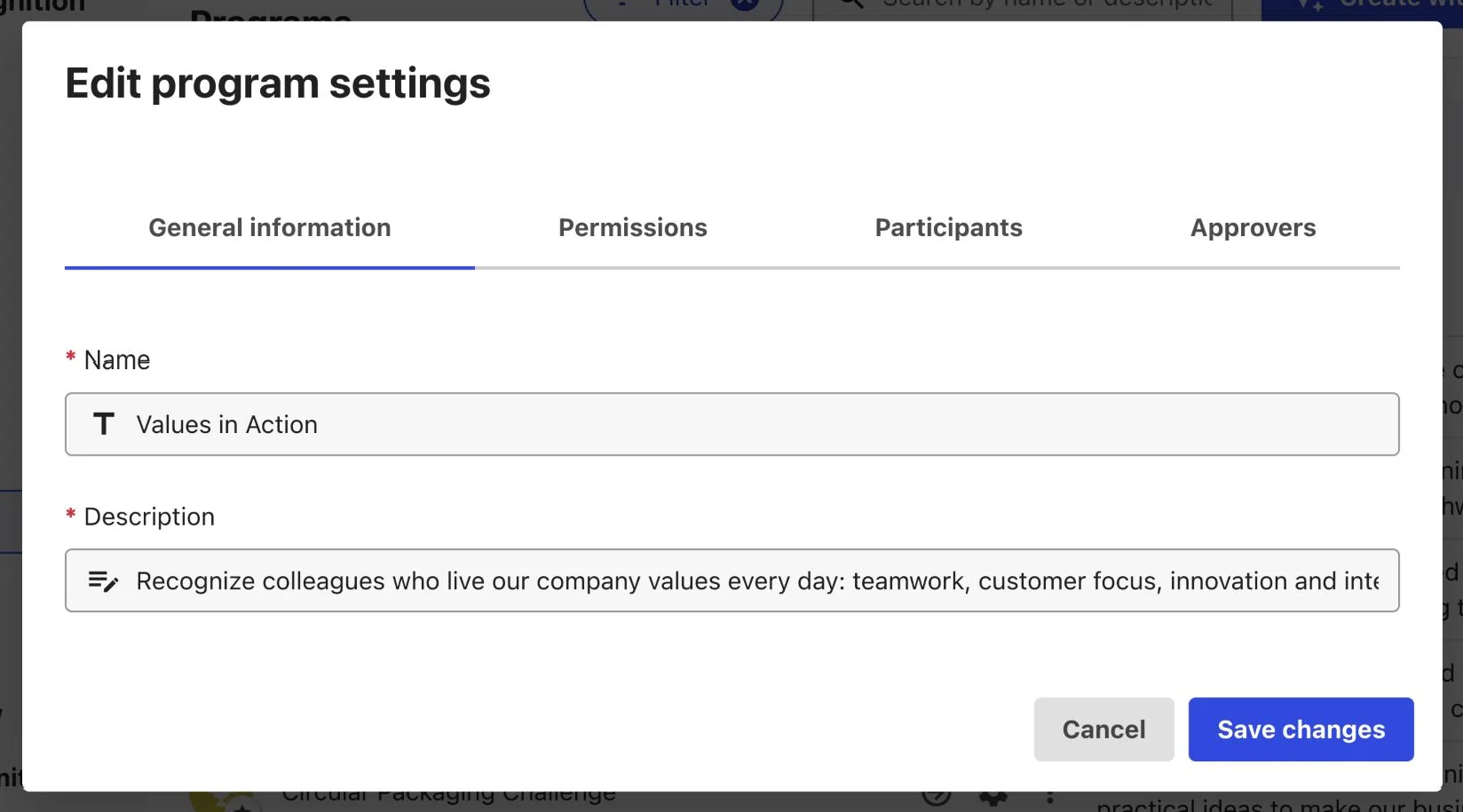
Enter a Name and a Description. Both are required. Select the T icon next to a field to enter it in other languages.
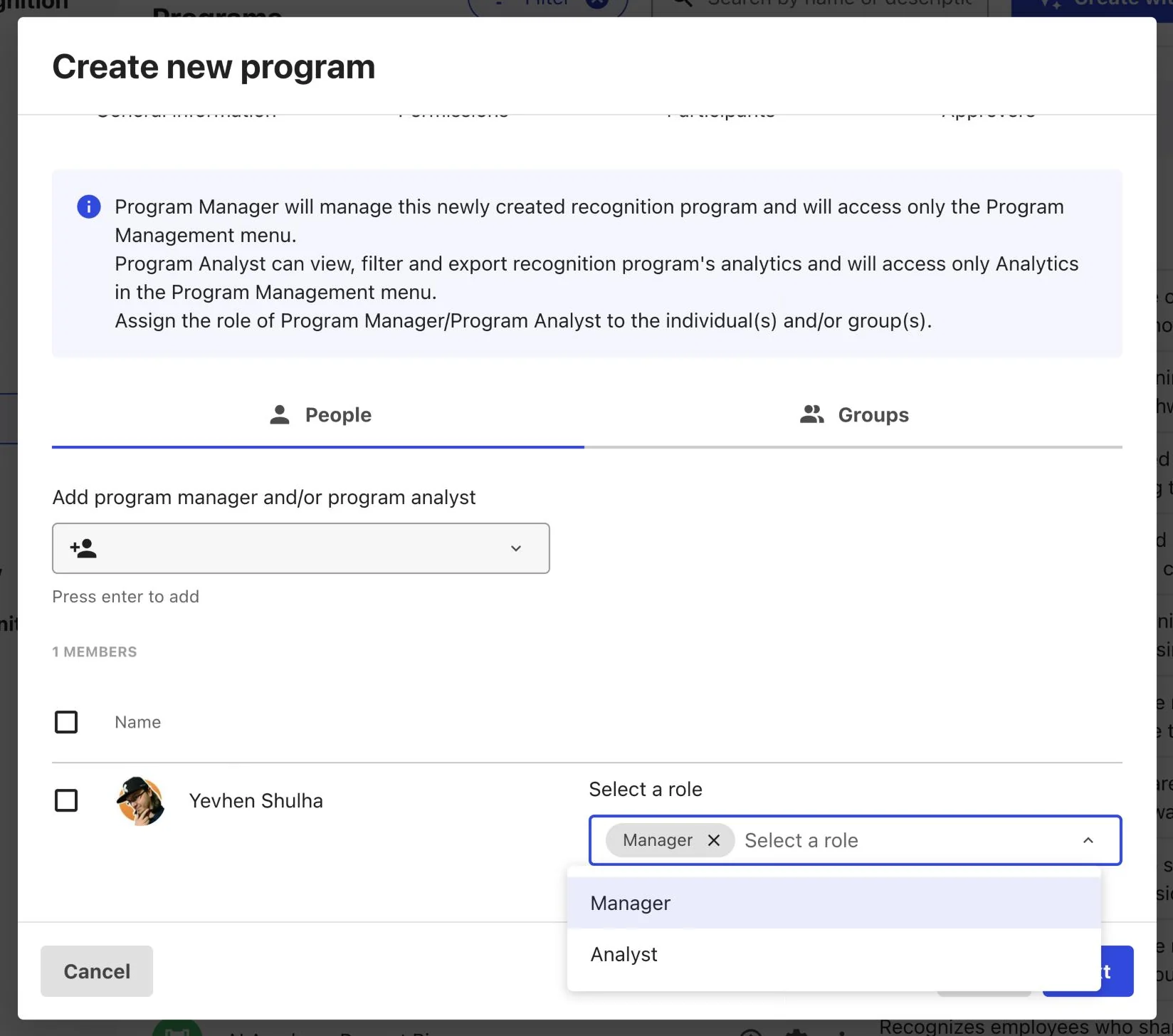
Step 2: Permissions
Add the people or groups who will run the program, and choose a role for each:
- Manager: manages the program (awards, executives, branding, translations, analytics). Program Managers only see the Program Management part of the admin panel.
- Analyst: can view, filter and export the program's analytics only.
TIP
Add at least one Program Manager. You can continue without one, but then only Global Managers can manage the program.
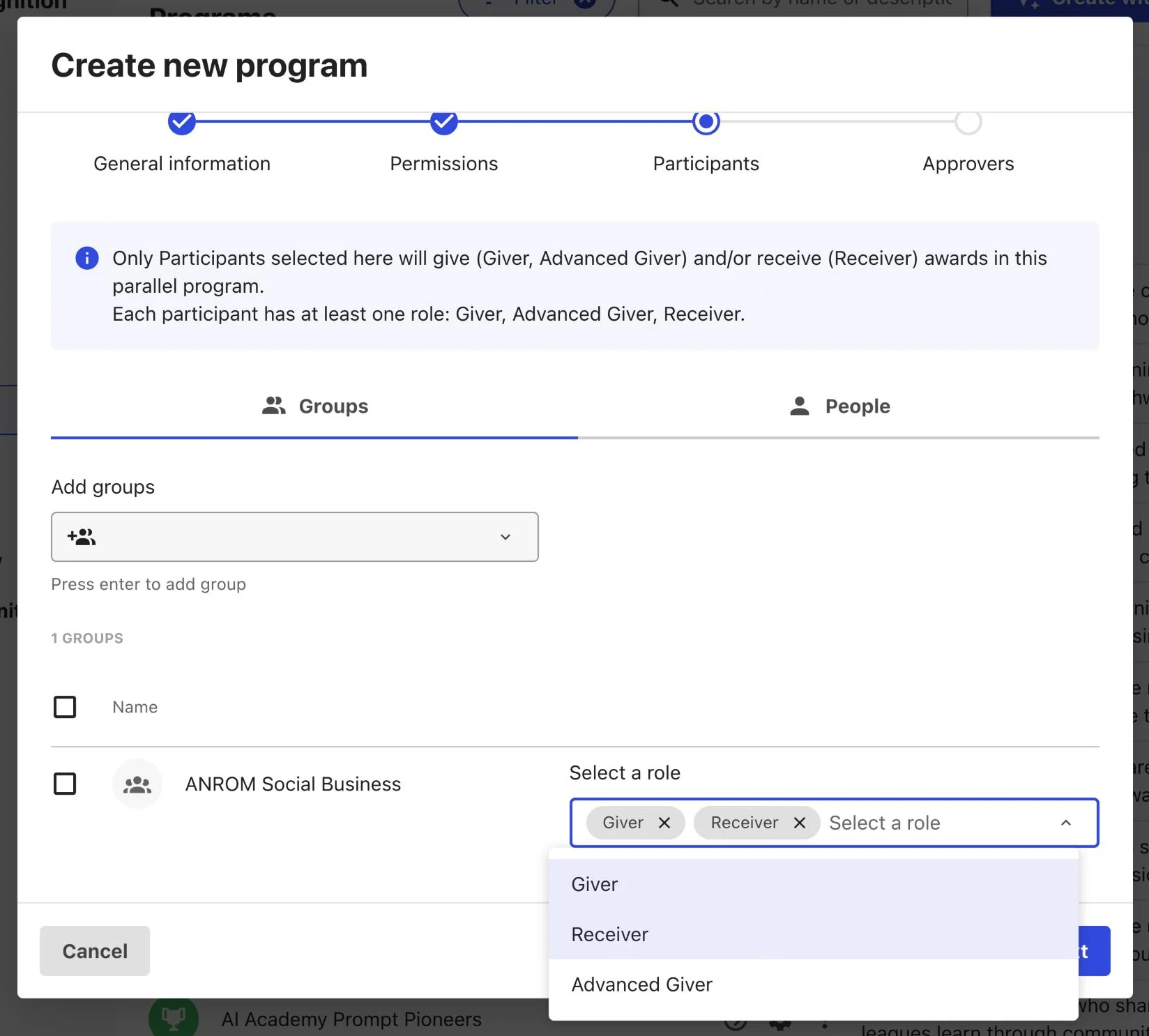
Step 3: Participants
Add the groups or people who take part, and choose their roles:
| Role | What they can do |
|---|---|
| Giver | Give the program's awards. |
| Receiver | Receive the program's awards and appear in leaderboards and streams. |
| Advanced Giver | Everything a Giver can do, plus give one award to a whole LumApps group or segment at once. See To a whole group. |
Someone who isn't a Giver in any program has no awards to give; someone who isn't a Receiver can't be chosen for the program's awards.
New rows get Giver and Receiver by default. Every row needs at least one role, and the program needs at least one participant.
Everyone can give and receive
For a company-wide program, add a group that contains everyone, with Giver and Receiver.
Step 4: Approvers
Decide whether awards must be approved before they are published, and optionally add a nomination form with extra questions. Leave Enable award approval process in the program off to publish awards immediately.
This step is explained in Approvals and nomination forms.
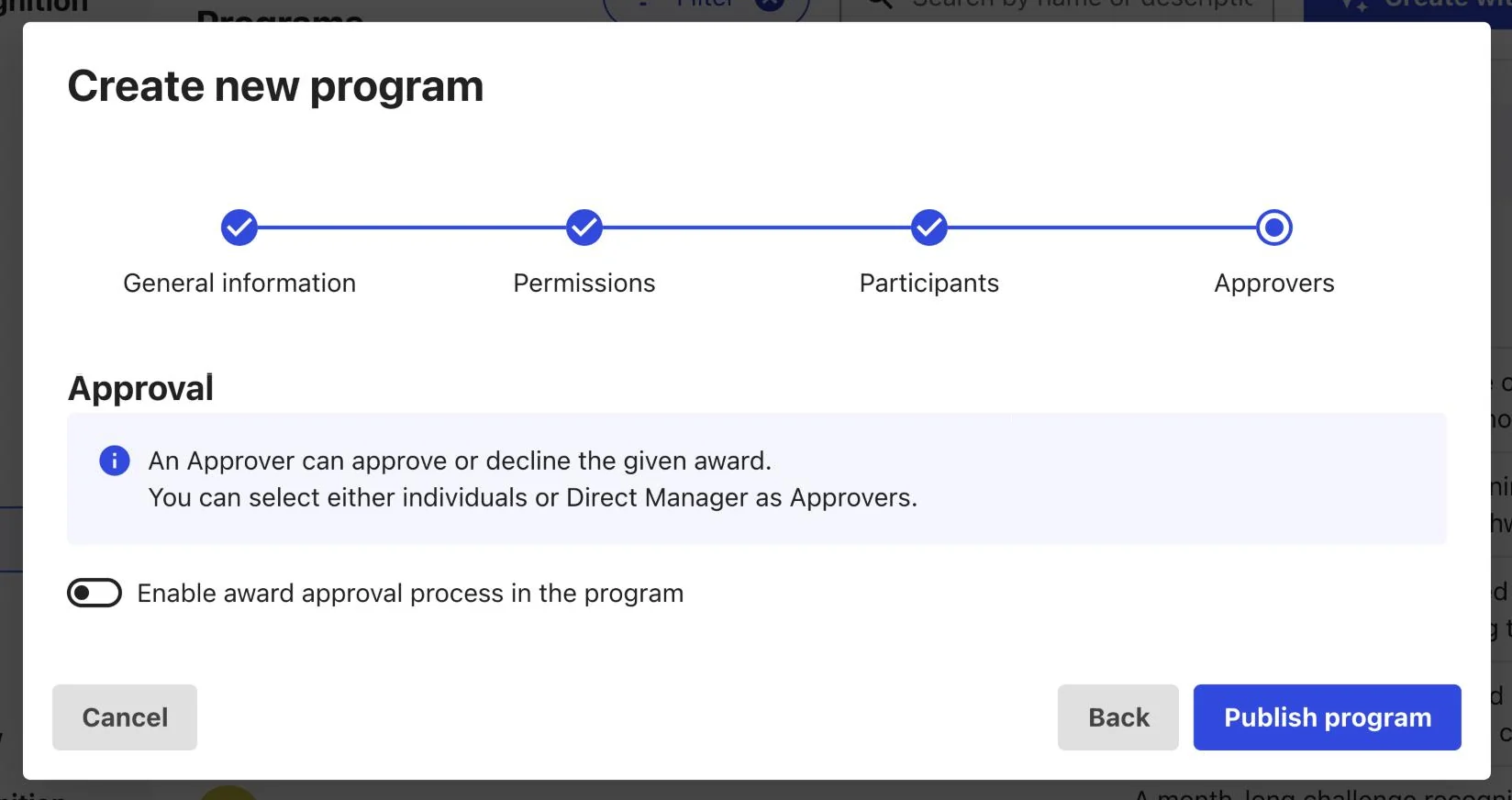
Publish
Select Publish program. The new program appears at the top of the list. Next, add its awards. Until it has awards, the program is invisible to employees.
Example: a values program
| Step | Example |
|---|---|
| General information | Values in Action: recognizing teamwork, customer focus, innovation and integrity |
| Permissions | One or two Program Managers from HR or Internal Communications |
| Participants | A company-wide group as Giver and Receiver |
| Approvers | Approval by selected individuals, daily reminders, givers notified when their award is approved or declined |
| Nomination form | Which company value did this person demonstrate? (short answer, required) and Describe the impact of their contribution (paragraph, optional) |
Manage existing programs
The program list shows active programs by default. Use Filter to show inactive ones, and the search box to find a program by name or description. A small badge on a program's icon means it has an approval process.
Each row has three actions:
| Action | What it does |
|---|---|
| → View | Selects the program in the sidebar and opens its awards. |
| ⚙ Edit settings | Opens the same four sections as tabs: General information, Permissions, Participants, Approvers. Select Save changes. |
| ⋮ More actions | Deactivate / Activate, and Duplicate. |
Deactivating is immediate
Deactivate applies straight away, without confirmation. The program's awards can no longer be given, but its history stays in streams and analytics. Select Activate to bring it back.
Duplicate creates a copy named "Program name (Copy date time)". It's a quick way to start a new program from a proven setup.
Create a program with AI
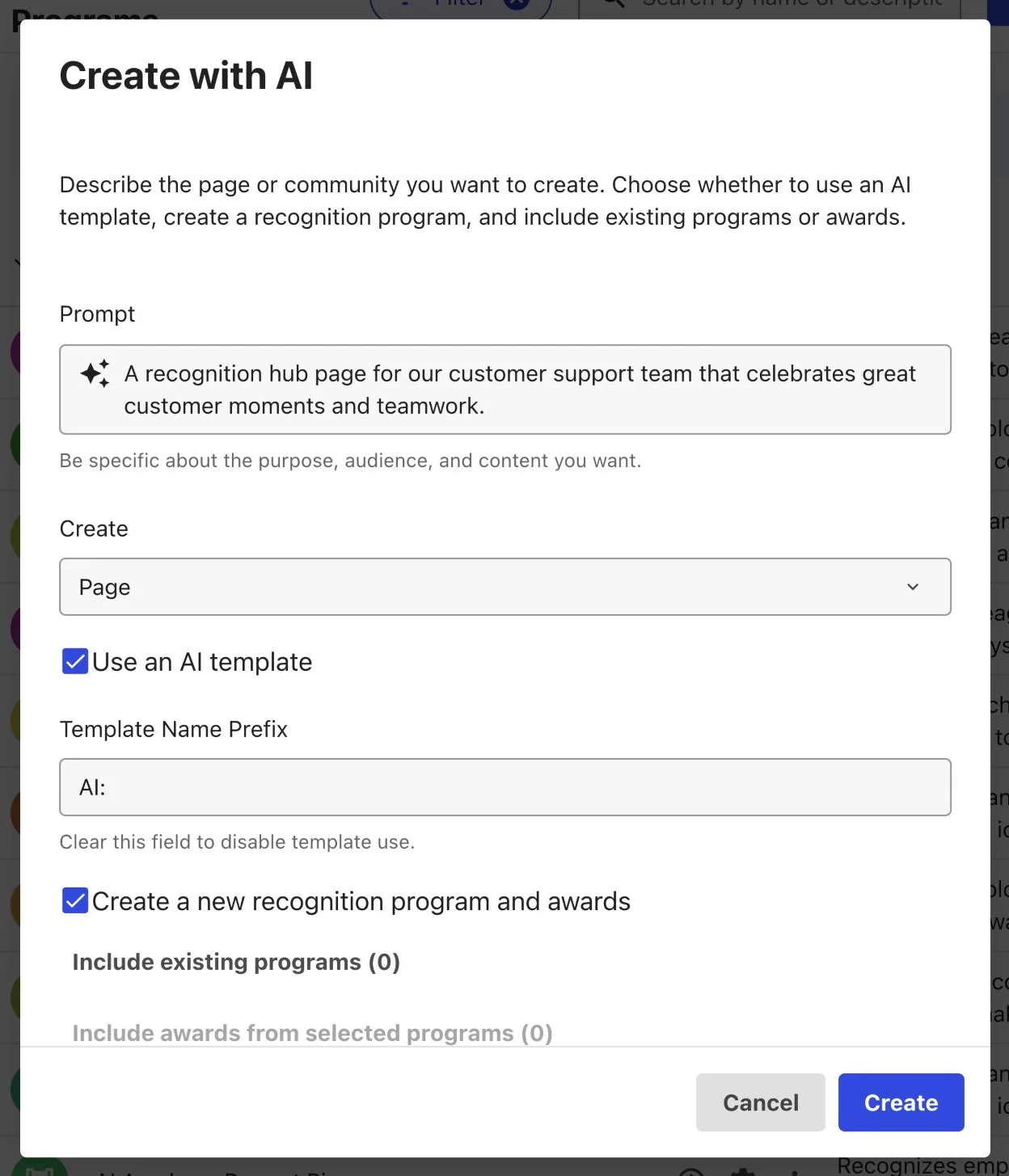
Create with AI generates a LumApps page or community from a description, and can create a new program with awards at the same time.
- Select Create with AI.
- Describe what you want in Prompt, for example A recognition hub page for our customer support team that celebrates great customer moments and teamwork.
- Choose whether to create a Page or a Community.
- Choose your options:
- Use an AI template: uses your LumApps templates whose names start with the Template Name Prefix as layouts.
- Create a new recognition program and awards.
- Include existing programs and Include awards from selected programs to reuse what you already have.
- Select Create.
Generation can take several minutes; keep the window open. When it's ready, select Open result. Recent generations and their status are listed in the same dialog.