
Appearance
Notifications
Recognition only motivates if people hear about it. Employee Recognition notifies people in the LumApps bell menu, and optionally in Slack, whenever something concerns them.
At a glance
- Set up manager notifications (optional)
- Set approval reminders (per program)
- Connect Slack (optional)
Notifications also need the LumApps connector to be working, and the site code for the windows that open from a notification.
Who is notified about what
| Event | Who is notified | Controlled by |
|---|---|---|
| An award is received | The receiver. For a team award, each person. | Send LumApps notifications |
| A birthday, work anniversary, newcomer or automated award is given | The receiver | Send LumApps notifications |
| An award needs approval | The approvers | The program's approvers. See Approvals. |
| An award is still waiting for approval | The approvers, again | Send reminders to Approver, per program |
| An award is approved or declined | The giver | Send notification to Giver for approved awards / …declined awards, per program |
| A marketplace order is created or changes status | The buyer and the marketplace's managers | Send LumApps notifications |
| A direct report gives or receives an award | Their manager | Send Manager Notifications |
1. Turn notifications on
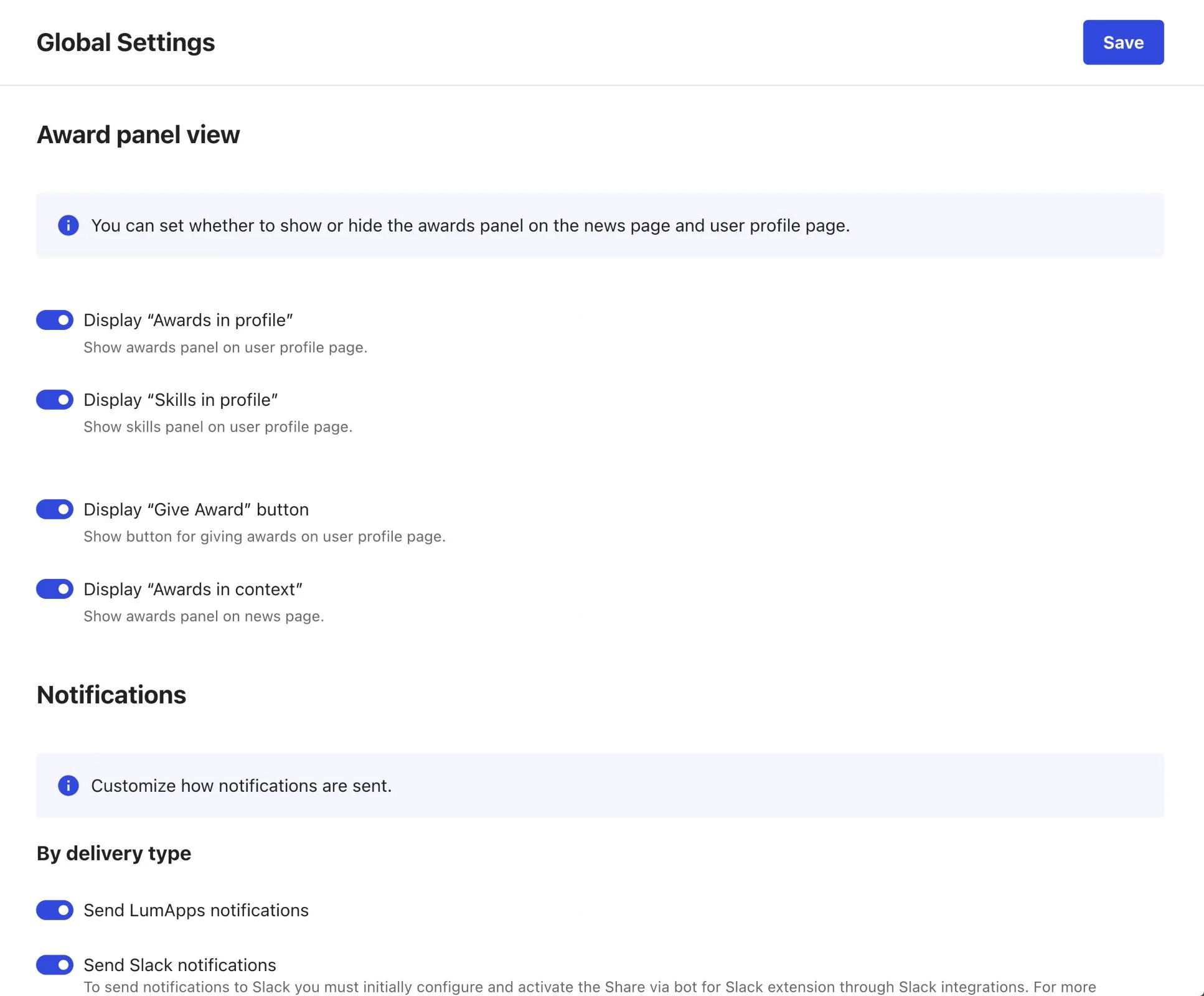
- Go to Global Management → Global Settings.
- Under Notifications, turn on Send LumApps notifications.
- Select Save.
WARNING
With Send LumApps notifications off, nobody receives any recognition notification in the bell menu.
2. Set up manager notifications
Managers can follow the recognition their team gives and receives. A person's team is everyone whose LumApps profile names them as manager.
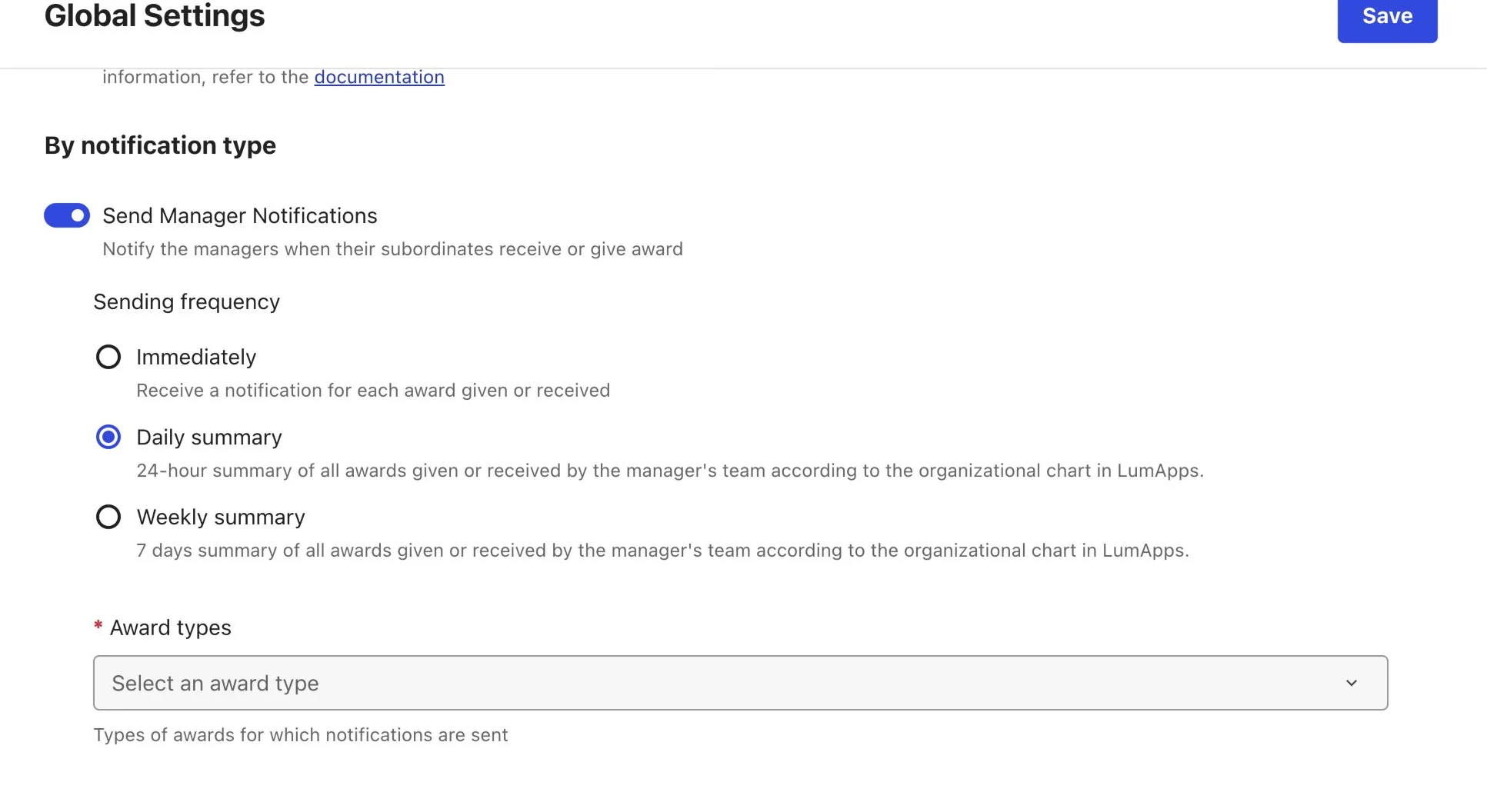
- In Global Settings, turn on Send Manager Notifications.
- Choose a Sending frequency:
- Immediately: one notification per award.
- Daily summary or Weekly summary: one summary of the team's recognition.
- Choose the Award types that count: Peer-to-Peer, Birthday, Workiversary & Newcomers, Automated.
- Choose the Recognition programs that count.
- Select Save.
At least one award type and one program are required.
3. Set approval reminders and giver notifications
These are set for each program, in its Approvers tab: how often approvers are reminded, and whether givers hear that their award was approved or declined. See Approvals: reminders and notifications.
4. Send notifications to Slack
- A Global Administrator connects your Slack workspace in System Administration → Connectors → Slack. See Connect Slack.
- A Global Manager turns on Send Slack notifications in Global Settings.
The same notifications are then also delivered in Slack. This needs the Share via bot for Slack extension configured in LumApps.
What employees see
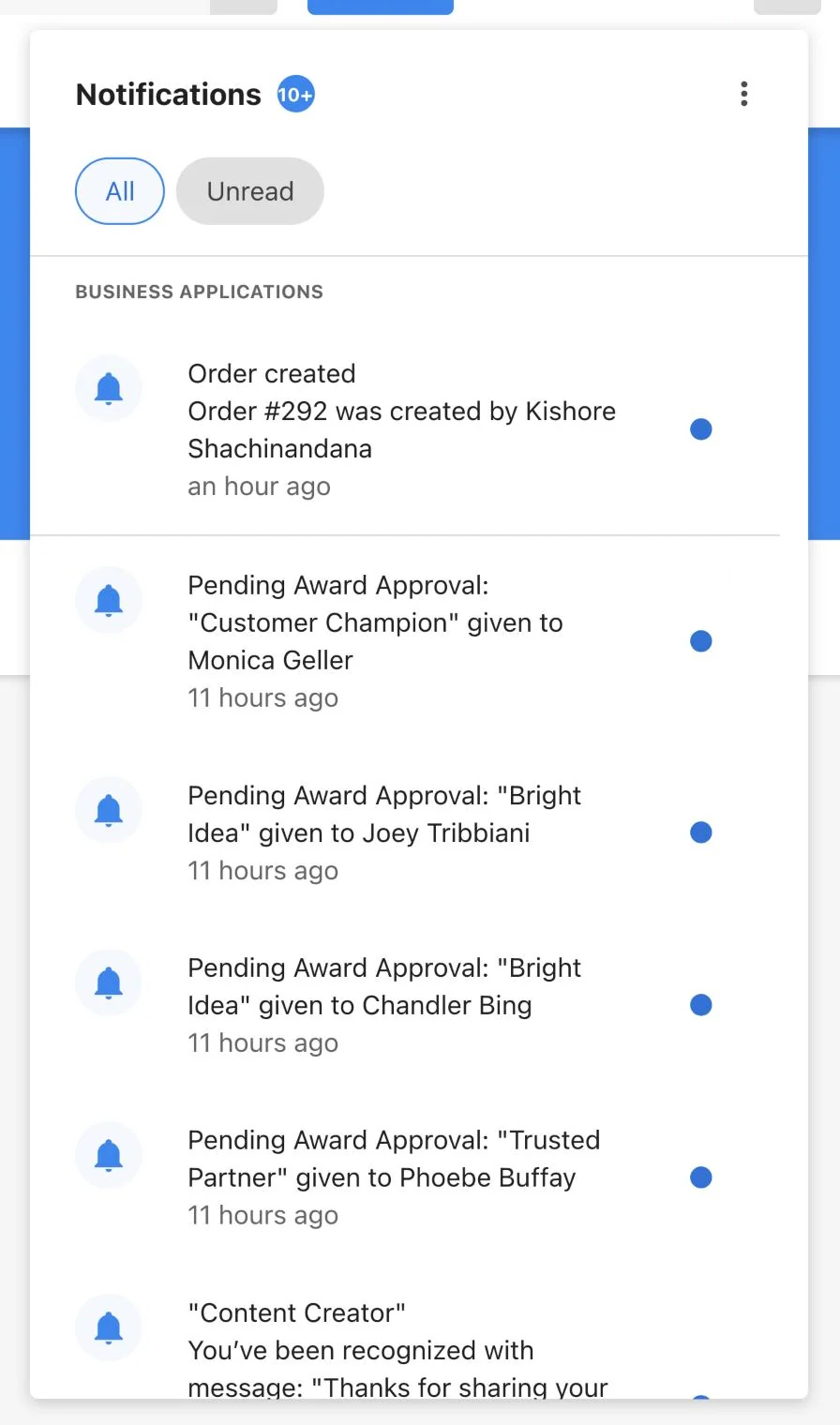
Notifications appear in the LumApps bell menu. Selecting one opens the details in a window over the current page.
| Notification | What opens |
|---|---|
| "Alex Kim recognized you: Thank You" | The award, with the giver's message. |
| An approval request | The award with its message and nomination answers, and Approve and Decline buttons. |
| "Order created" or a status change | The order, with its items and total. |
| A manager summary | My Team Recognition Updates, with Received by my team and Given by my team tabs. |
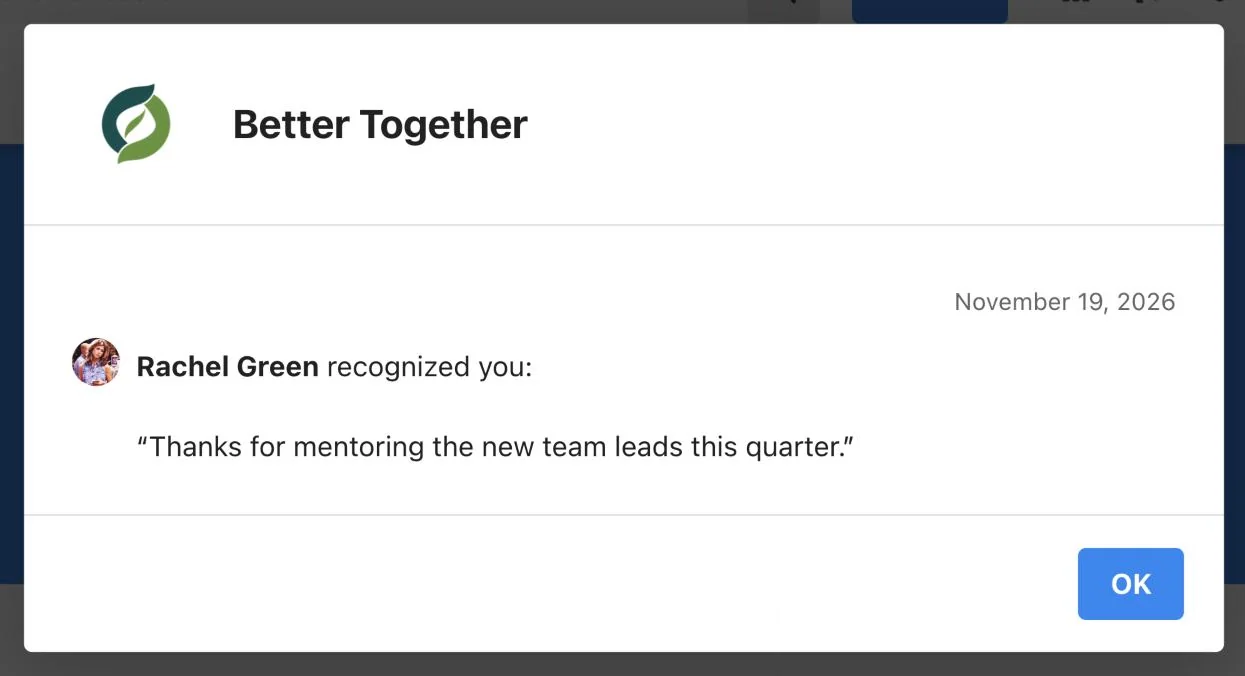
If an award was deleted after the notification was sent, the window says the award is no longer valid.
Change the wording
Every notification text can be reworded or translated in Translations, under the LumApps Notifications and Modal Notifications categories.
Troubleshooting
| Symptom | Cause | Fix |
|---|---|---|
| Nobody gets notifications | Send LumApps notifications is off, or the connector isn't working (yellow banner in the admin panel). | Check Turn notifications on and the connector. |
| Selecting a notification opens nothing | The site code isn't installed on that site. | Install it. |
| A manager gets nothing | Manager notifications are off, the award type or program isn't selected, or the employee's profile doesn't name them as manager. | Check Set up manager notifications and the profile's manager field. |
| A giver isn't told about a decision | Giver notifications are off in the program. | See Set approval reminders and giver notifications. |