
Appearance
Awards Stream
The Awards Stream is the public recognition feed of your intranet. Every published award appears there, newest first: awards from colleagues, executive awards, birthdays, work anniversaries, newcomer welcomes, automated awards and imported awards. It makes recognition visible, which is the point of a recognition program.
At a glance
Nothing needs to be set up in the admin panel: the stream shows whatever awards are published.
1. Put a stream on a page
- Open a LumApps page in edit mode and add the Employee Recognition by Linkers widget.
- In Select your widget, choose Awards Stream. It's the default type.
- In Select view, choose a layout:
| View | Looks like | Best for | Paging setting |
|---|---|---|---|
| List (default) | A feed of posts | Home pages | Awards per load (default 5) |
| Grid | A wall of trophy cards | A full-width "wall of fame" | Rows per load (default 2) |
| Carousel | One row of cards with arrows | A spotlight strip | Maximum pages (default 5) |
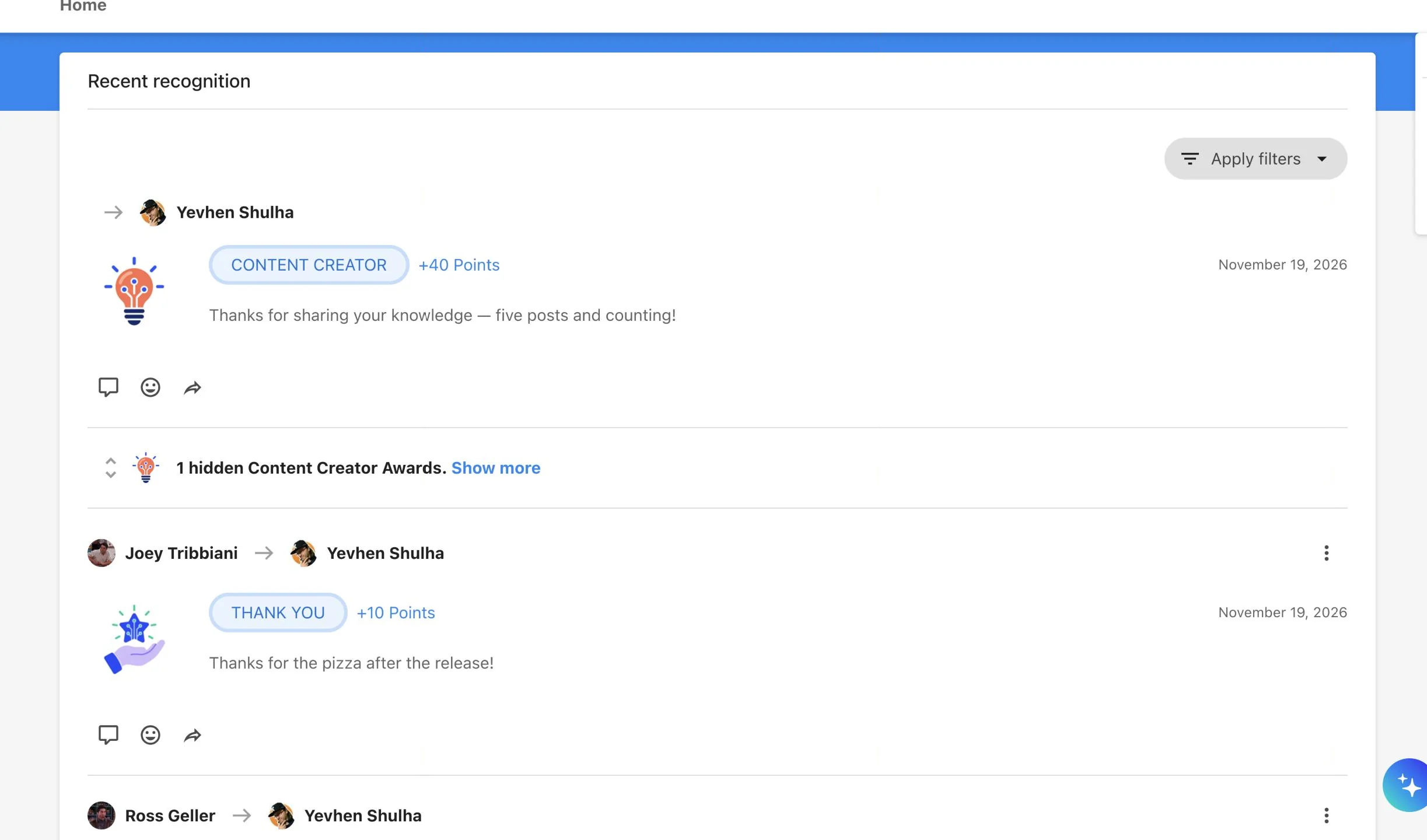
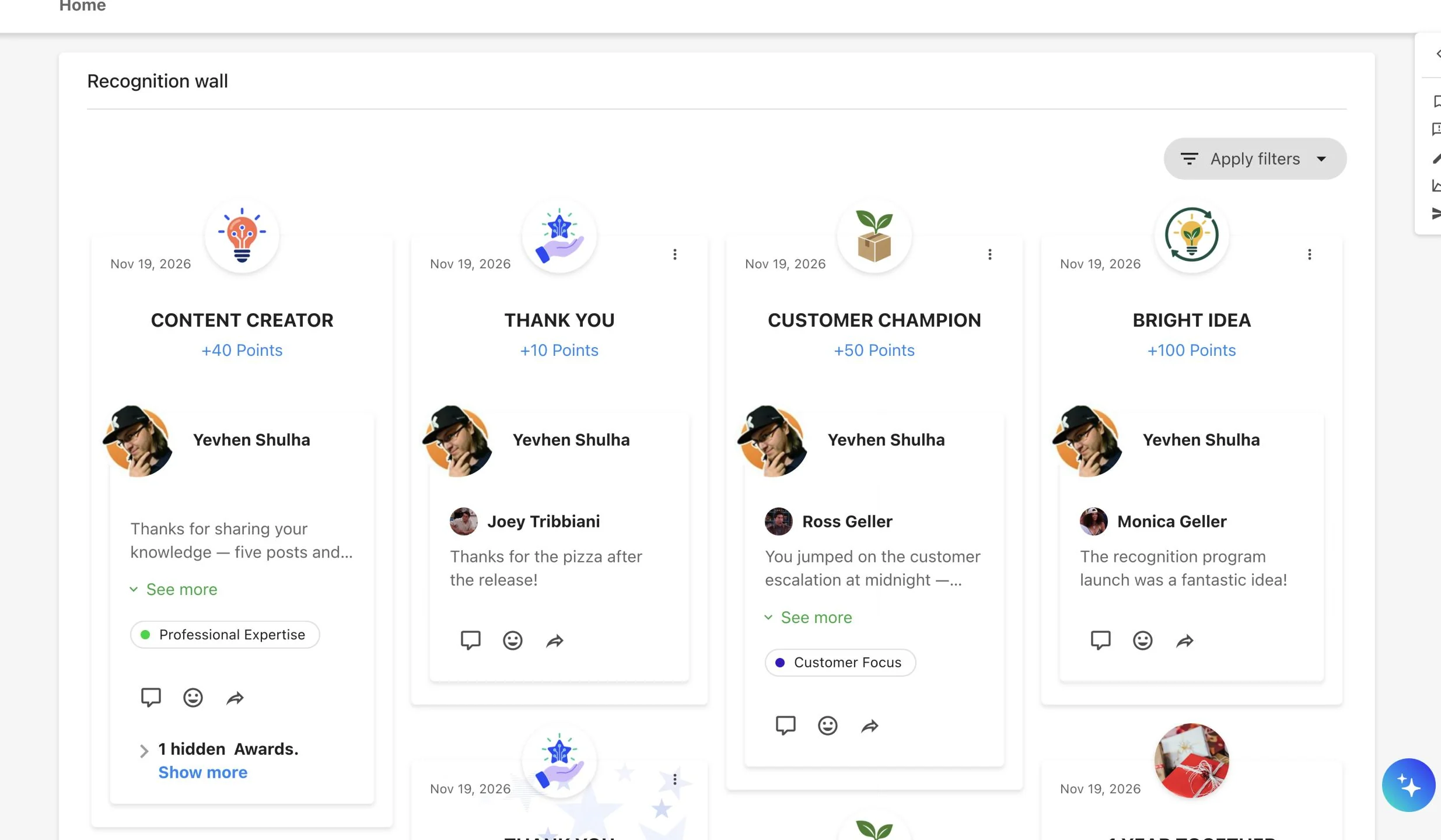
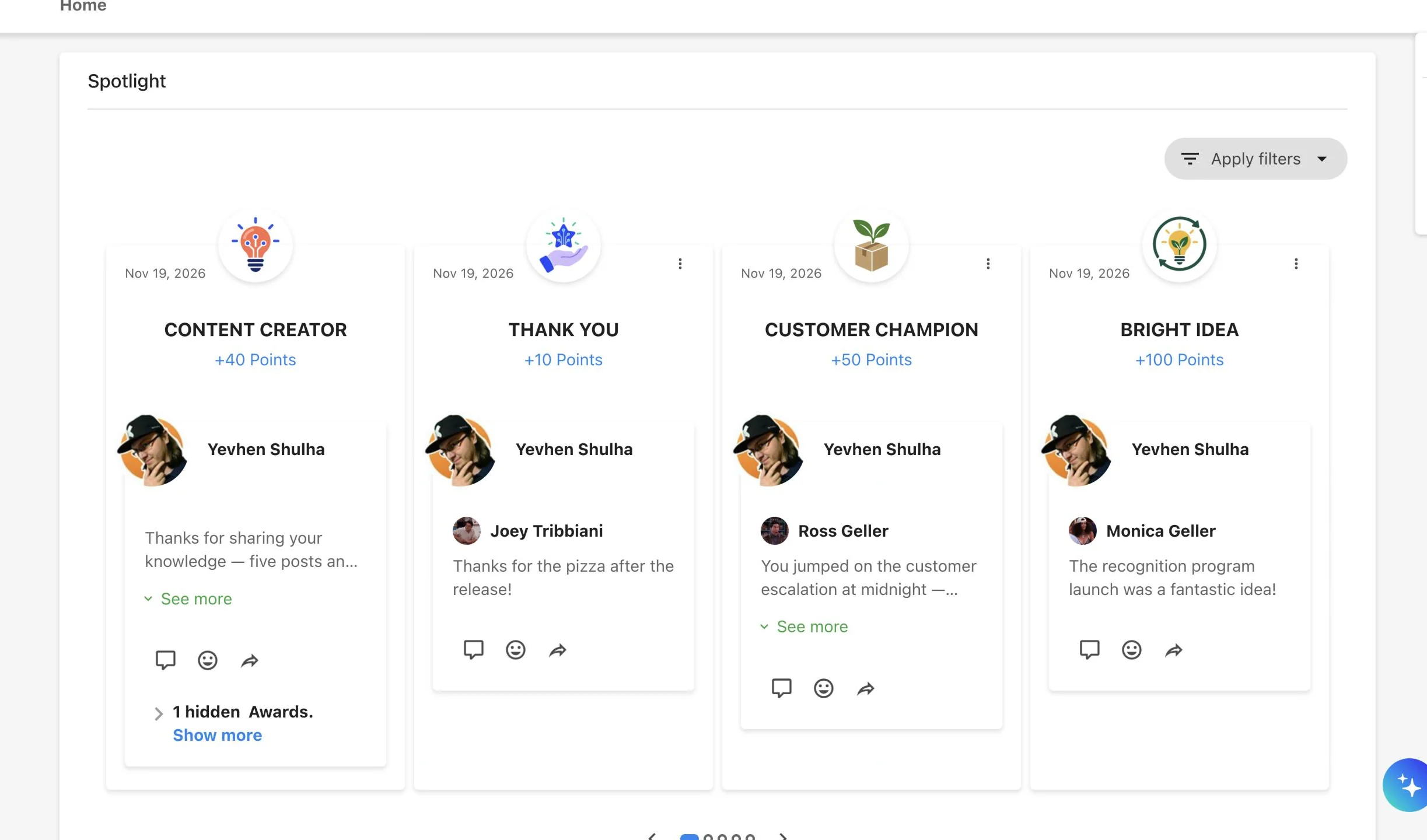
2. Choose what it covers
Scope and reader filters
Each filter has two settings: a default value, which fixes what the stream shows, and a Show … filter option switch, which decides whether readers get that filter. Readers can only narrow what you allow; a stream fixed to one program never shows another program's awards.
| Setting | Use it to |
|---|---|
| Programs or "Awards" filter default value | Show only the programs or awards you choose. Empty means all. |
| "Award by" filter default value | Show awards given by one person. Current user makes an "awards I gave" stream. |
| "Award to" filter default value | Show awards received by one person. Current user makes an "awards I received" stream. |
| "Groups" filter default value | Show only awards given to or by members of chosen LumApps groups, for a team or department page. |
| Filter by date | The default period. |
| Show "Award" / "Award by" / "Award to" filter option, Show filter by date option | Give readers each filter. Turn all four off to remove the Apply filters button. |
What each award shows
| Setting | Default | Effect |
|---|---|---|
| Uppercase Award name, Bold Award name | On | How award names are styled. |
| Show messages | On | Off hides the message, for a compact ticker. |
| Show skills | Off | Shows the skills detected in each message. |
| Show reactions | On | Off removes emoji reactions. |
| Show comments | On | Off removes comments. |
| Sharing to social networks | All networks | Remove networks to restrict sharing. Remove all to hide the share button. |
Wording and style
- Select a recognition program for branding and translation: the wording and default colors. See Branding and wording.
- Primary color: award names, points and links. Secondary color: decorations. Card background color.
- Card background URL: image addresses. In grid and carousel views, each card gets one at random as its header, for example seasonal or company-value artwork.
Example setups
| Goal | Settings |
|---|---|
| Home page feed | List, 3 awards per load |
| Wall of fame | Grid, Show skills on, card background images |
| Program showcase | List, fixed to one program, all filter options off, comments and reactions off, no networks, brand colors |
| "Recognition I received" on a personal page | "Award to" set to Current user |
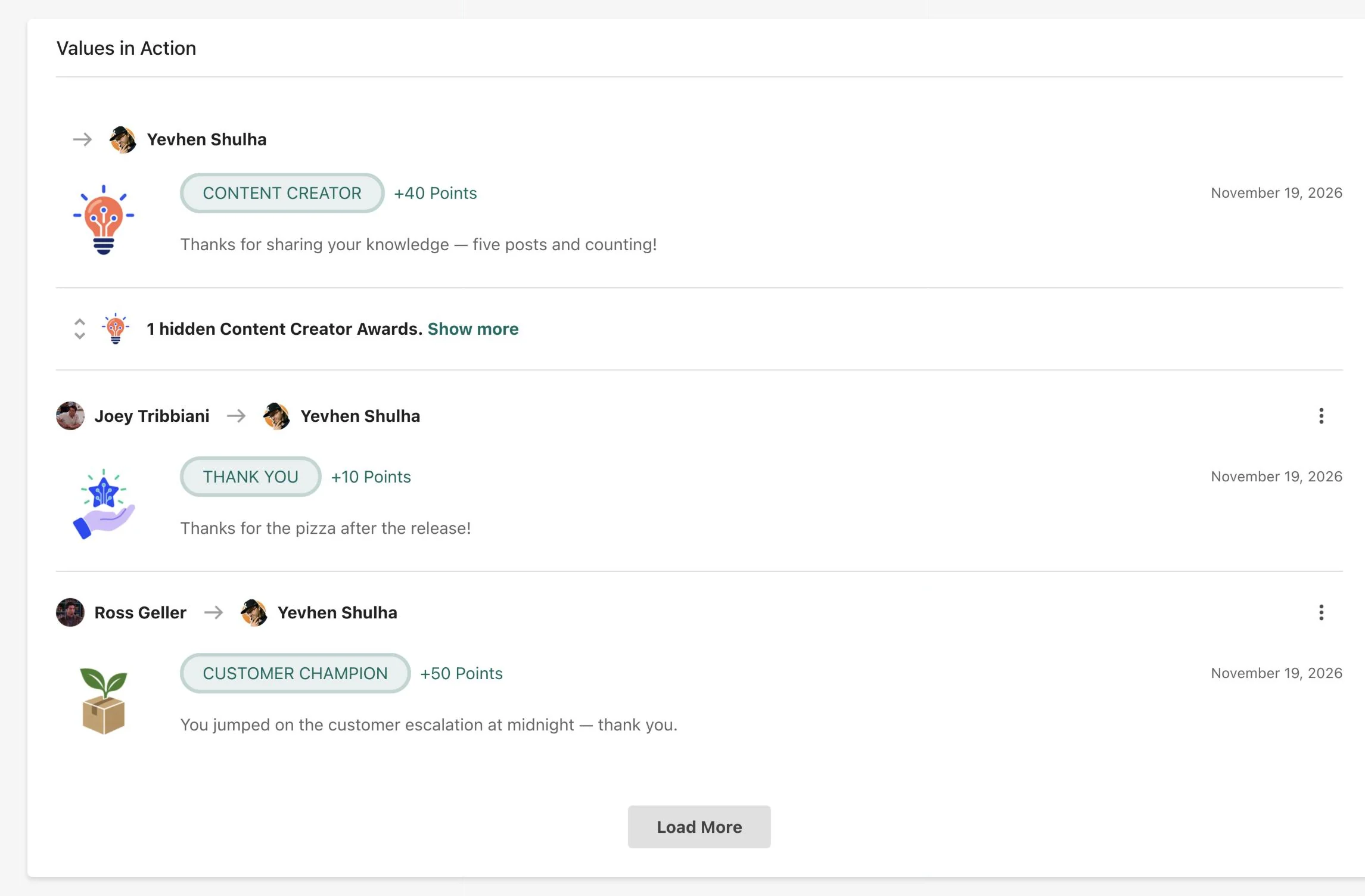
3. How employees use the stream
Read
Each award shows:
- the giver, an arrow and the receiver; selecting a name opens the profile
- the award's name and value in points
- when it was given
- the message, with Show more for long ones
- a preview of the article, when the award was given to its author
Awards given automatically, such as birthday awards, show a greeting like Happy Birthday! or Congratulations in place of a giver. An award given to a group appears once, with the first names and Show more to see and search all receivers.
Filter
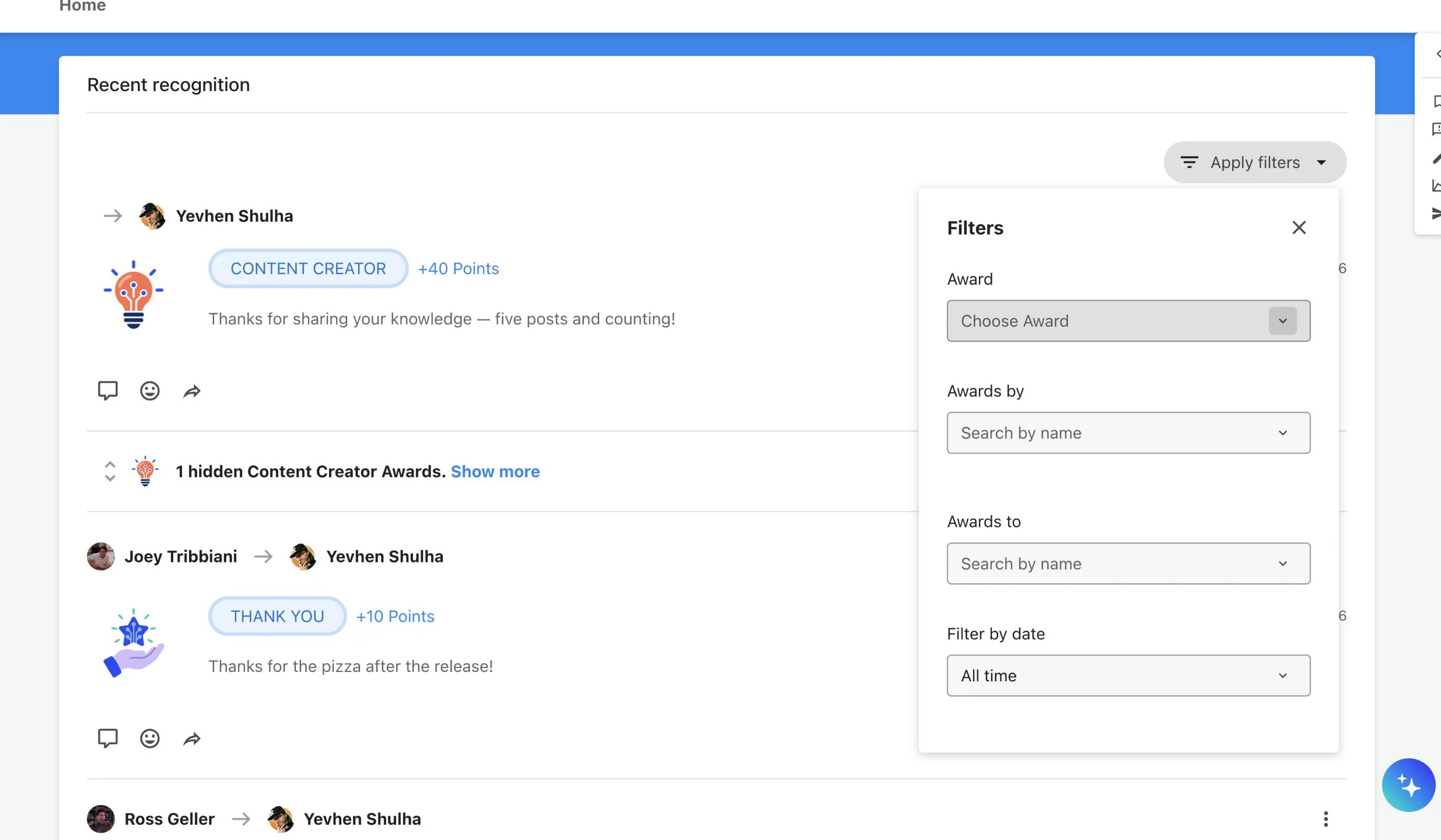
Apply filters opens the filters you allowed: Award (a whole program or one award), Awards by, Awards to and Filter by date. The button then reads Applied filters with a count.
Comment and react
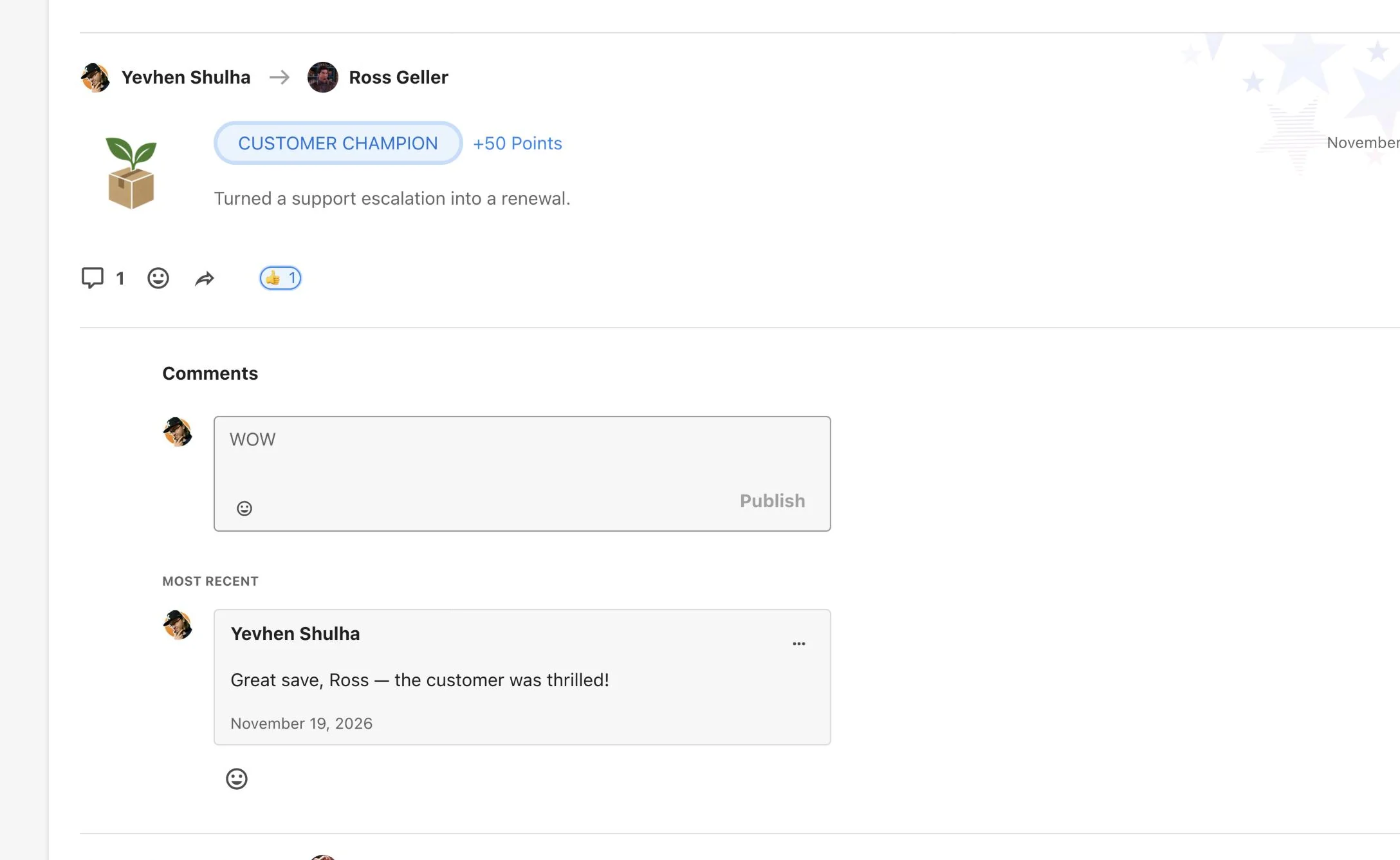
- Comment: the speech-bubble icon opens comments. Authors can edit or delete their own comments.
- React: the smiley icon opens the emoji picker. View details shows who reacted.
Share outside work
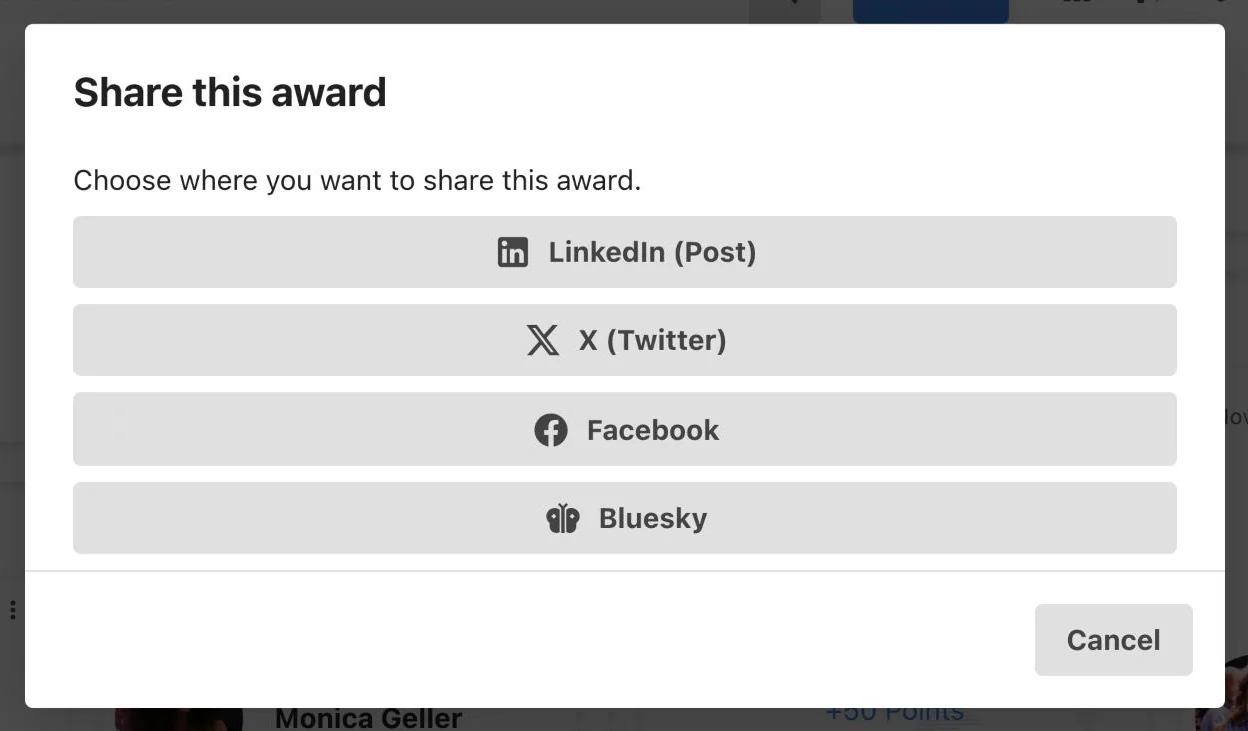
The share icon offers the networks you allowed: LinkedIn, X, Facebook and Bluesky. After the reader selects Continue, a new tab opens with the post ready to publish.
The award's receiver also gets LinkedIn (Certificate), which adds the award to their LinkedIn profile as a certification.
Shared awards are public
Anyone with the link can see the award, its message and the names of the people involved, without access to your intranet. If that's not acceptable in your organization, remove every network in Sharing to social networks.
Edit or delete an award
The More actions (⋮) menu on an award appears only for people allowed to use it, and only on awards given by a person:
| Action | Who | What happens |
|---|---|---|
| Edit | The giver, Global Managers, and the program's managers | Changes the message. Skills are detected again from the new text. |
| Delete | Global Administrators and Global Managers | Permanent. Rankings, scores, award counts and coin balances are recalculated. |

What decides which awards appear
| Situation | Result |
|---|---|
| The award's program requires approval | The award appears only after it's approved. Declined awards never appear. |
| The giver is an executive | The award is highlighted as an executive award. |
| An award is imported | It appears like any other award. |
| An award's title or icon is changed | Cards show the current title and icon; points stay as they were when given. |
| Nothing was ever awarded in the stream's scope | No Awards yet |
| The reader's filters match nothing | No results found |