
Appearance
Marketplaces
A marketplace is a rewards store where employees exchange the coins they earn from awards for something real: merchandise, experiences, extra time off, wellbeing perks or gift cards.
You can run several marketplaces, for example one per country with its own delivery options, one for a specific program, or a separate gift-card store.
The marketplace at a glance
- Turn on the marketplace, so awards earn coins
- Create a marketplace: name, managers, buyers, checkout questions
- Report and check balances
Before you start
- Turn on the marketplace in Points and coins.
- You need to be a Global Administrator, a Global Manager or a Marketplace Global Manager. Marketplace managers can only edit the marketplaces they manage.
Create a marketplace
Go to Global Management → Marketplaces and select New marketplace.
General information: enter the Name and Description buyers will see.
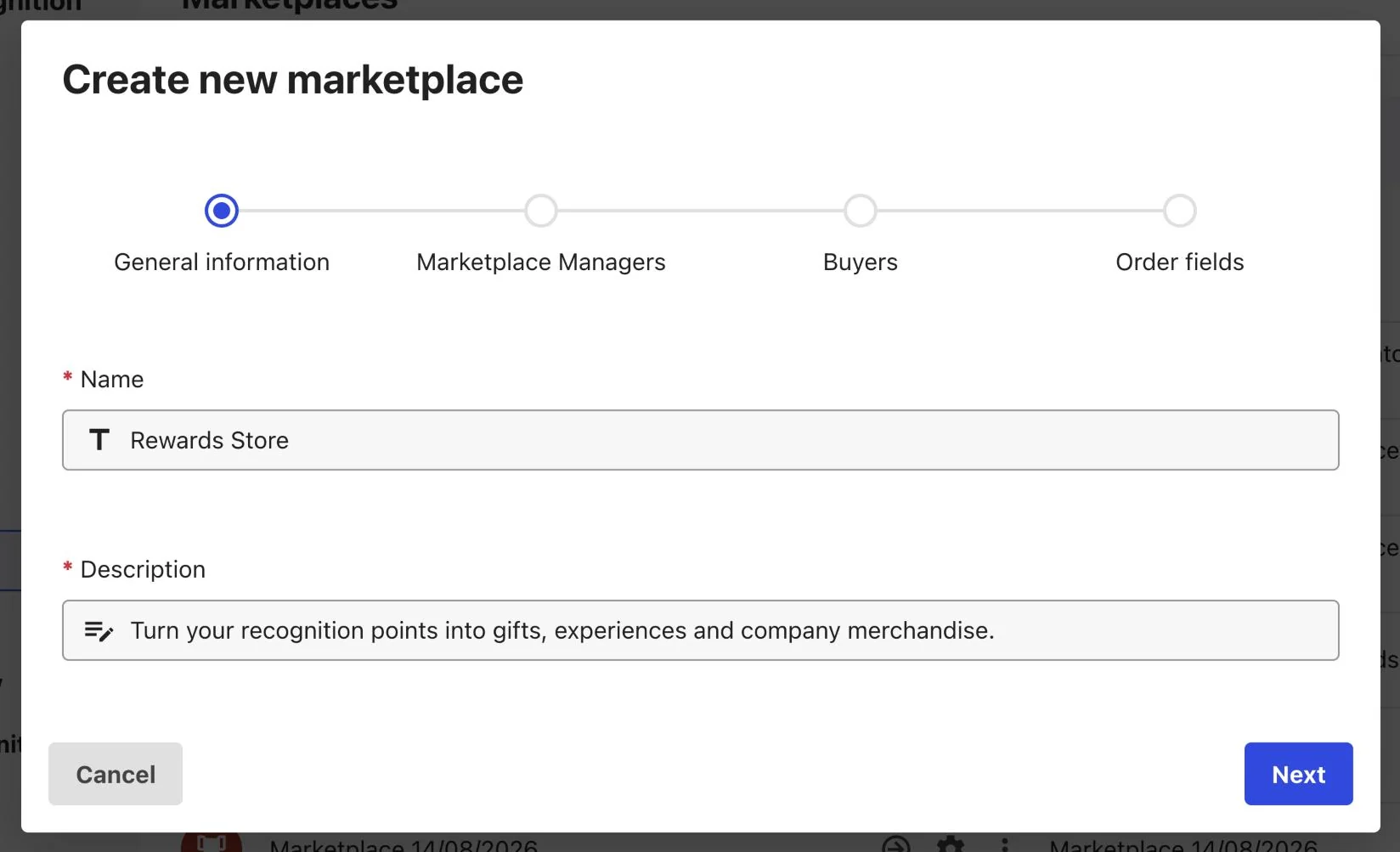
Marketplace Managers: optionally add the people or groups who will process orders and look after items and categories. In the admin panel, they see only the Marketplace menu.
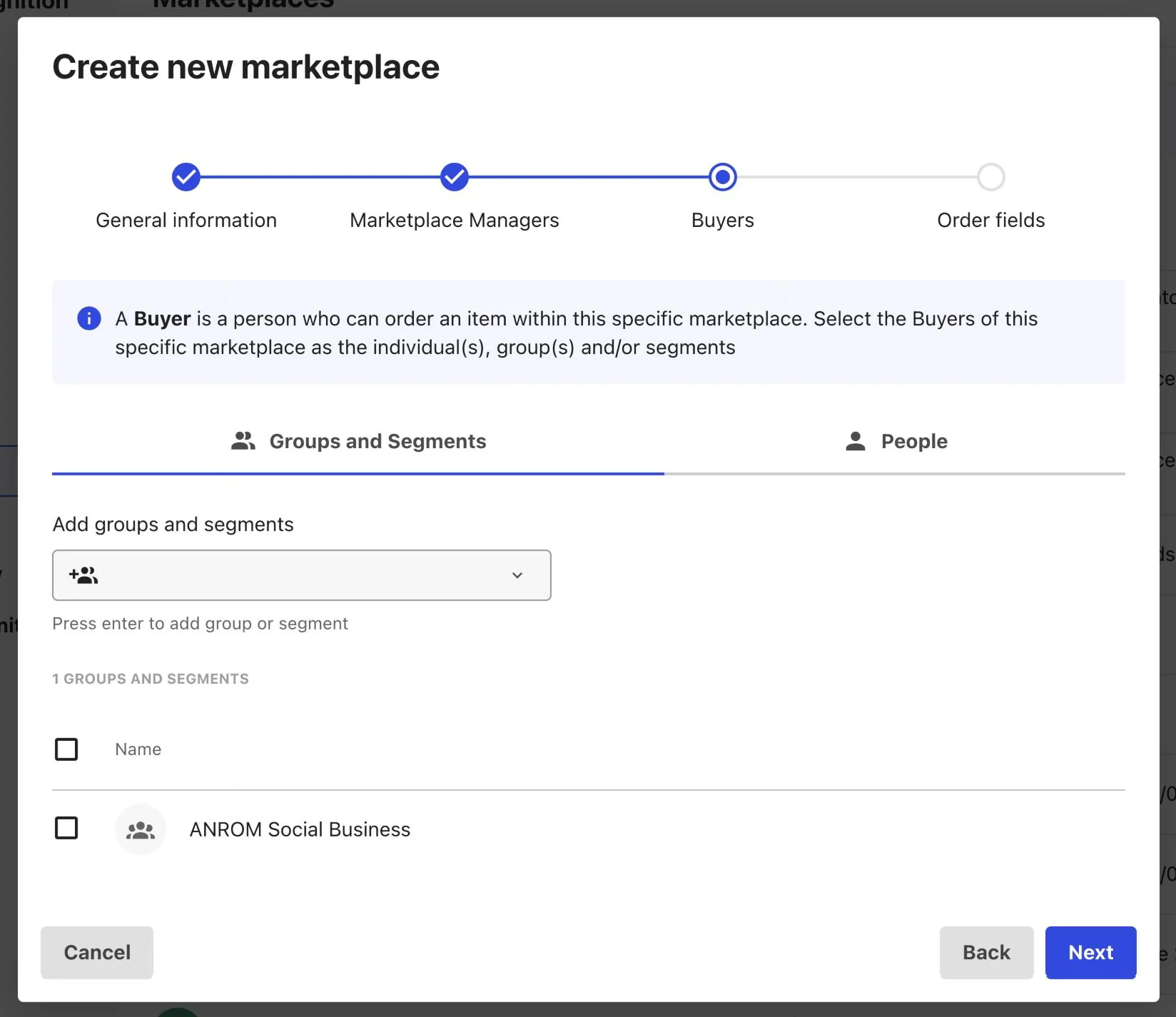
Buyers: add the people, groups or segments who may order. You need at least one.
Order fields: optionally add questions to ask at checkout. See Ask for details at checkout.
Select Publish marketplace.
Only buyers can order
Anyone who isn't a buyer sees You don't have access to the Marketplace. in the Marketplace widget.
Ask for details at checkout
Order fields collect information you need to deliver an order, such as a delivery address, a cost center or a T-shirt size.
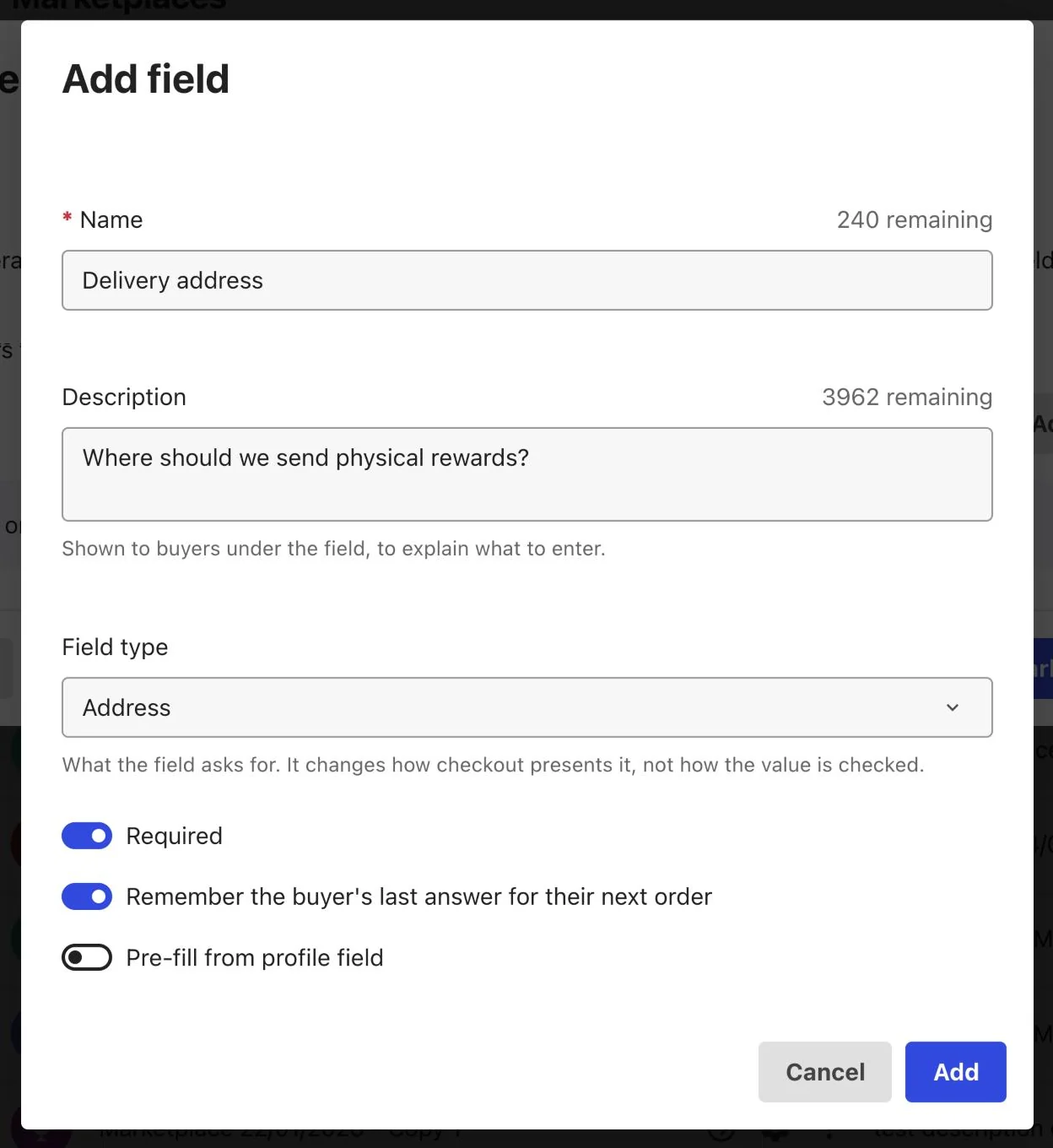
- In the Order fields step or tab, select Add field.
- Enter a Name, such as Delivery address, and optionally a Description shown under the field.
- Choose a Field type: Custom, Email, Phone, Recipient, Address, Street, City, Postal code or Country. The type changes how checkout presents the field.
- For a Custom field, choose a Value format:
- Text, Number or Date
- List of options: enter one option per line.
- Regular expression: enter a Pattern that answers must match.
- Optionally:
- Turn on Pre-fill from profile field and choose a LumApps profile field, such as office location. Choose whether Buyers can change the pre-filled value.
- Select Required.
- Select Remember the buyer's last answer for their next order.
- Save the field.
Drag fields to change their order. Answers appear with each order in Orders and in the buyer's My Marketplace Orders.
TIP
Once buyers have answered a field, you can still edit it but you can't remove it.
Manage existing marketplaces
On Global Management → Marketplaces, each marketplace has these actions:
- View (arrow): opens the marketplace's orders in the Marketplace section of the menu.
- Edit settings (gear): change the general information, managers, buyers and order fields, then select Save changes.
- More (⋮) → Duplicate: create a copy, for example to start a store for another country.
Switch between marketplaces
The Marketplace section of the admin panel menu works on one marketplace at a time. Use the marketplace picker at the top of that section to choose which one.