
Appearance
Import awards
Awards Import gives many awards at once from an Excel file. Use it to:
- migrate your recognition history from a previous tool, so leaderboards and profiles start with real data
- recognize a team after an event or launch, each person with a personal message
- enter nominations collected offline during a campaign
Every row becomes a normal award, exactly as if the giver had given it: the receiver gets the points (and coins), the giver's allowance is used, notifications are sent, and the award appears in the Awards Stream, leaderboards and analytics.
At a glance
- Import it, choosing whether to skip approval
- Receivers see their awards
Before you start
- You need to be a Global Manager.
- Find the Award ID of each award you want to give. Open the award in its program and copy the ID at the top of the form (see Awards and giving).
- Each giver must be a Giver in the award's program, and each receiver a Receiver.
Prepare the file
Select Download sample import file in the import dialog to start from a template. Only the first sheet is read. Each column header must start with its column prefix, for example Column 5..
| Column | Header starts with | Content |
|---|---|---|
| A | Column 1. | Giver: LumApps ID or email (optional) |
| B | Column 2. | Receiver: LumApps ID or email of one person |
| C | Column 3. | Receiving LumApps group ID |
| D | Column 4. | Receiving segment or group name |
| E | Column 5. | Award ID (required) |
| F | Column 6. | Award name (optional, for your reference) |
| G | Column 7. | Message (optional) |
| H | Column 8. | Number of points (optional, whole number up to 1,000,000). Replaces the award's own value. |
Fill in exactly one receiver column (B, C or D) per row.
Keep the column prefixes
If the headers don't start with Column 1., Column 2. and so on, the file can't be read and you only see a general error.
Import the file
Go to Global Management → Awards Import and select New Import Task.
Enter an Import Task Name and, optionally, a description.
Select Add file and choose your
.xlsxfile.Decide what happens with approvals. If the award's program requires approval:
- leave Give awards immediately by skipping the approval flow off to send the awards to the approvers
- turn it on to give them straight away
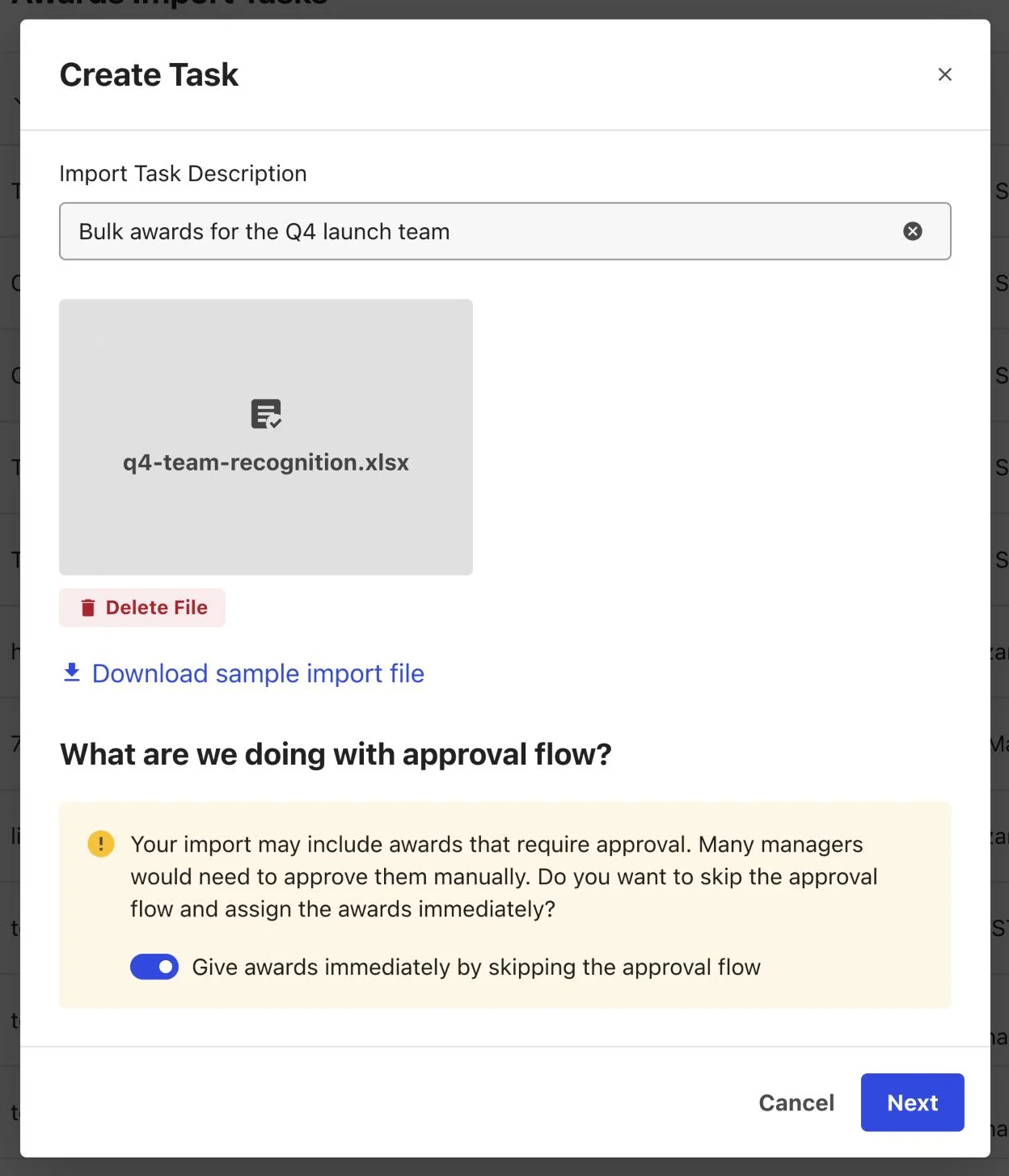
Select Next. A preview shows every row. Rows with errors are flagged.
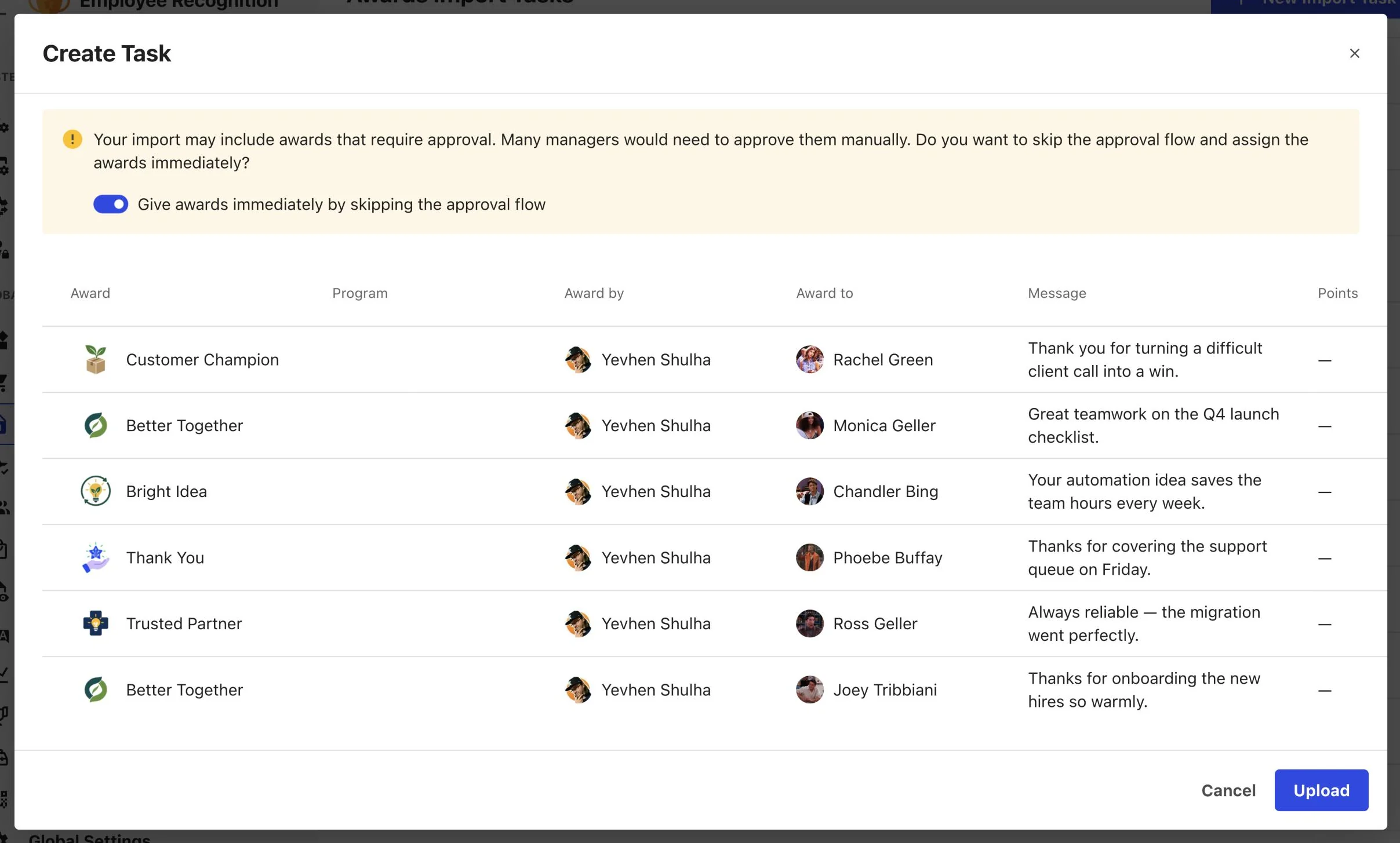
Select Upload. The task is created as Pending and processed in the background. A small file takes about a minute.
The list doesn't refresh by itself
Leave the page and come back to see the task's new status.
Check the result
The task list shows each import with its creator, date and status (Preview, Pending, Progress, Complete, Error or Failed). Select the eye icon to see every row and whether it succeeded.
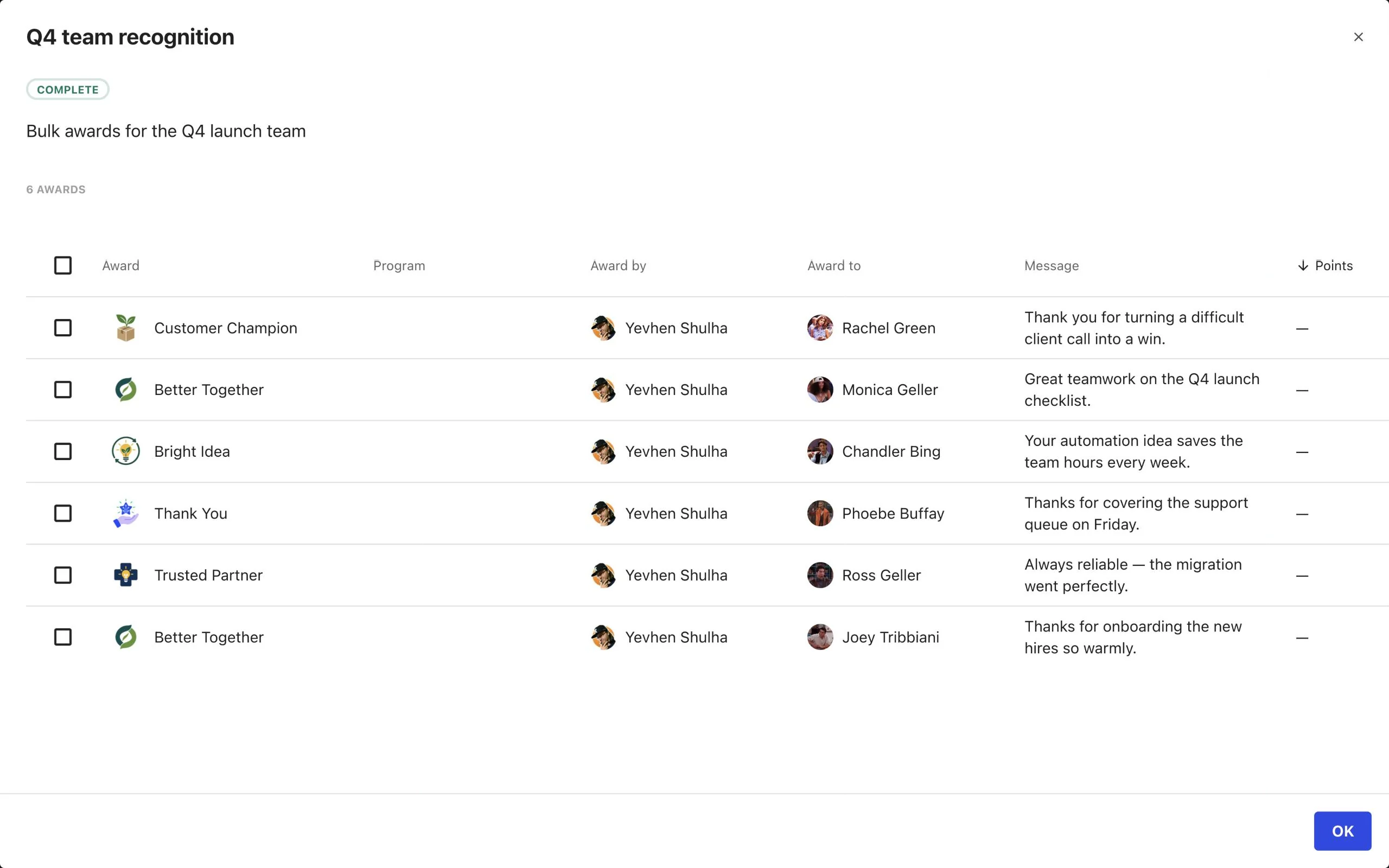
Common reasons a row fails:
- The giver or receiver isn't found, or isn't a Giver or Receiver in the award's program.
- The Award ID is wrong, or the award is archived.
- No receiver, or more than one receiver column, is filled in.
- The message is too long, or the points are invalid.
Undo an import
- To remove some awards, open the task, tick the rows and select the bin icon.
- To remove all awards from an import, select ⋮ → Delete on the task and confirm.
Deleting a task deletes its awards
Receivers lose those awards and their points, and the awards disappear from streams and analytics.