
Appearance
Automated awards
Some contributions deserve recognition but rarely get noticed: the colleague who writes their tenth helpful article, someone who finally completes their profile, or the person who finishes a learning path. Automated awards turn such goals into awards that are given automatically.
An automated award is a normal award (title, description, icon, points, expiration, translations) with:
- one criterion: the goal to reach
- an Awards Stream message: the text shown with the award, since no colleague writes one
At a glance
- Create an automated award and choose its goal
No widget is needed: the awards show up wherever awards are shown.
Before you start
- You need to be a Global Manager or a manager of the program.
- Only the program's participants can receive the award. See Participants.
- Automated awards watch LumApps activity, which needs a working LumApps connection.
- The learning and social advocacy criteria need those LumApps modules to be enabled on your platform.
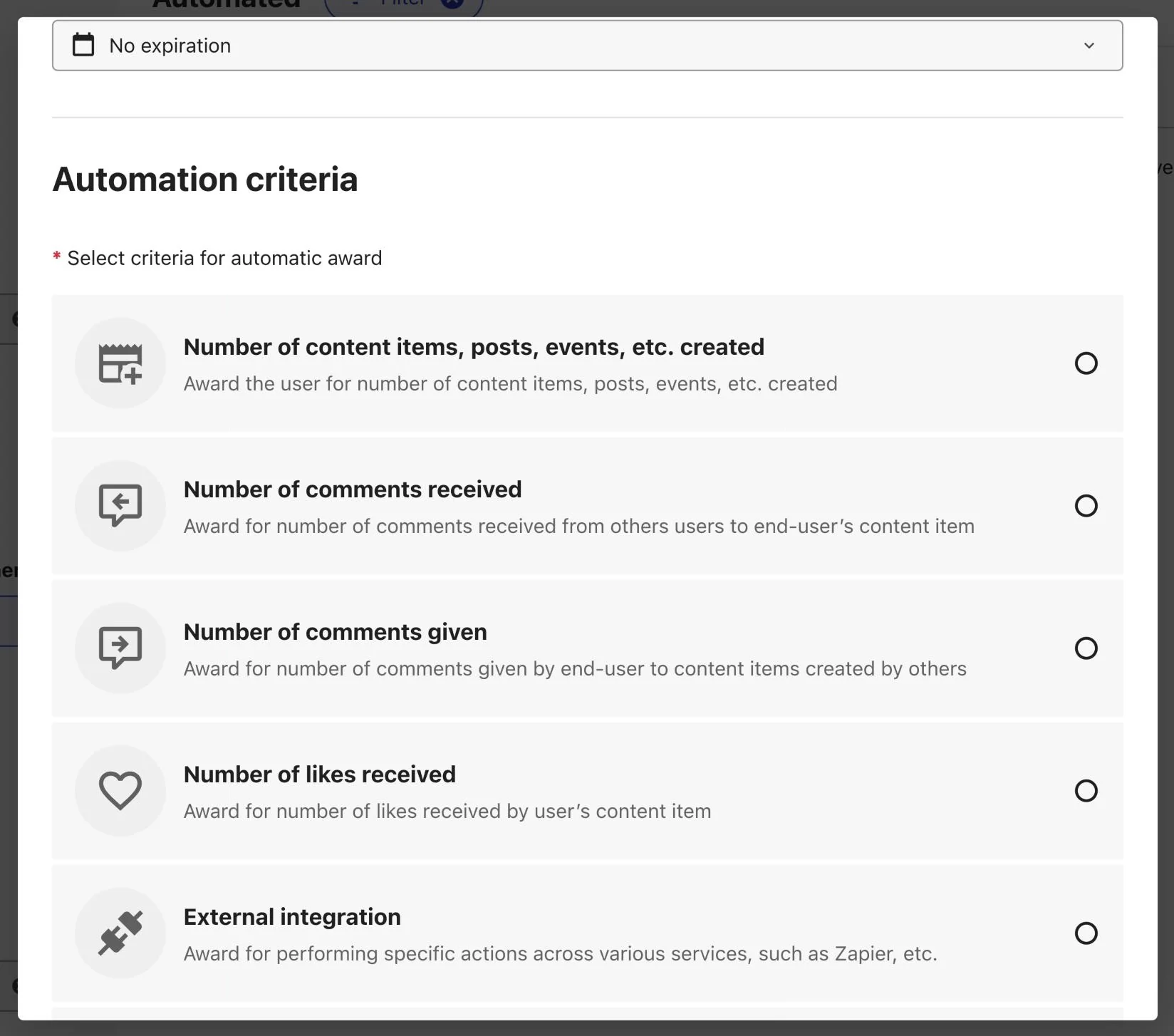
Available criteria
| Criterion | The award is given when someone… |
|---|---|
| Number of content items, posts, events, etc. created | publishes a target number of content items or posts |
| Number of comments received | receives a target number of comments on their content |
| Number of comments given | writes a target number of comments on others' content |
| Number of likes received | receives a target number of likes on their content |
| Completed profile fields | has filled in all the profile fields you choose |
| Completed LumApps Learning resources | completes the learning resources you choose, optionally within a date range |
| Number of Social Advocacy shares | shares content a target number of times through Social Advocacy, optionally within a date range |
| External integration | is named by another system, such as a CRM or ticketing tool, through Zapier or a web address (see below) |
Create an automated award
- Choose the program in Program Management → Select a program, then go to Awards → Automated and select New.
- Fill in the award fields as for a peer-to-peer award, plus the Awards Stream message.
- Under Automation criteria, choose one criterion and enter its settings, for example a Target number.
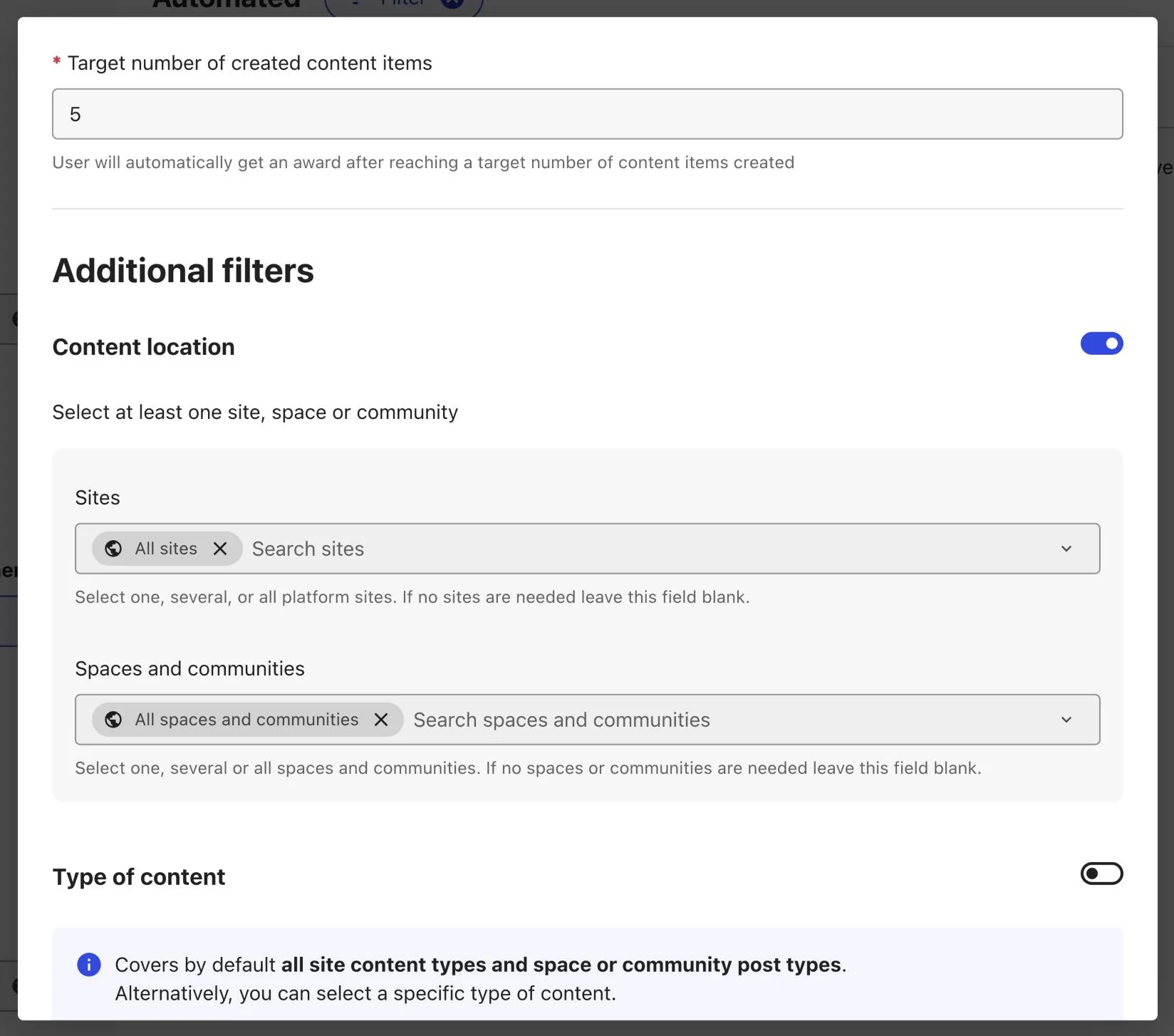
- For content-based criteria, optionally narrow the count with Additional filters (see below).
- Leave Activate award on to start giving the award, or turn it off to save it as a draft.
- Select Save.
Activating can give many awards at once
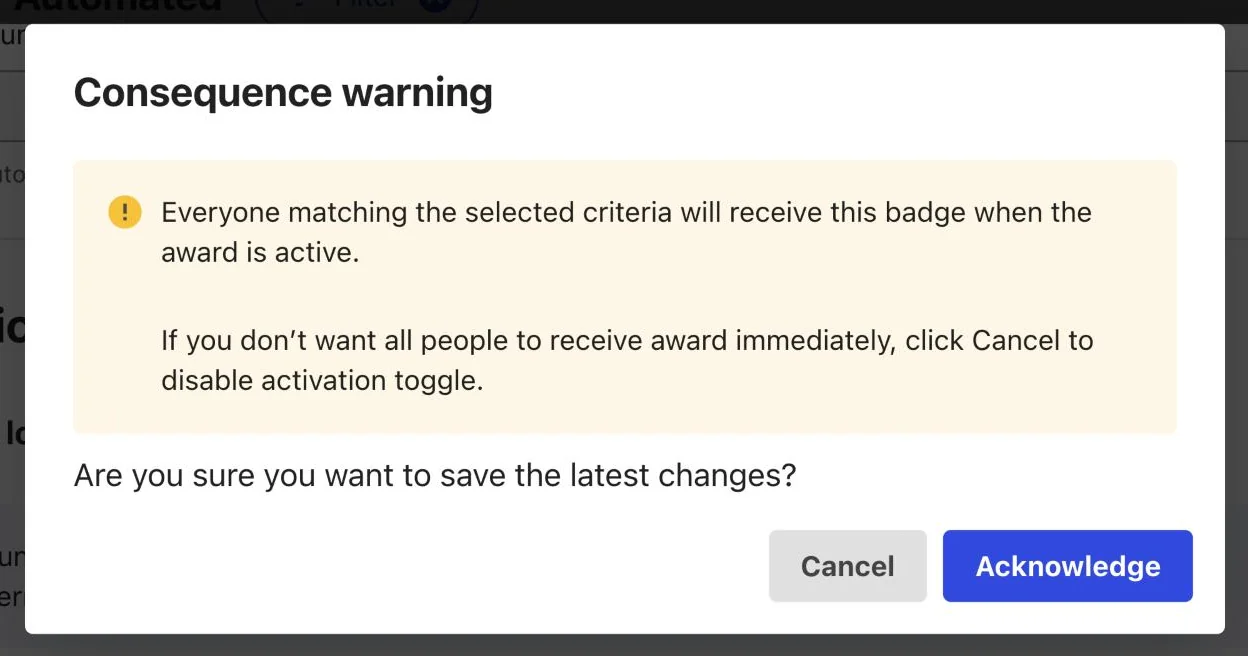
When an award is activated, everyone in the program who already meets the goal receives it right away. You are asked to confirm before saving. Select Cancel and turn off Activate award if you aren't ready.
After that, the award is given as soon as someone reaches the goal. If you change the criteria of an award that has already been given, the new criteria apply only from then on.
Narrow the count with filters
For criteria based on content, comments and likes, you can count only some activity:
| Filter | When off | When on |
|---|---|---|
| Content location | Counts activity in all sites, spaces and communities. | Choose Sites and/or Spaces and communities. |
| Type of content | Counts all site content types and space or community post types. | Choose content types, such as News, Page, Post, Question, Idea, Event or Article. |
| Time range | Counts all time. | Choose a start and end date. |
Run campaigns
Combine filters to run time-limited campaigns, such as "5 posts in the Innovation community during Q4".
Connect another system (external integration)
With the External integration criterion, another tool can give the award to a specific person, for example when a deal is closed in your CRM, a ticket is solved or a course is passed in an external learning system.
- Choose External integration and the Provider (Zapier).
- Save the award. Your webhook URL appears.
- Select Copy and paste the address into your Zapier zap or other tool.
Keep the address private. If it leaks, select Regenerate URL: the old address stops working and you need to update your tool with the new one.
What employees see
When someone reaches the goal:
- They get a notification: "You've been recognized with message: …", with your Awards Stream message.
- The award appears in the Awards Stream with no giver. When many people receive the same award at once, for example right after activation, they're grouped in one card.
- The award is added to their awards in My Recognition and on their profile.
- Its points count as score on leaderboards, and as coins when the marketplace is on. Automated awards cost nobody any Points to Give.
Employees can't see the criteria of an automated award in advance, except in the award's description. Write the goal there, for example "Given when you publish 10 posts", so people know how to earn it: the award shows grayed out in their trophy case until they do.
Troubleshooting
| Symptom | Cause | Fix |
|---|---|---|
| Nobody receives the award | Activate award is off, or the connector isn't working. | Turn the award on. Check for the yellow connector banner in the admin panel; see Connect LumApps and Slack. |
| Someone who reached the goal didn't get it | They aren't a participant of the program, or their activity is outside the award's filters. | Check Participants and the Additional filters. |
| Many awards appeared at once | The award was activated and people already met the goal. | This is expected. To undo, delete the awards in the Awards Stream. |
| Learning or Social Advocacy criteria give nothing | Those LumApps modules aren't enabled on your platform. | Use another criterion, or enable the module. |