
Appearance
Branding and wording
Every organization has its own word for recognition: Kudos, Bravos, Shout-outs, Thanks. Employee Recognition lets you use that word everywhere, change the icon on the Give Award button, name the marketplace currency, and reword any text people see.
There are two tools, each available for the whole organization and for a single program:
| Tool | What it changes | Organization-wide | One program |
|---|---|---|---|
| Branding | The word for "Award/Awards", the Give Award icon and, organization-wide only, the name of the currency | Global Management → Global Branding | Program Management → Branding |
| Translations | Any individual text: labels, buttons, headings, empty states, notifications | Global Management → Global Translations | Program Management → Translations |
At a glance
- Reword individual texts (optional)
Which setting wins
For each text, the most specific setting applies:
- The program's setting, for that language
- The organization-wide setting, for that language
- The built-in default (Award/Awards, Coin/Coins and the standard texts)
Which of these a widget uses depends on its own setting: see Choose which branding a widget uses.
Settings are per language
Branding and translations are saved for one language at a time. Repeat your changes for each language your employees use.
Rename awards and set the icon
- Open Global Branding for the whole organization, or Branding inside a program.
- Choose the Language.
- Turn on Award branding and enter the Singular form and Plural form, for example Kudo and Kudos.
- To change the icon, turn on Icon branding and enter the Icon URL of a transparent SVG or PNG image.
- Check the Preview of the button, then select Save.
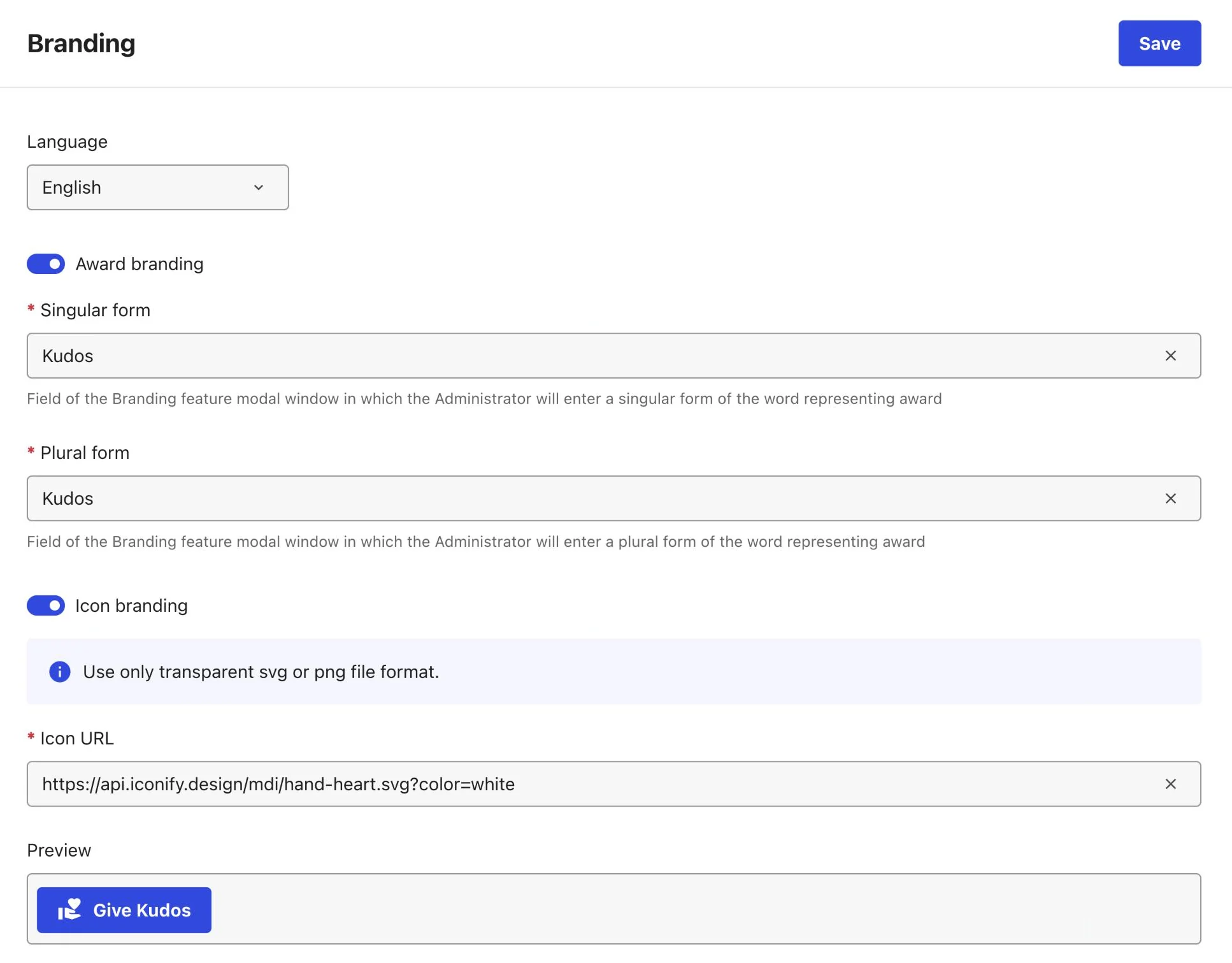
The new word replaces "Award" and "Awards" throughout widgets, the Give Award window, notifications and the My Recognition popup. For example, Give Award becomes Give Kudo.
Turning Award branding off returns to the default words.
Rename the currency
The marketplace currency can only be named for the whole organization.
- Go to Global Management → Global Branding.
- Turn on Coin branding and enter the Singular form and Plural form, for example Star and Stars.
- Select Save.
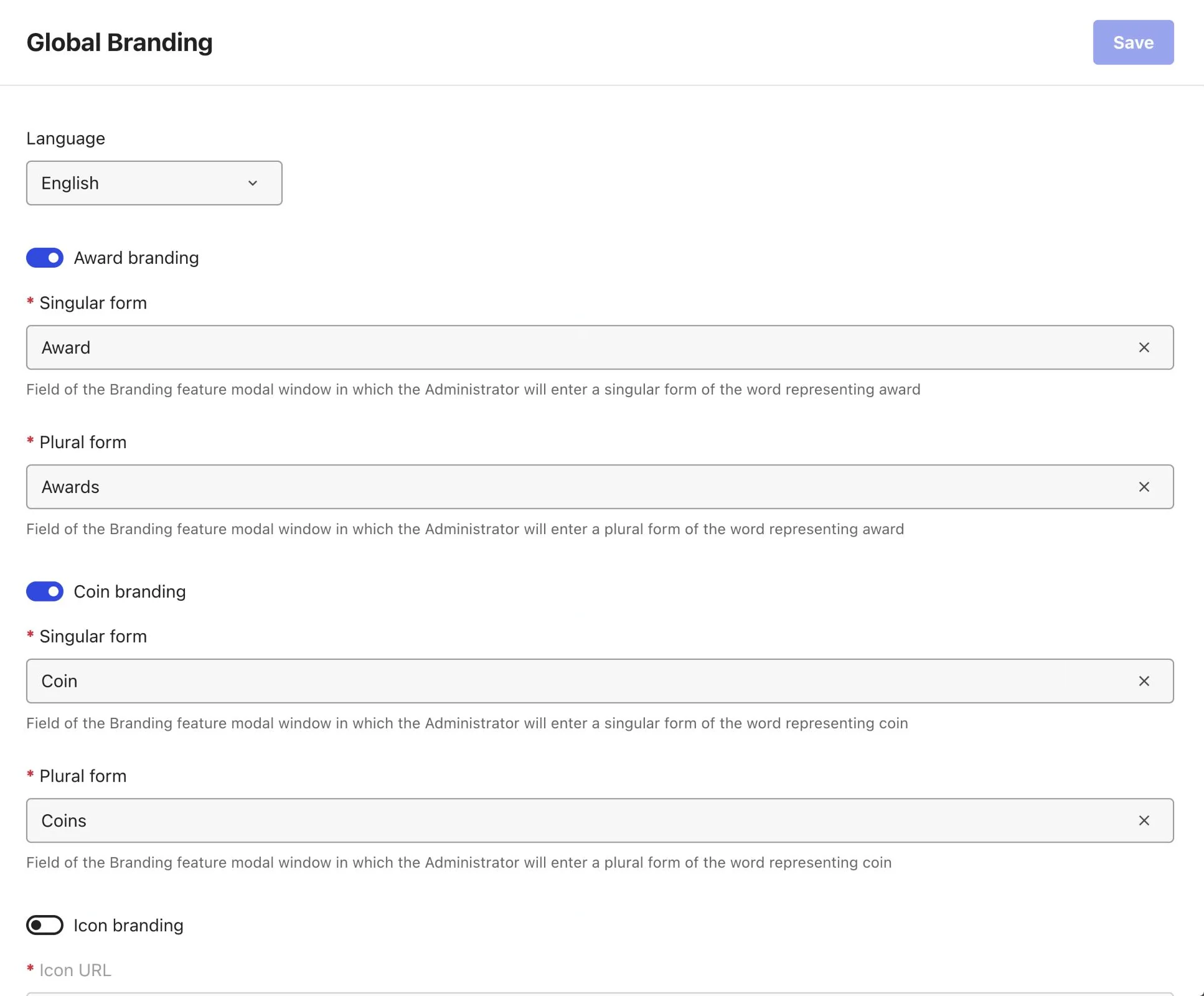
The name appears in balances, the Marketplace widget, My Recognition and notifications.
Check before launch
The currency name appears in many labels. Make sure no trial value is left here before employees start using the product.
Reword or translate texts
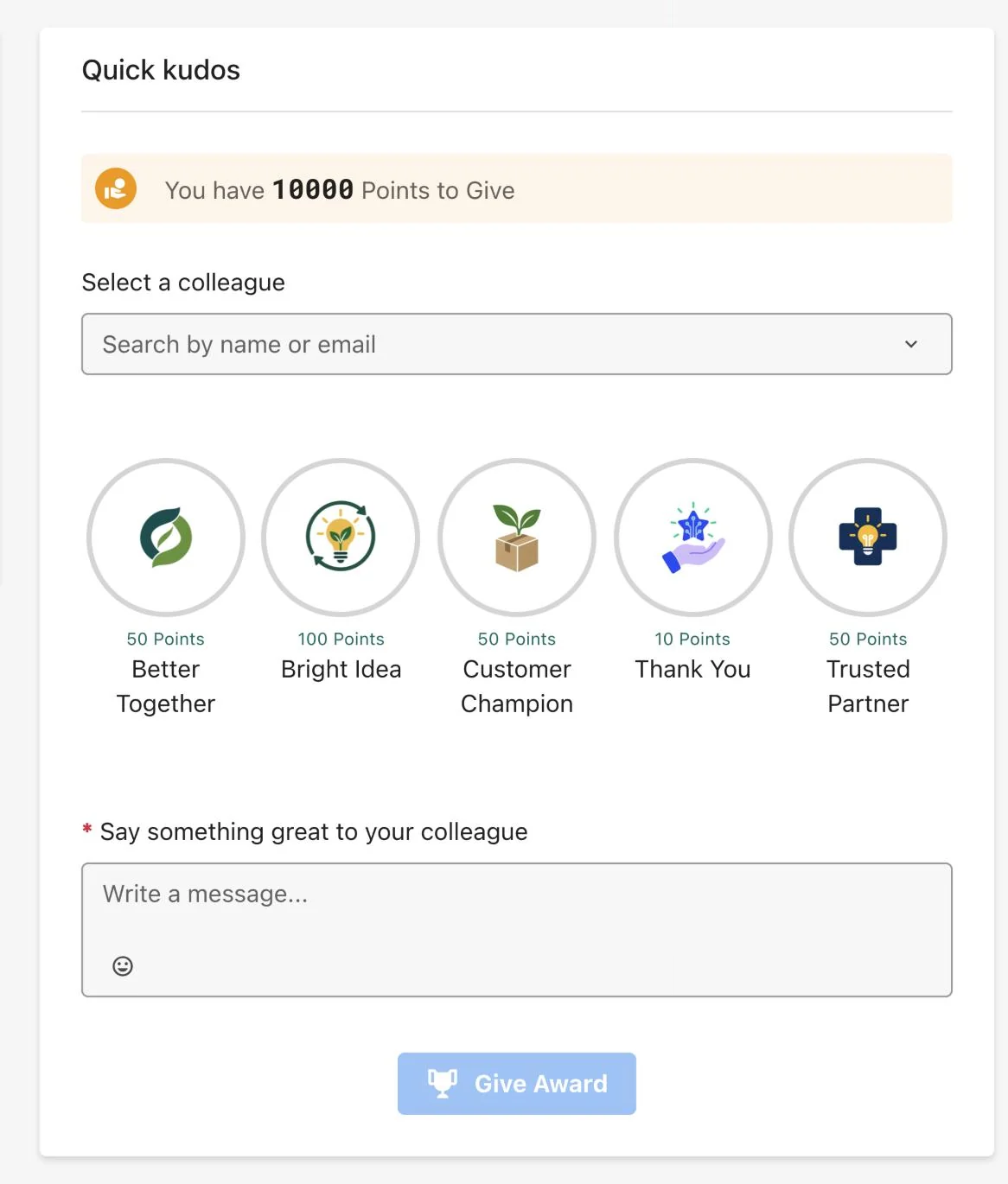
Use translations to change your tone of voice ("Say something great to your colleague"), rename widget headings ("Recognition wall" instead of "Awards Stream"), or correct a translation.
- Open Global Translations, or Translations inside a program.
- Choose the Language. Optionally choose a Category, such as a widget, notifications or a settings area.
- Choose a tab:
- Widget Translation: the texts employees see.
- Settings Translation: the texts page editors see in widget settings panels.
- Edit the Value of the rows you want to change. The Description column tells you where each text appears.
- Select Save.
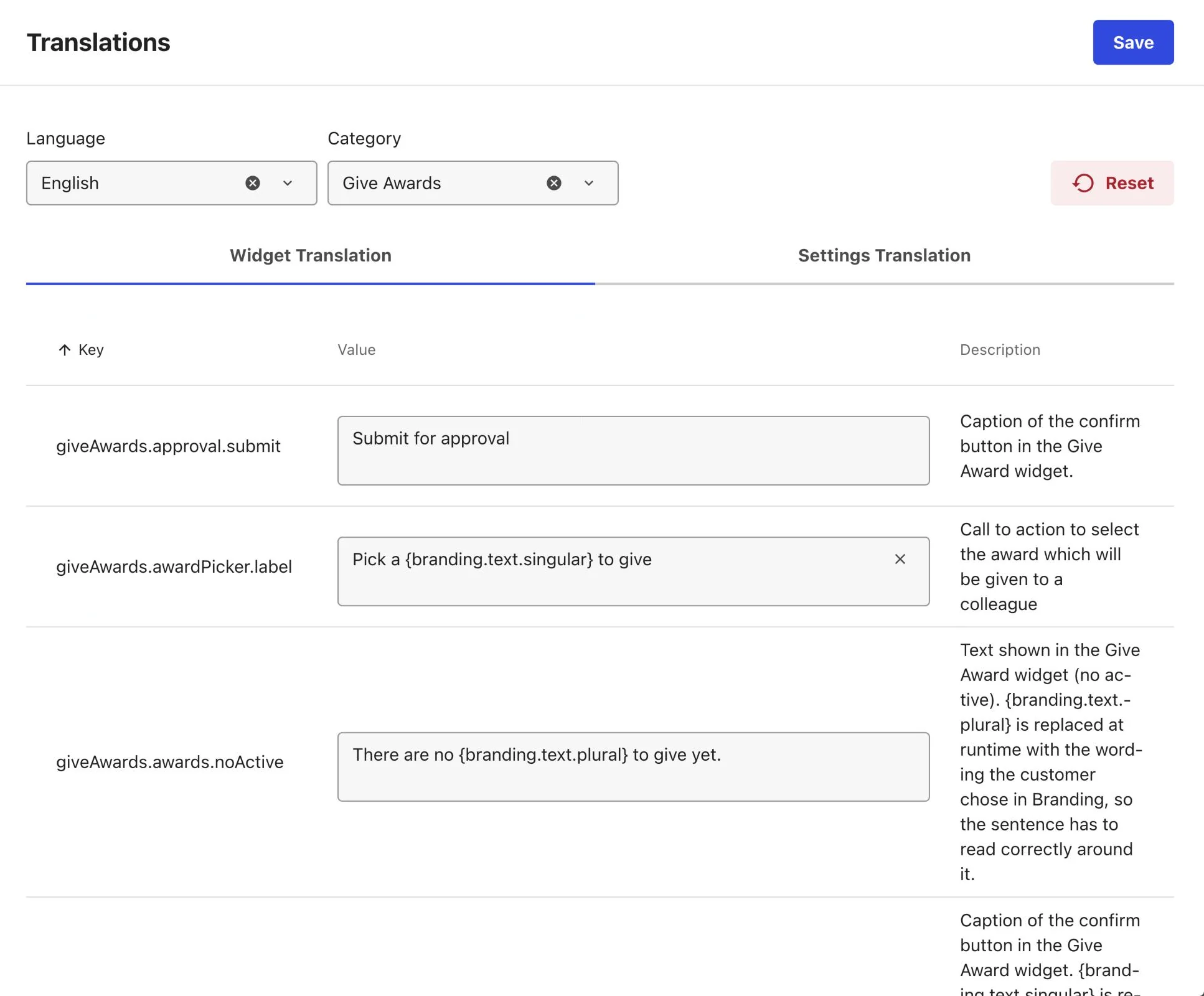
To undo a change, select × in that row to restore its default. To restore the defaults of a whole category, or of everything, select Reset and confirm, then Save.
Only the texts you change are saved. Texts you leave alone keep improving with product updates.
Keep placeholders in curly braces
Some texts contain placeholders such as {branding.text.plural}. They're replaced with your award or currency word. If you remove one, that text no longer follows your branding.
INFO
A value can't be empty. Save is unavailable while any row is blank.
Choose which branding a widget uses
Program branding doesn't apply by itself. Each widget has a setting, Select a recognition program for branding and translation:
| Value | The widget uses |
|---|---|
| Global settings (default) | The organization-wide branding and translations. |
| A program | That program's branding and translations, falling back to the organization-wide ones for anything the program doesn't set. |
So to show Give Kudo on a page, set the program's branding, then choose that program in the widget on that page. Two widgets can use different wording on the same page.
Features without a widget, such as the trophy icon's My Recognition and the Give Award button on profiles, use the organization-wide wording.
What employees see
With Kudo / Kudos as award branding, Stars as coin branding and a custom icon:
| Default | Becomes |
|---|---|
| Give Award button | Give Kudo, with your icon |
| Received Awards, My Awards | Received Kudos, My Kudos |
| You received an award notification | You received a kudo |
| Coin Balance, 150 Coins | Star Balance, 150 Stars |
Troubleshooting
| Symptom | Cause | Fix |
|---|---|---|
| A widget still says Award after you set program branding | The widget uses Global settings, or another program. | Choose the program in the widget's Select a recognition program for branding and translation. |
| The new word appears in English but not in French | Branding is saved per language. | Repeat it for each language. |
| One text still shows the old word | That text's translation was edited and its placeholder was removed. | Reset the row in Translations. |
| Save is unavailable in Translations | A row is empty. | Fill it in, or reset it. |