
Appearance
QR codes
Not everyone sits in front of the intranet. Receptionists, nurses, store staff and factory teams meet colleagues in physical places. Touchpoints bring recognition there.
A touchpoint is a ready-to-send award with a fixed receiver (one person or one group) and a fixed award. You print its QR code on a poster, desk sign, name badge or delivery slip. Whoever scans it only has to write a message and send.
Typical uses:
- a "Thank our reception team" poster in the lobby, with a group as receiver
- a "Thank your nurse" sign on a ward
- a QR code on each technician's badge, with that person as receiver
- an event booth
At a glance
Before you start
- The award must be an active peer-to-peer award, and the receiver must be a Receiver in its program.
- The site code must be installed, so the scanning flow can open in LumApps.
- People who scan must be able to sign in to LumApps on their phone.
1. Create a touchpoint
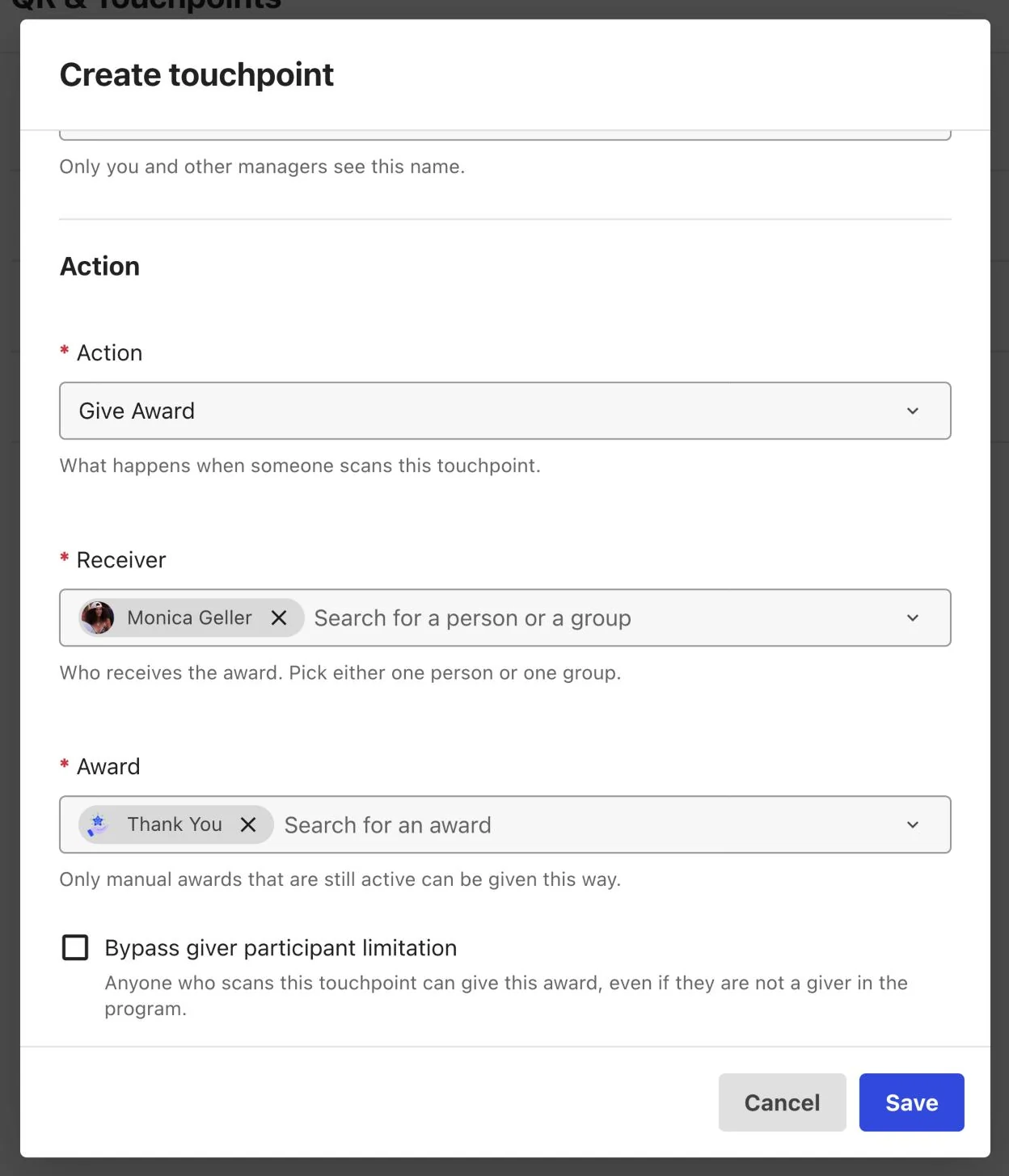
- Go to Global Management → QR & Touchpoints and select Create touchpoint.
- Enter a Name, such as Break room poster. Only managers see it in this list; scanners see it as the title of the form.
- Keep Give Award as the Action.
- Choose the Receiver: one person or one group.
- Choose the Award. Only awards from programs where the receiver takes part are listed.
- Decide who may give with this QR code:
- Leave Bypass giver participant limitation off, and only Givers in the award's program can send the award.
- Turn it on, and anyone who scans can send it. Use this for posters that all employees see.
- Select Save.
2. Download and print the QR code
Each touchpoint in the list has these actions:
| Icon | Action |
|---|---|
| Link | Copy link: copies the touchpoint's address, to use in an email or a page. |
| QR code | Download QR: downloads a ZIP file with the QR code images to print. |
| Pencil | Edit touchpoint |
| Bin | Delete touchpoint |
Printed codes follow your changes
A QR code only points to the touchpoint. If you later change the touchpoint's receiver or award, codes that are already printed open the new setup. You don't need to reprint.
Deleting breaks printed codes
After you delete a touchpoint, every printed QR code for it stops working.
3. What people do when they scan
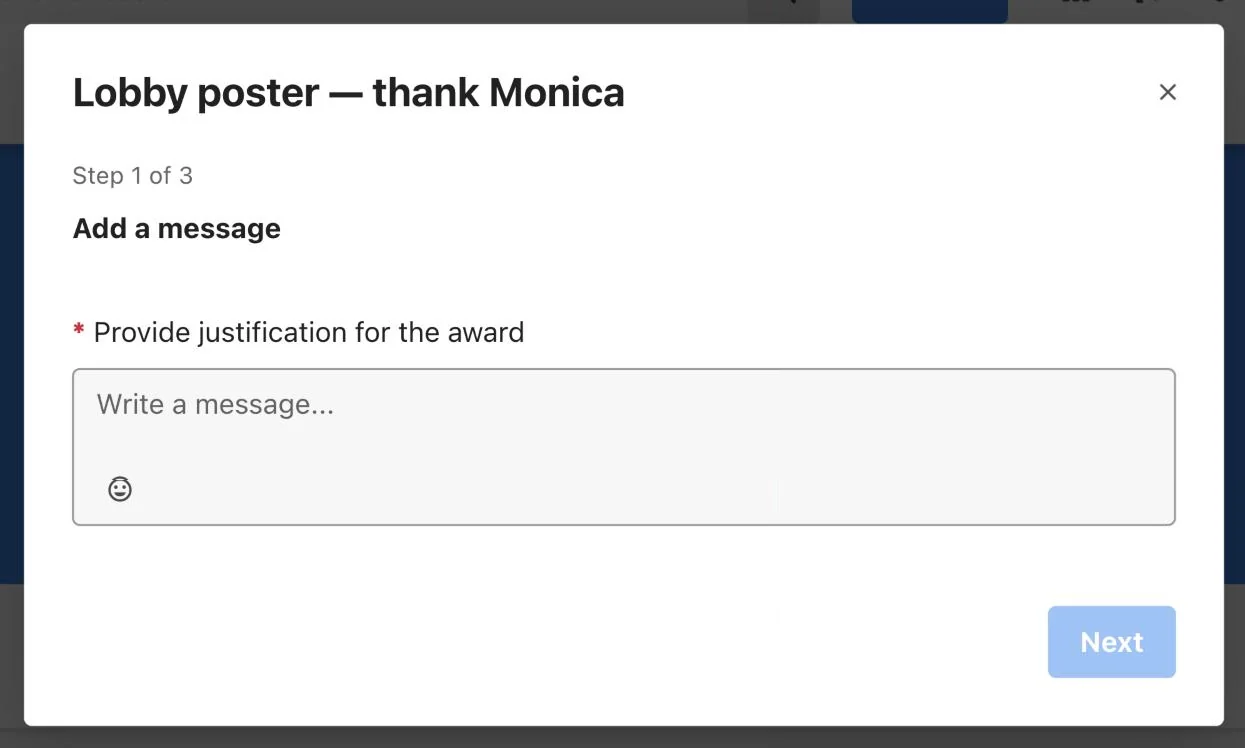
- They scan the QR code with their phone's camera and open the link, signing in to LumApps if asked.
- A short form opens, titled with the touchpoint's name. The receiver and the award are already chosen.
- Add a message: they write why they're saying thanks.
- A few more questions: shown only when the award's program has a nomination form.
- Check and send: they review and select Send.
The result is a normal award:
- If the award's program requires approval, the message field asks for a justification, and the award is published after approval.
- It uses the scanner's Points to Give.
- It appears in the Awards Stream, leaderboards and analytics like any other award.
Troubleshooting
| What the scanner sees | Cause | Fix |
|---|---|---|
| This touchpoint no longer exists | The touchpoint was deleted. | Create a new touchpoint and reprint. |
| This award is no longer available | The award was archived, or the receiver left the program. | Edit the touchpoint and choose another award or receiver. Printed codes keep working. |
| This touchpoint could not be opened | A temporary problem. | Try again later. |
| A message that they aren't a participant | Bypass giver participant limitation is off and the scanner isn't a Giver in the program. | Turn the option on, or add them as a Giver. |