
Appearance
Coin balances
Balances normally change on their own: giving an award spends points, receiving one adds score and coins, and ordering in the marketplace spends coins. Two pages let Global Managers step in:
- User Balance: add or remove value by hand.
- User Coins Analytics: a coin ledger for each person over a period.
Where this fits
This is step 7 of the marketplace at a glance: checking and correcting balances. It also covers Points to Give and Total Score.
Add or remove value
Use User Balance to:
- give every employee starting coins when you launch the marketplace
- reward a team with extra coins after a big project
- top up managers' giving allowance before a recognition campaign
- correct a mistake
- Go to Global Management → User Balance.
- Choose the Balance type:
- Points to Give: the giving allowance.
- Total Score: the recognition score used by leaderboards.
- Coin Balance: the marketplace currency.
- Choose Add value or Remove value, and enter the Value.
- Choose who gets the change:
- On the People tab, add people. The table previews each person's current and new balance.
- On the Groups and Segments tab, add groups or segments. Every member gets the change.
- Select Submit.
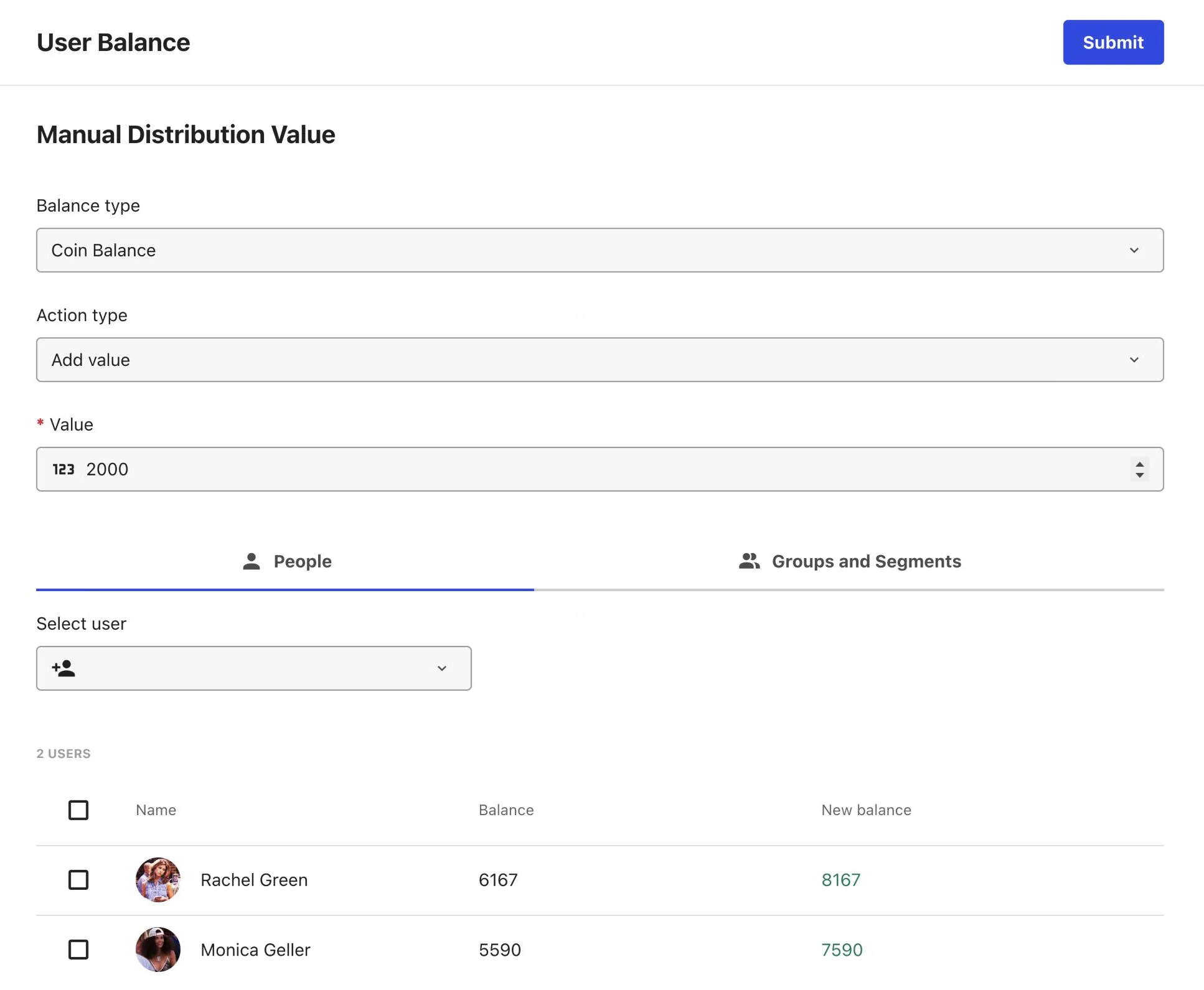
No confirmation step
Submit applies the change straight away. Check the values and the people before you select it.
Things to keep in mind:
- Removing coins can leave people without enough coins for orders they're planning.
- Changing Total Score moves people on leaderboards.
- With the Points accumulate strategy, regular top-ups still stop at the points limit.
- You can't change your own balance.
See where coins went
User Coins Analytics shows, for each person and any period:
| Column | Meaning |
|---|---|
| Starting Balance | Coins at the start of the period |
| Received for period | Coins from awards, manual additions and refunded orders |
| Spent for period | Coins spent on orders, manual removals, and coins taken back from deleted awards |
| Ending Balance | Starting balance + received − spent |
For example, 2,874 coins at the start, plus 4,141 received, minus 3,627 spent, leaves 3,388.
- Go to Global Management → User Coins Analytics and select Configure filter.
- Choose a User, or All, and a Start date and End date.
- Select Apply.
- To download the report, select Export.
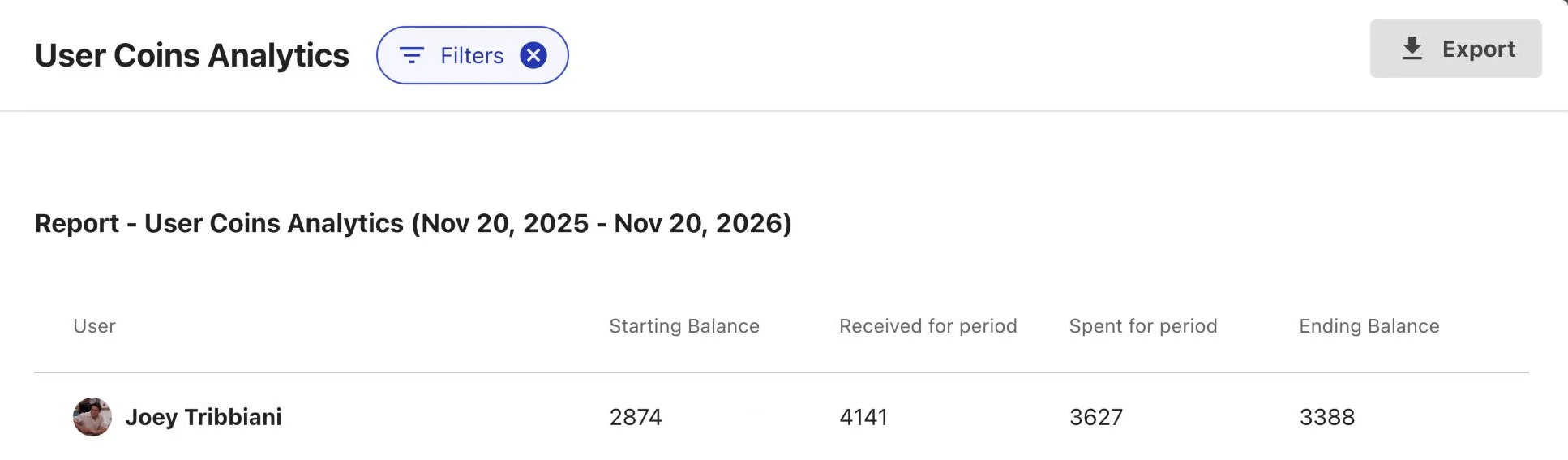
Use it to answer an employee's question about their balance, check that a bonus reached everyone, or give finance a quarterly ledger.
TIP
With All users selected, every account that ever held coins is listed. Choose one person for a focused view.