
Appearance
Approvals and nomination forms
By default, an award is published the moment it's given. A program can instead require every award to be approved first, for example to check that high-value awards are justified. A program can also ask givers a few extra questions with a nomination form.
Both are set per program, so one program can publish instantly while another requires approval.
At a glance
- Add a nomination form (optional)
How approval works
- A giver chooses an award from a program with approval turned on. The form shows Approval required, asks for a justification, and the button reads Submit for approval.
- The award is pending. Only the giver, the approvers and managers can see it. The giver's points are already taken.
- The approvers get a notification. They review the award and approve or decline it.
- Approved: the award is published. It appears in the Awards Stream, the receiver's awards and leaderboards, the receiver earns the points and coins and is notified.
- Declined: the award is never published. The reason is kept.
1. Turn on approval
- Go to Global Management → Recognition Programs.
- Select ⚙ Edit settings on the program and open the Approvers tab. In a new program, this is step 4 of the wizard.
- Turn on Enable award approval process in the program.
- Under Define Approvers, choose who approves. Select Change strategy to switch later.
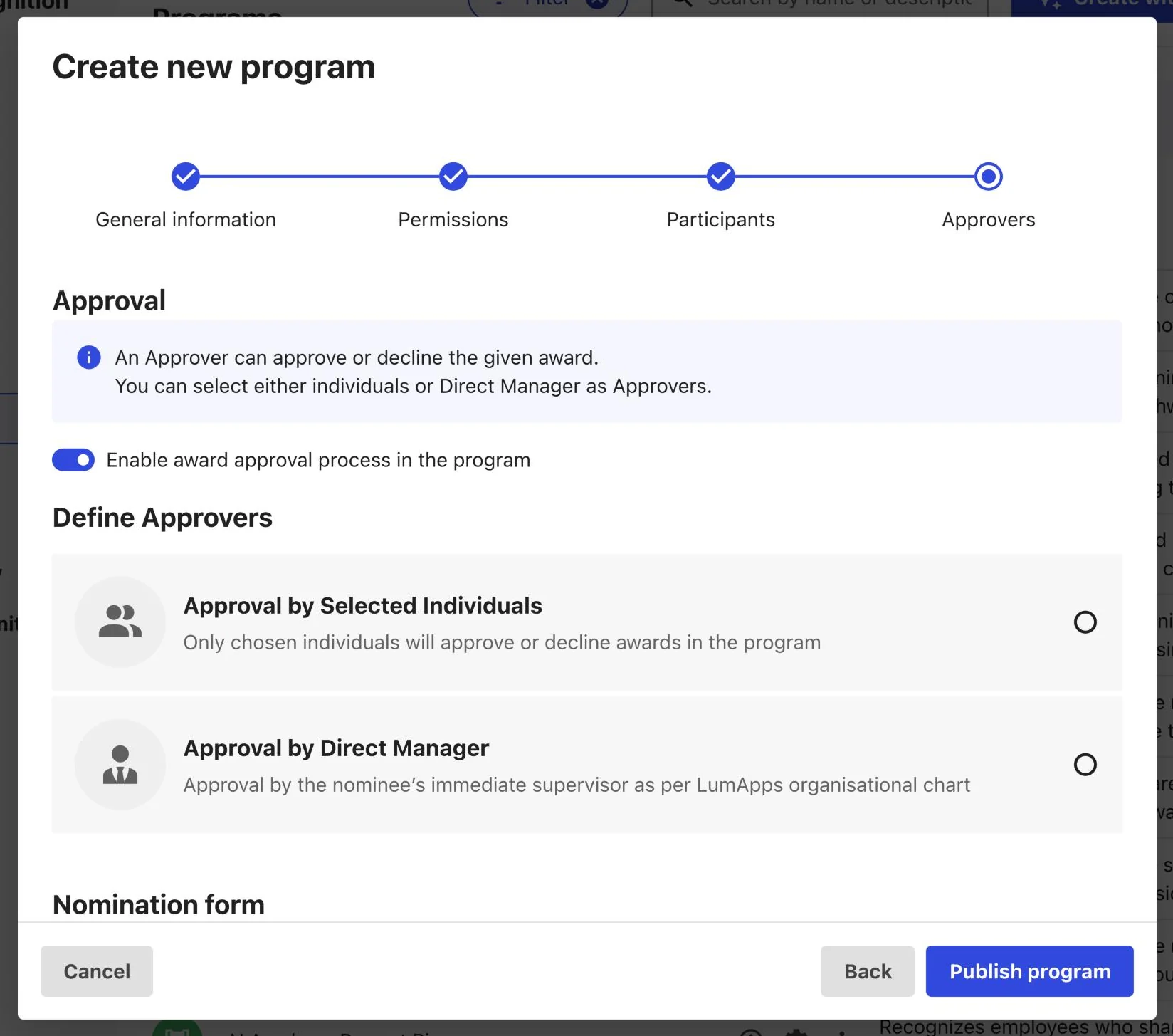
Approval by selected individuals
The people or groups you name approve or decline every award in the program.
- Add up to 50 Approvers (people or groups).
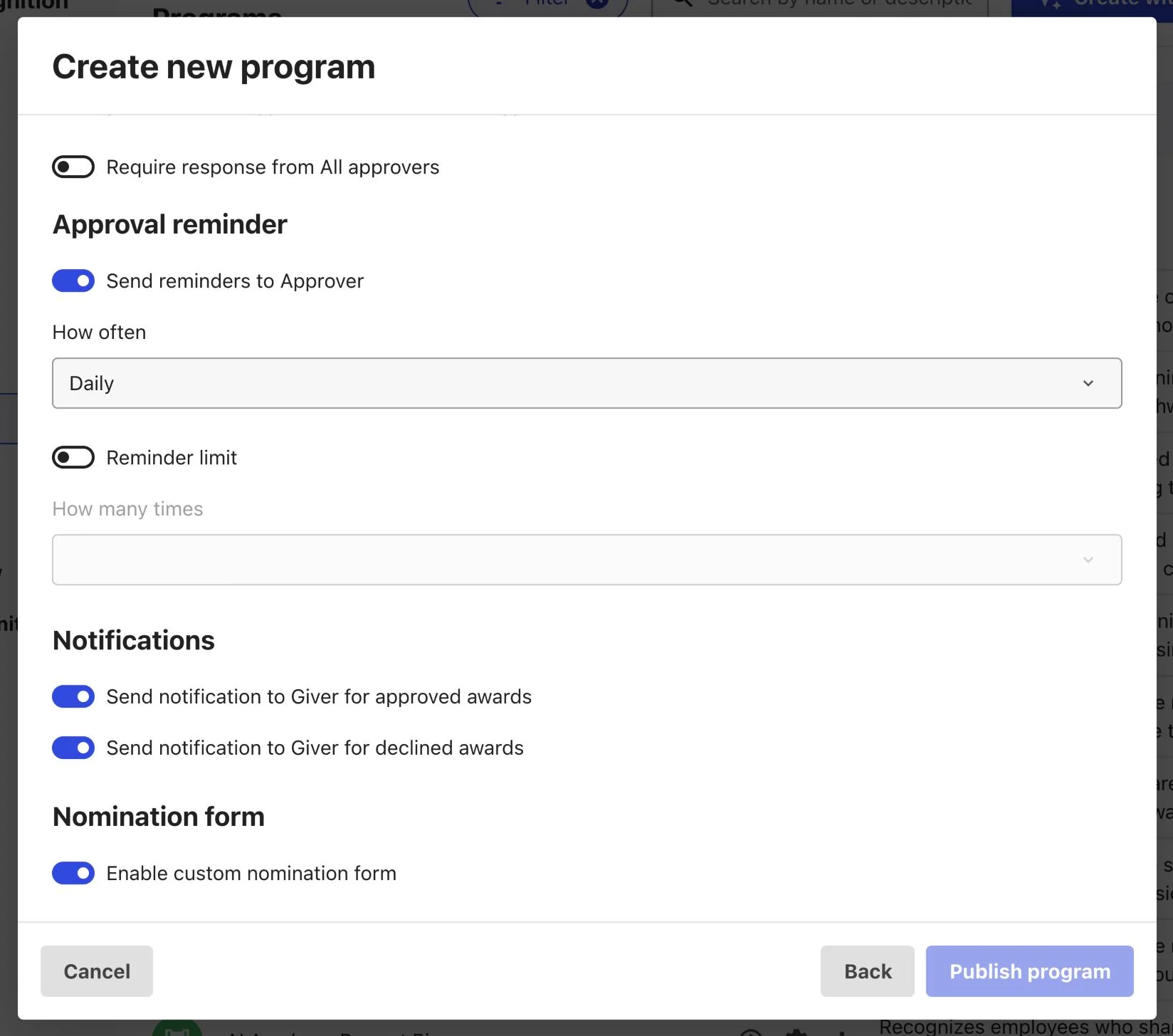
- Require response from All approvers: when off, the first approval publishes the award. When on, every approver must approve.
Approval by direct manager
The receiver's manager approves or declines. The manager is read from the manager field of the receiver's LumApps profile.
- Response Window for Direct Manager: 1, 2 or 3 weeks, or Never.
- Select Backup Approvers (up to 50): they're notified when the manager doesn't respond within the window.
Reminders and notifications
| Setting | What it does |
|---|---|
| Send reminders to Approver | Reminds approvers about pending awards. How often: Daily, Every 3 days, Weekly or Never. |
| Reminder limit → How many times | Stops after this number of reminders. |
| Send notification to Giver for approved awards | Tells the giver when their award is approved. |
| Send notification to Giver for declined awards | Tells the giver when their award is declined, with the reason. |
- Select Save changes.
Turning approval off
You can't turn approval off while awards are still pending in the program. Approve or decline them first.
2. Add a nomination form
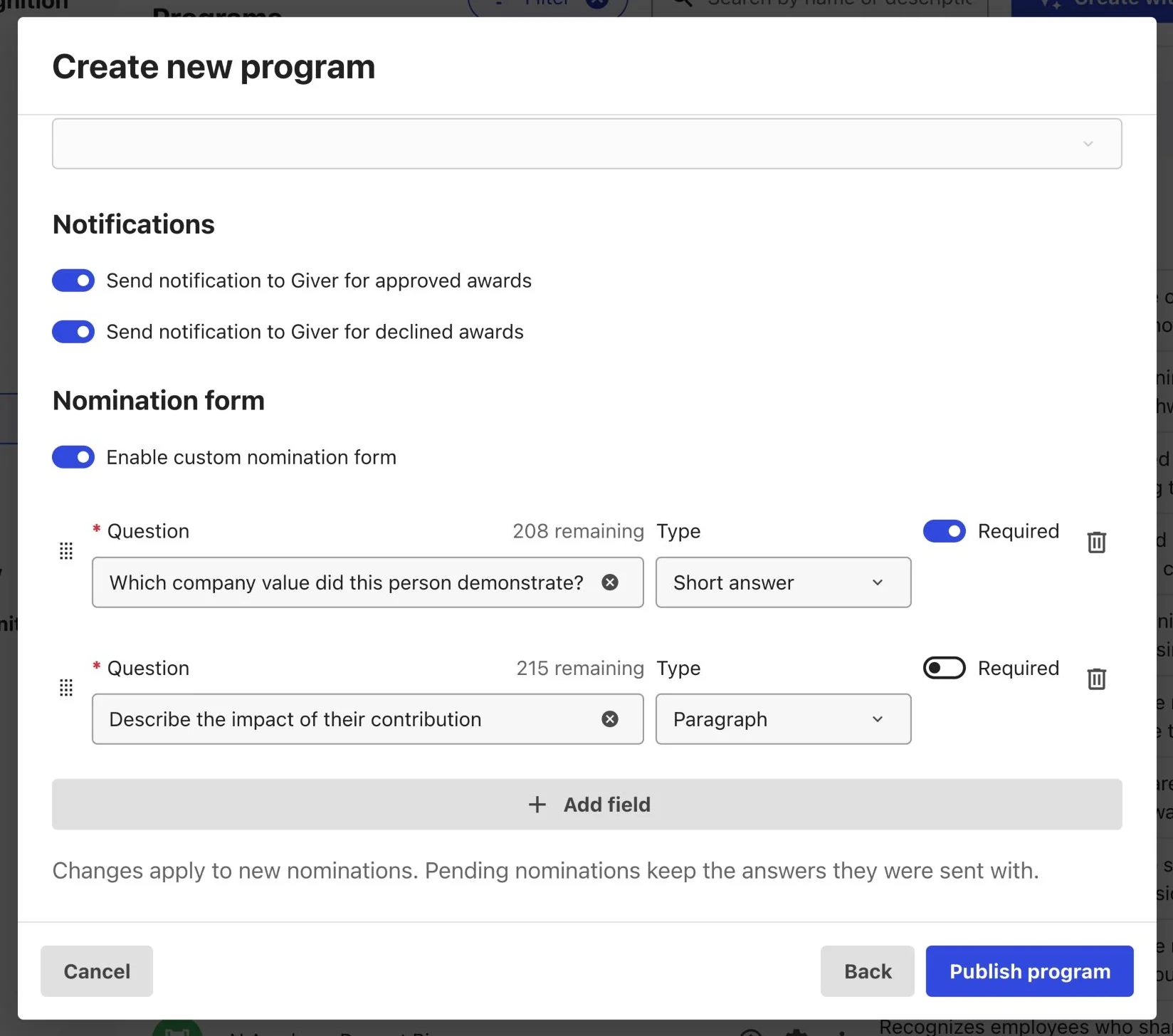
A nomination form adds your own questions to the giving form, for example "Which company value did this person demonstrate?". Givers answer them, and approvers see the answers.
- In the same Approvers tab, turn on Enable custom nomination form.
- Select + Add field for each question, up to 20.
- For each one, enter the Question, choose a Type (Short answer, up to 256 characters, or Paragraph, up to 4,000) and decide whether it's Required.
- Drag questions to reorder them, then save.
TIP
Don't end a question's name with an asterisk. Required questions are marked automatically.
Changing the form doesn't change awards that are already pending: they keep the answers they were sent with.
3. Give approvers a place to approve
Approvers can always decide from two places that need no page setup, as long as the site code is installed:
- the Approvals tab of My Recognition (trophy icon in the top bar), with a red count of pending awards
- the notification they receive for each award, which opens the award with Approve and Decline buttons
Optionally, add a My Approvals widget to a page, for example a managers' page:
- Open the page in edit mode and add the Employee Recognition by Linkers widget.
- In Select your widget, choose My Approvals.
| Setting | Default | What it does |
|---|---|---|
| Hide widget when the end user has no pending approvals | Off | When on, people with nothing to approve don't see the widget. Turn it on for pages everyone visits. |
The My Recognition widget also has an Approvals section.
4. What givers and approvers do
What the giver sees
When the giver chooses an award from a program with approval:
- an amber Approval required label appears under the award
- the message field is labeled Provide justification for the award
- the nomination questions, if any, appear under it
- the button reads Submit for approval
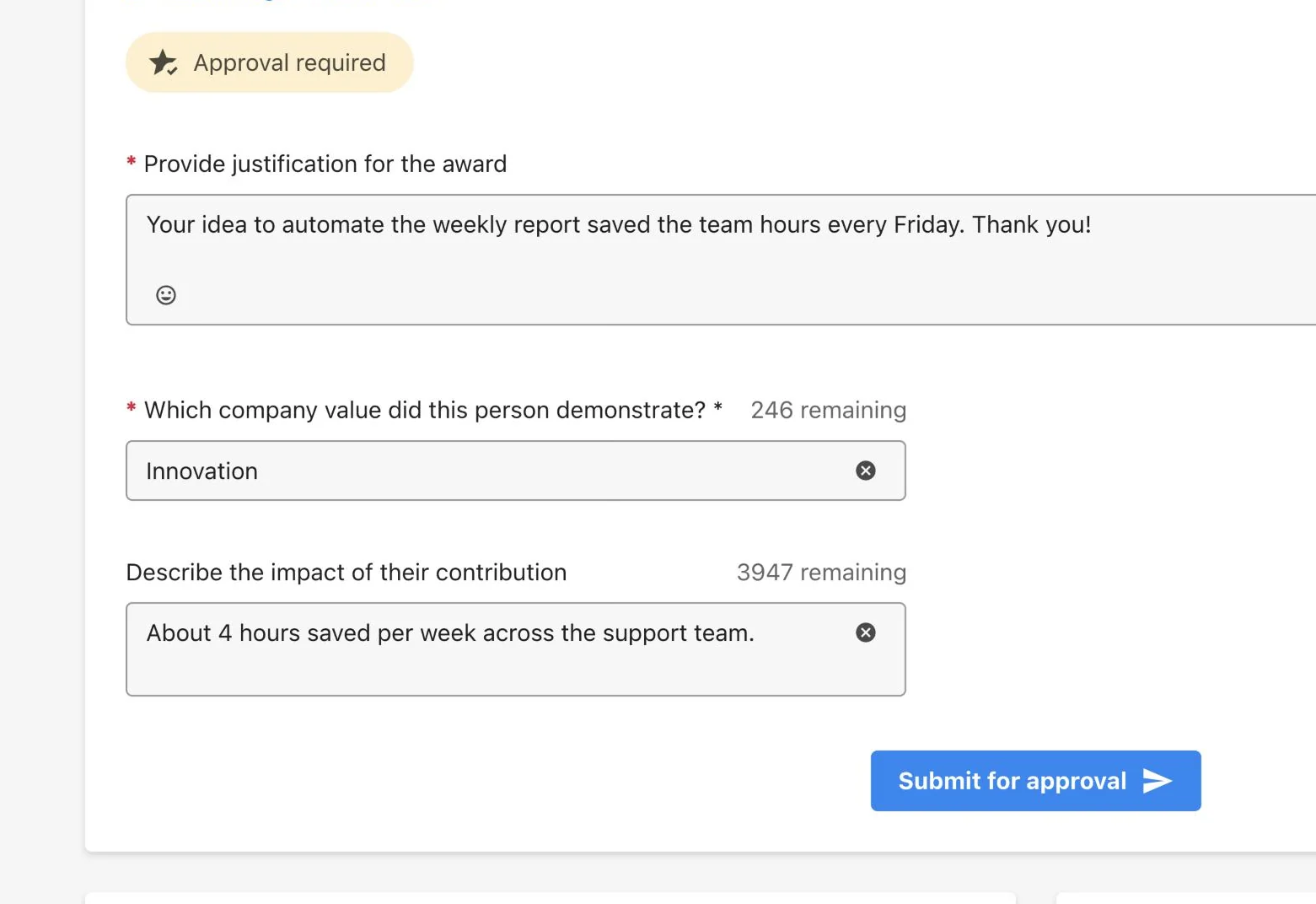
After submitting, the giver's Points to Give drop immediately. The giver is told about the decision only if giver notifications are turned on in Reminders and notifications.
What the approver sees
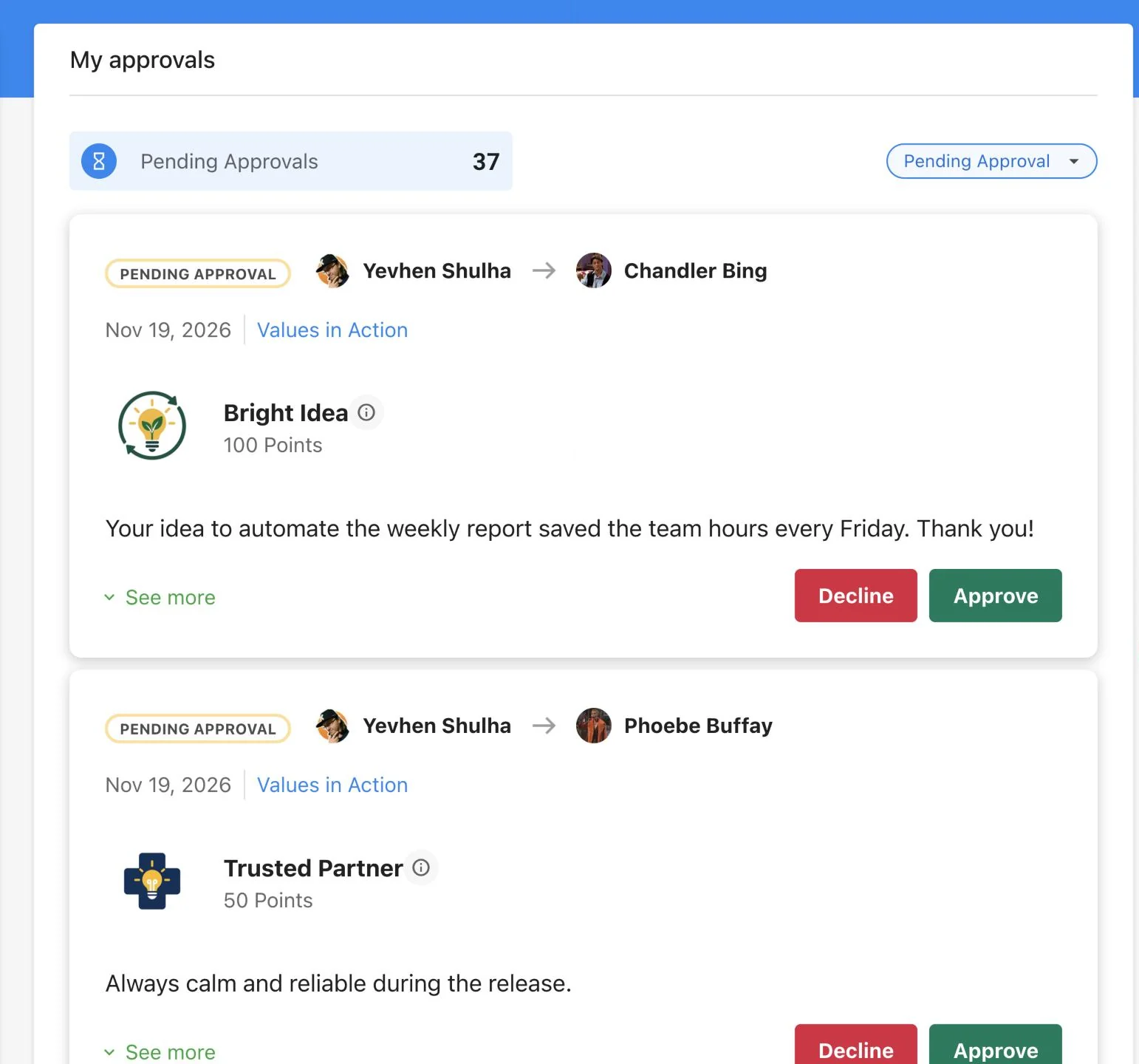
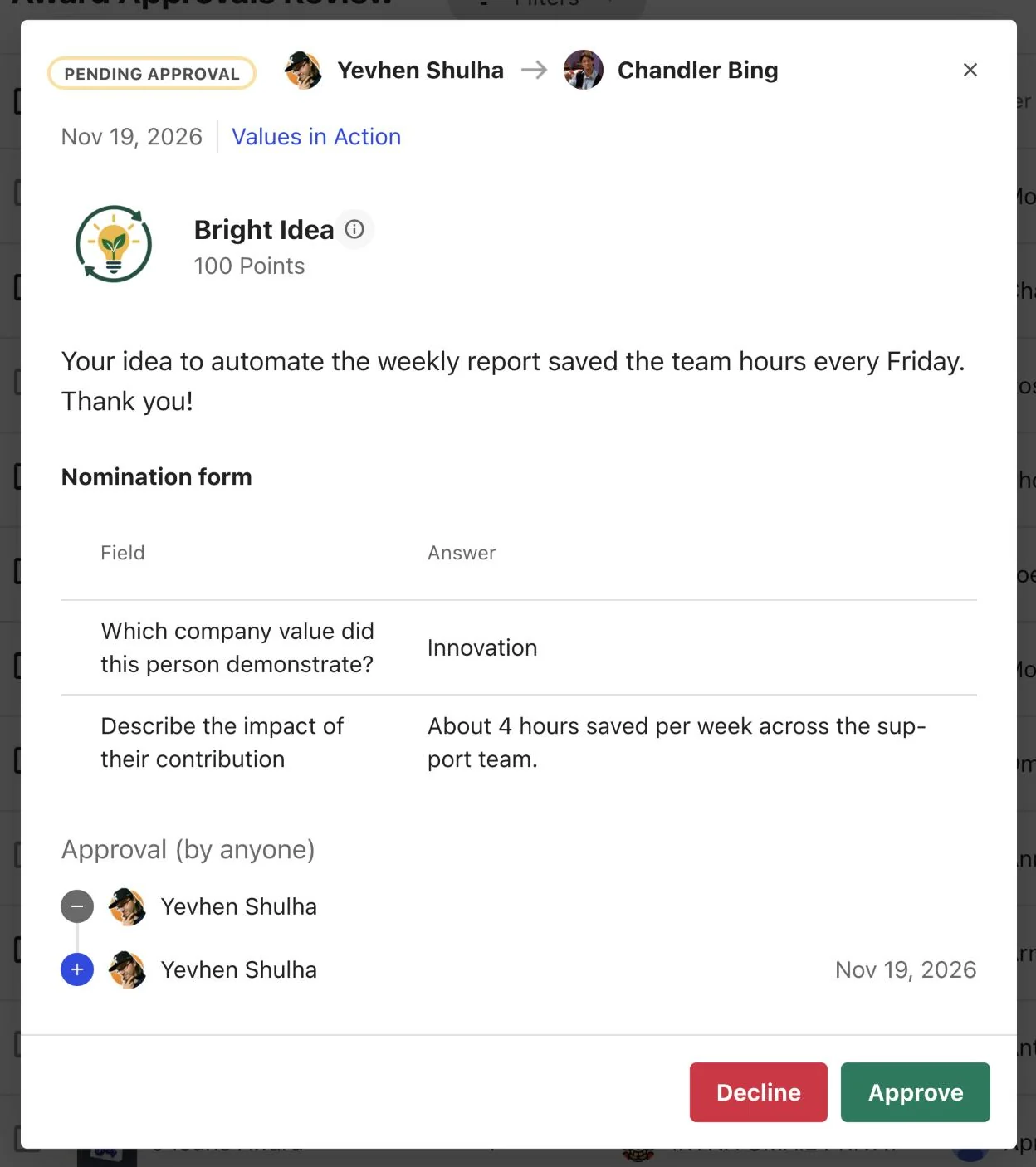
Each pending award is a card showing its status, who gives to whom, the date, the program, the award with its value, and the justification.
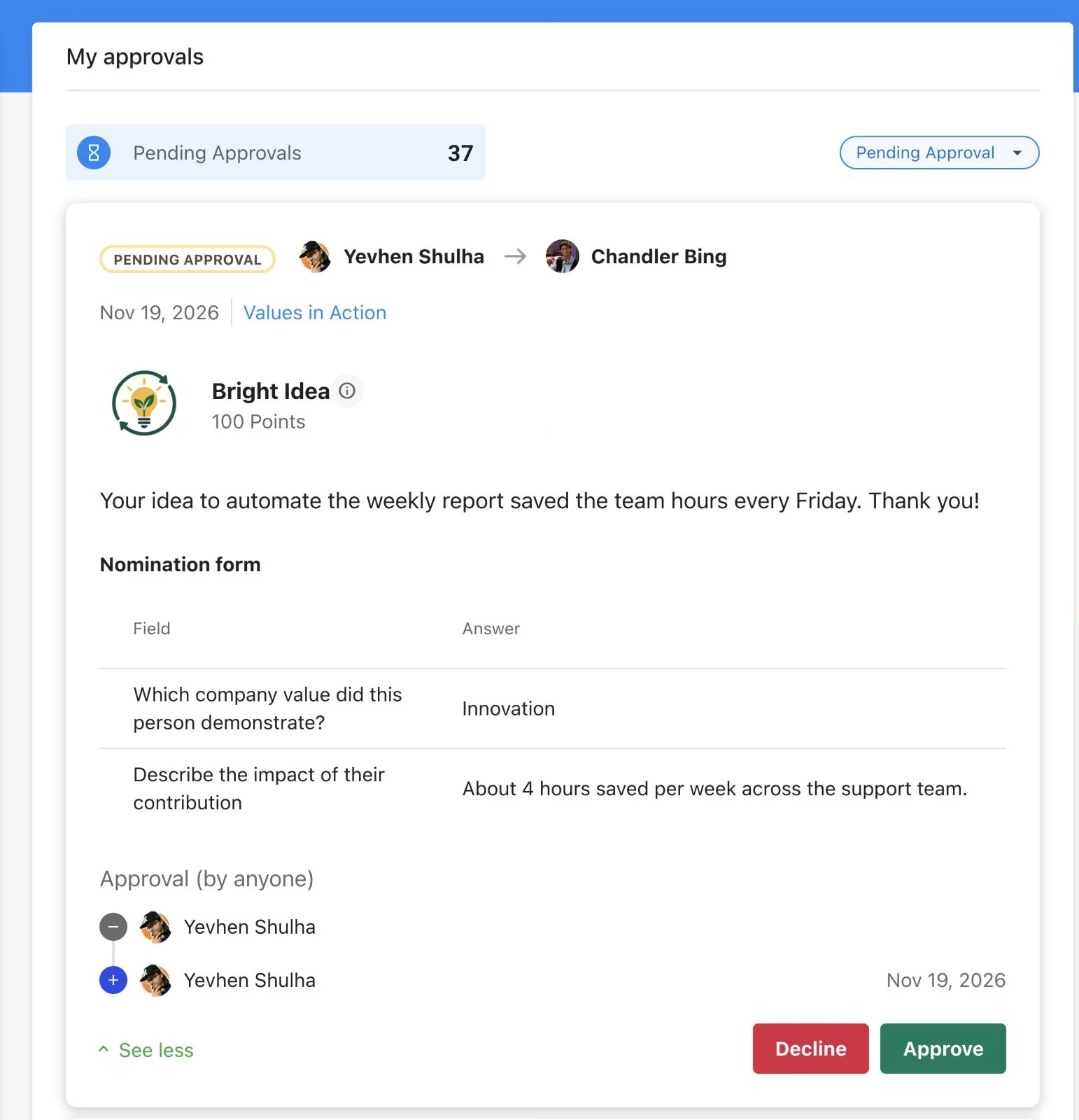
See more shows the answers to the nomination form and the approval chain: who is asked to decide, and who already did. The chain's title tells the approver how the decision is made:
| Title | Meaning | Comes from |
|---|---|---|
| Approval (by anyone) | One approval is enough. | Selected individuals, Require response from All approvers off |
| Approval (required from all) | Every approver must approve. | Selected individuals, Require response from All approvers on |
| Approval (by manager) | The receiver's manager decides. | Direct manager |
Approve
The approver selects Approve. The card leaves the pending list. When the decision is complete (the first approval, or the last one when all are required), the award is published and the receiver is notified.
Decline
- The approver selects Decline.
- They write a reason. It's required, up to 1,000 characters.
- They select Save.
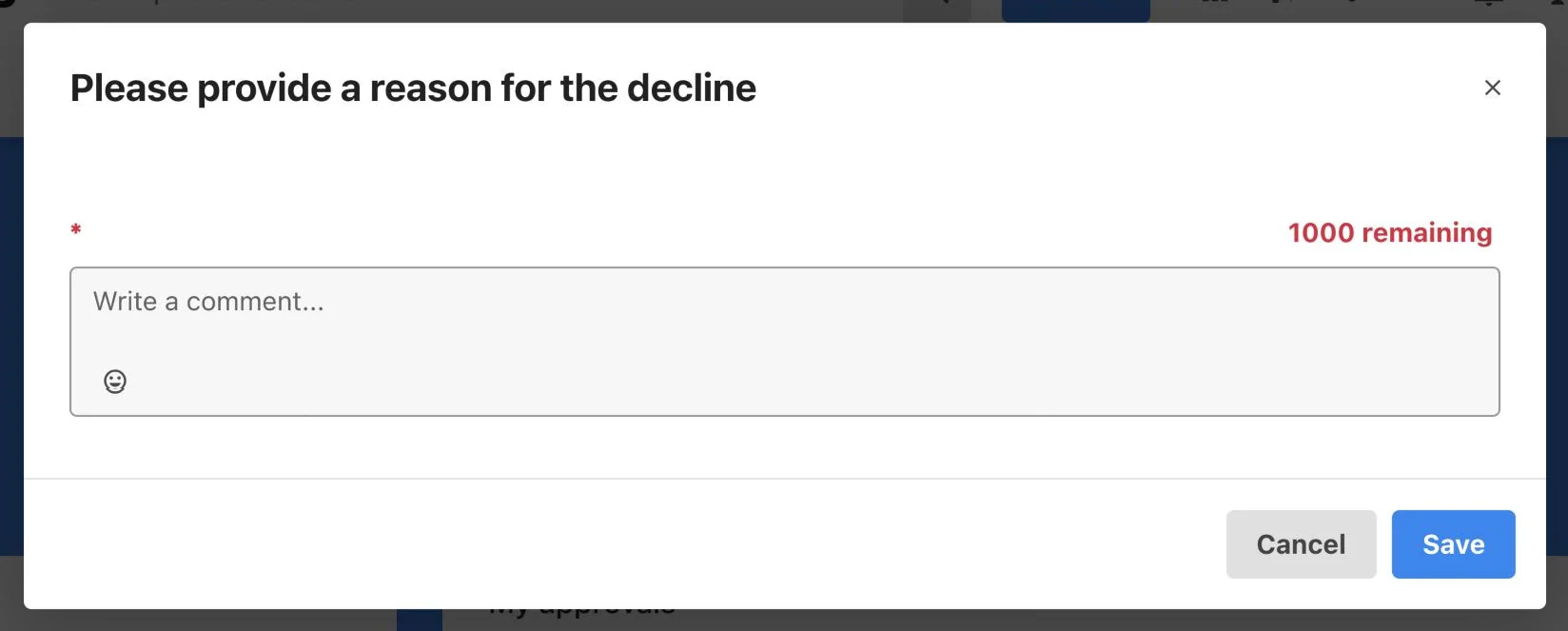
The award is never published.
See past decisions
The filter at the top right, Pending Approval by default, switches to Approved, Declined or All approvals.
5. Oversee approvals across the organization
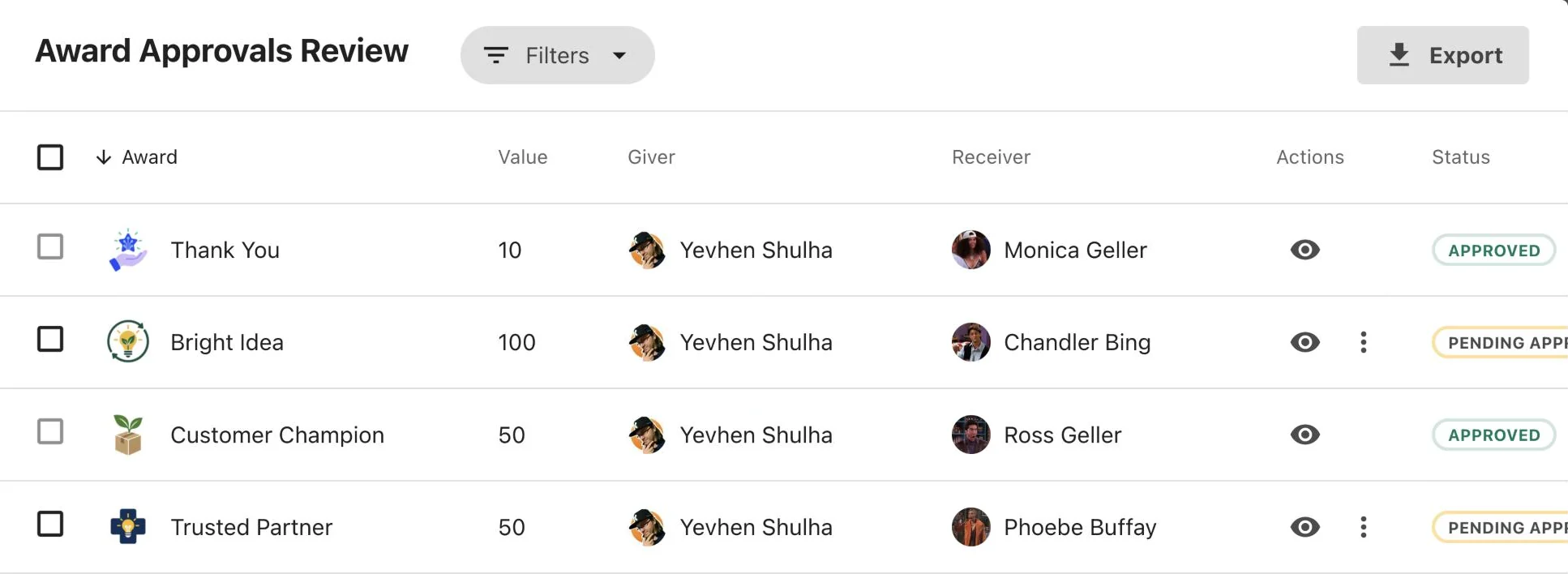
Global Management → Award Approvals Review lists every award that went through approval. Global Managers see all programs; program managers see their own. The red number next to the menu item counts pending awards.
Use it to:
- see each award's status, approvers and backup approvers
- approve or decline for absent approvers
- check who decided what and when, with nomination answers and decline reasons
- export the list to Excel
| Column | Meaning |
|---|---|
| Status | Pending Approval, Approved or Declined |
| Approve by | Any, All or Manager |
| Approver, Backup Approvers | Who is asked to decide |
Filters narrows the list by status, program and award, giver, receiver, approver or dates. Export downloads the filtered list.
Decide on one award
- Select the eye icon on a row to see the message, nomination answers and approval timeline.
- Select Approve or Decline. Declining requires a reason.
Decide on several awards
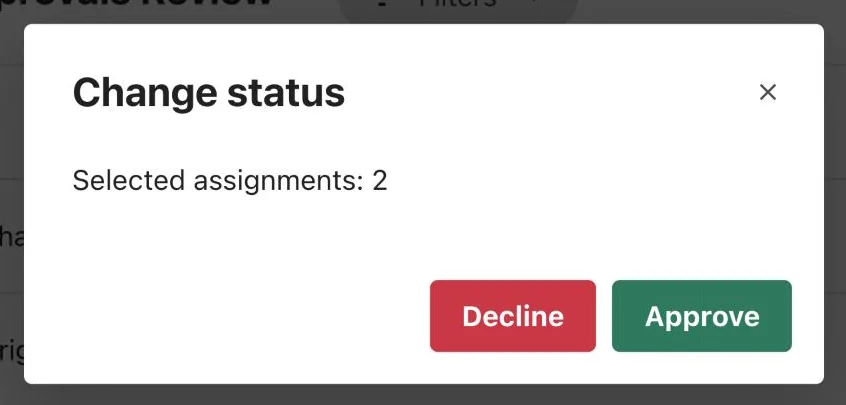
- Tick the pending rows. To select all pending awards, tick the header box and select Select all … available assignments.
- Select the ⋮ menu next to Export, then Change status.
- Select Approve or Decline.
What approval affects
| Area | Effect |
|---|---|
| Awards Stream, leaderboards, My Recognition, skills, analytics | Pending and declined awards never appear or count. Approved awards do, from the moment of approval. |
| Points to Give | Taken from the giver when they submit, not when the award is approved. |
| QR codes, profiles and articles | Awards given there follow the same approval rules. |
| Import awards | An import can either send awards to approvers or skip approval. |
Troubleshooting
| Symptom | Cause | Fix |
|---|---|---|
| An award doesn't appear in the stream | It's pending. | Find it in Award Approvals Review and approve it, or remind the approver. |
| An approver doesn't see the Approvals tab | They aren't an approver in any program, or the award's receiver doesn't report to them. | Check the program's Approvers tab. For direct managers, check the manager field in the receiver's LumApps profile. |
| Nobody responds | The approver is away. | Decide in Award Approvals Review, add backup approvers, or turn on reminders. |
| The giver wasn't told about the decision | Giver notifications are off for the program. | Turn on Send notification to Giver… in Reminders and notifications. |
| Approval can't be turned off | Awards are still pending. | Approve or decline them first. |