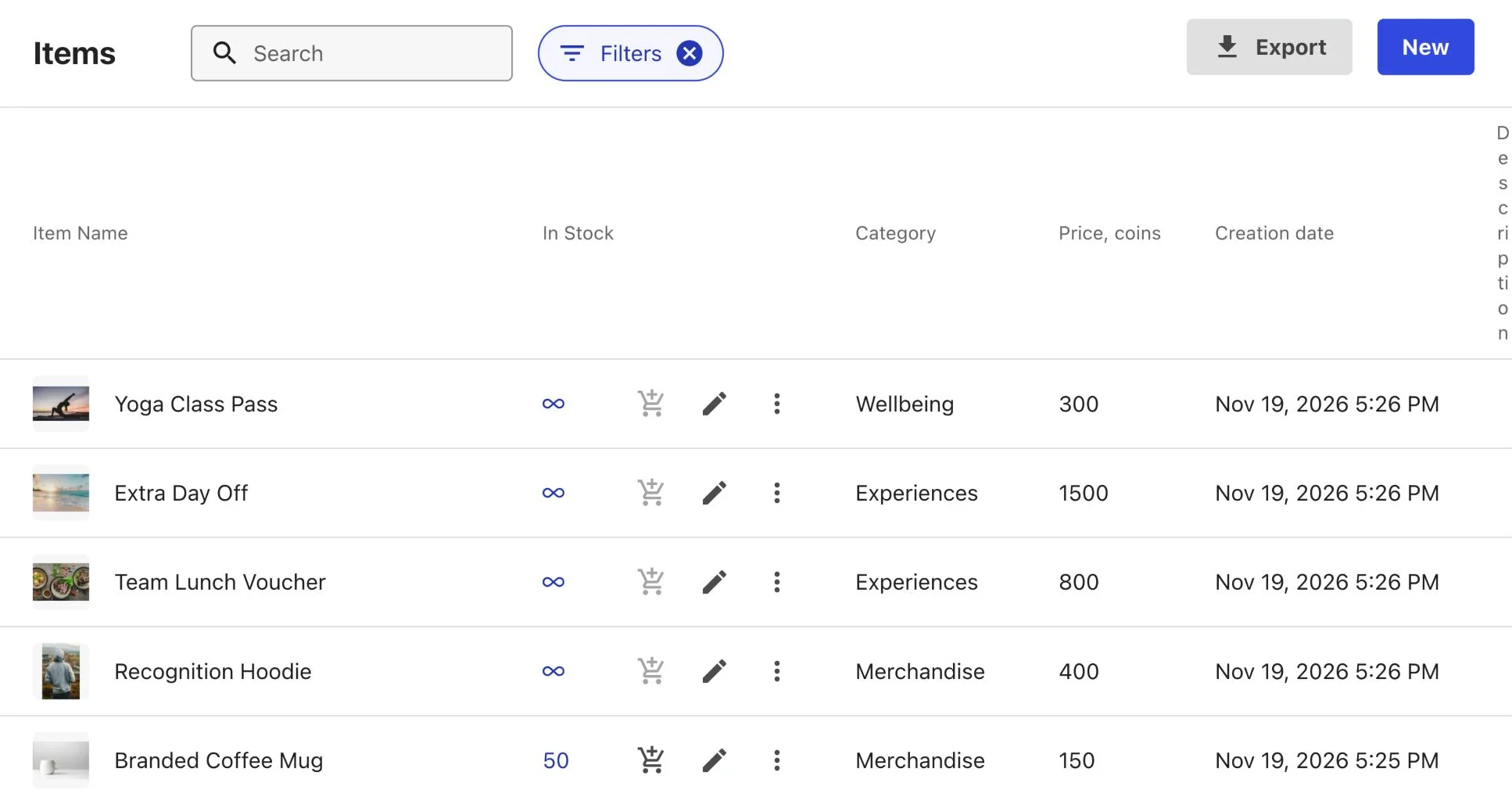
Appearance
Items and categories
Categories are the aisles of a marketplace, such as Merchandise, Experiences, Time off, Charity or Gift cards. Items are the products on the shelves. Every active item appears as a card in the store, where employees buy it with coins.
Each marketplace has its own categories and items. Choose the marketplace in the picker at the top of the Marketplace section of the admin panel menu before you start.
Where this fits
This is step 3 of the marketplace at a glance: after creating a marketplace, and before putting the store on a page.
Create categories first
Every item must belong to a category, so create at least one category before adding items.
Create a category
- Go to Marketplace → Categories and select New.
- Enter a Name and select Save.
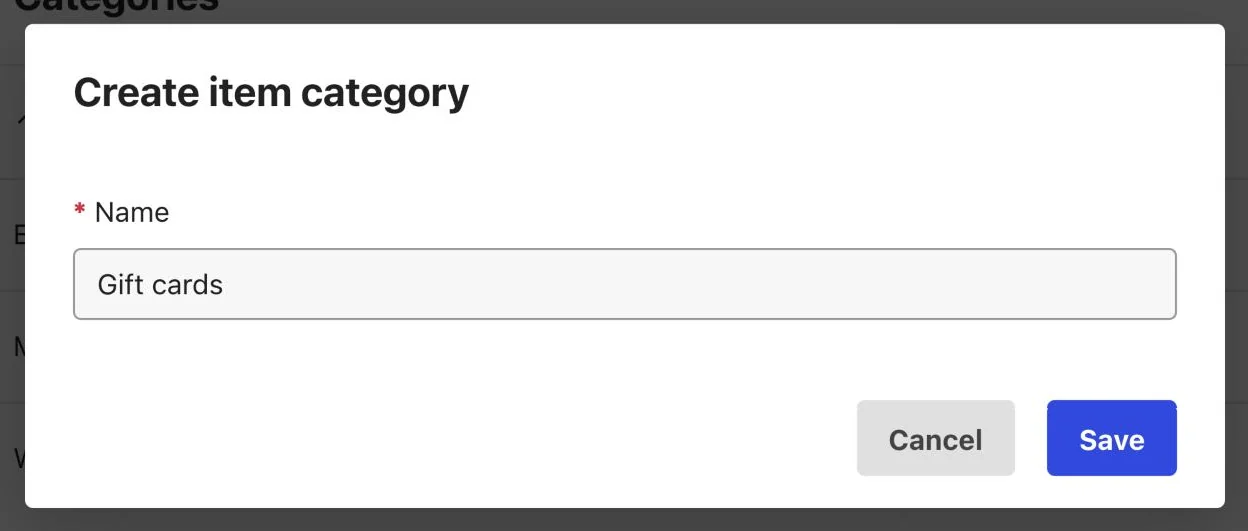
To rename a category, select the pencil next to its name. Reports always show the current name, so renaming also relabels past orders in reports.
Categories can't be deleted.
Add an item
- Go to Marketplace → Items and select New.
- Fill in the required fields:
- Item Name and Description
- Category
- Price (in coins)
- Image URL: check the Preview.
- Choose how stock works:
- Leave Manage Stock off for unlimited availability. This suits donations, digital rewards and experiences.
- Turn on Manage Stock and enter an Initial Stock Quantity for physical goods.
- Select Save.
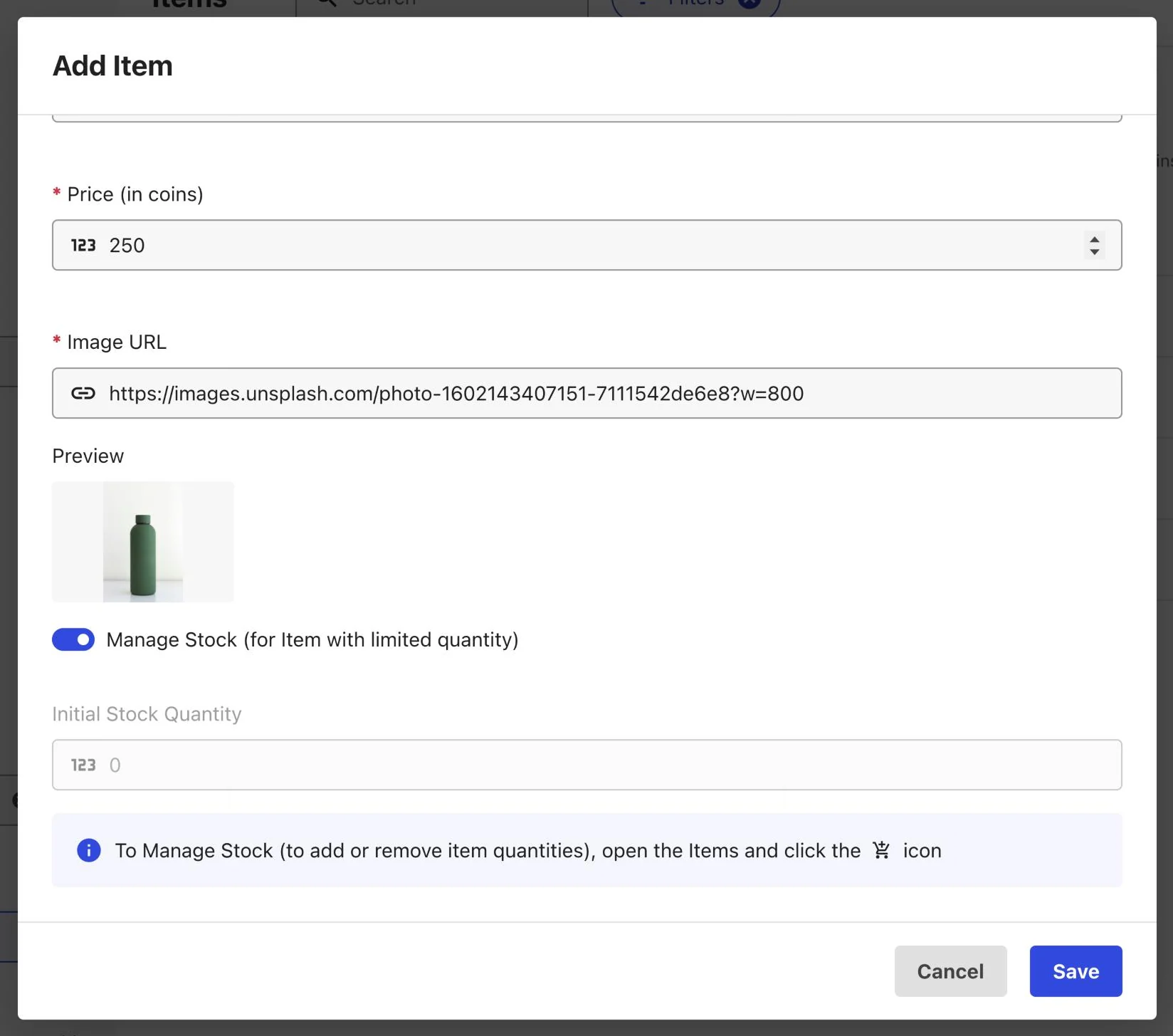
To change an item later, select the pencil in its row. A new price applies only to new orders.
Manage stock
For items with Manage Stock turned on, the In Stock column shows how many are left. Unlimited items show ∞.
- Select the cart icon in the item's row.
- Choose Add to stock or Remove from stock, and enter the Number of Items.
- Confirm.
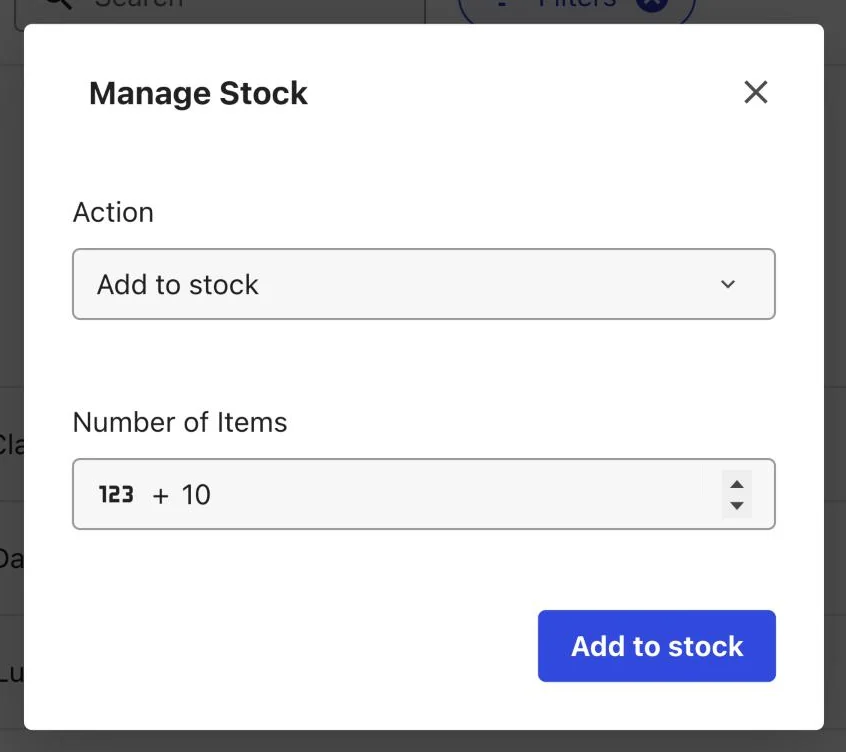
Stock also changes on its own:
- Approving an order uses stock.
- Canceling an order, or reducing its quantity, returns stock.
When an item runs out, shoppers see it as Out of stock.
Unlimited items
For an unlimited item, the cart icon tells you This Item has unlimited availability. To start counting stock, edit the item and turn on Manage Stock.
Take an item off the shelf
Items aren't deleted; they're deactivated, so past orders and reports stay complete.
- In the item's row, select More (⋮) → Deactivate.
The item disappears from the Marketplace widget. To bring it back, for example for a seasonal offer, select Activate.
Find and export items
- Search by item name.
- Filters: filter by Categories, Status or creation date. The list shows only Active items by default; clear the filter to see inactive ones.
- Export downloads the filtered list as an Excel file, useful for stock-taking.