
Appearance
Awards and giving
Giving an award is the heart of Employee Recognition: one colleague thanks another with a named award, a message and a value in points.
At a glance
Before you start, you need a recognition program.
1. Create the awards
The awards colleagues give each other are called peer-to-peer awards. Each program has its own list.
In the admin panel, choose the program in Program Management → Select a program.
Go to Awards → Peer-to-Peer and select New.
Fill in the form:
Field What to enter Where employees see it Title The award's name, such as Thank You or Customer Champion. Everywhere the award appears. Description When to give this award. Under the award when a giver selects it. Value (in points) 0 or more. Added to the receiver's score and coins, and taken from the giver's Points to Give. See Points and coins. Icon URL The web address of the icon image. The award's badge. Expiration No expiration, Expiration after number of days, or Expiration after specific date. After expiration, the award disappears from the receiver's awards. Select Save. Givers in the program can use the award immediately.
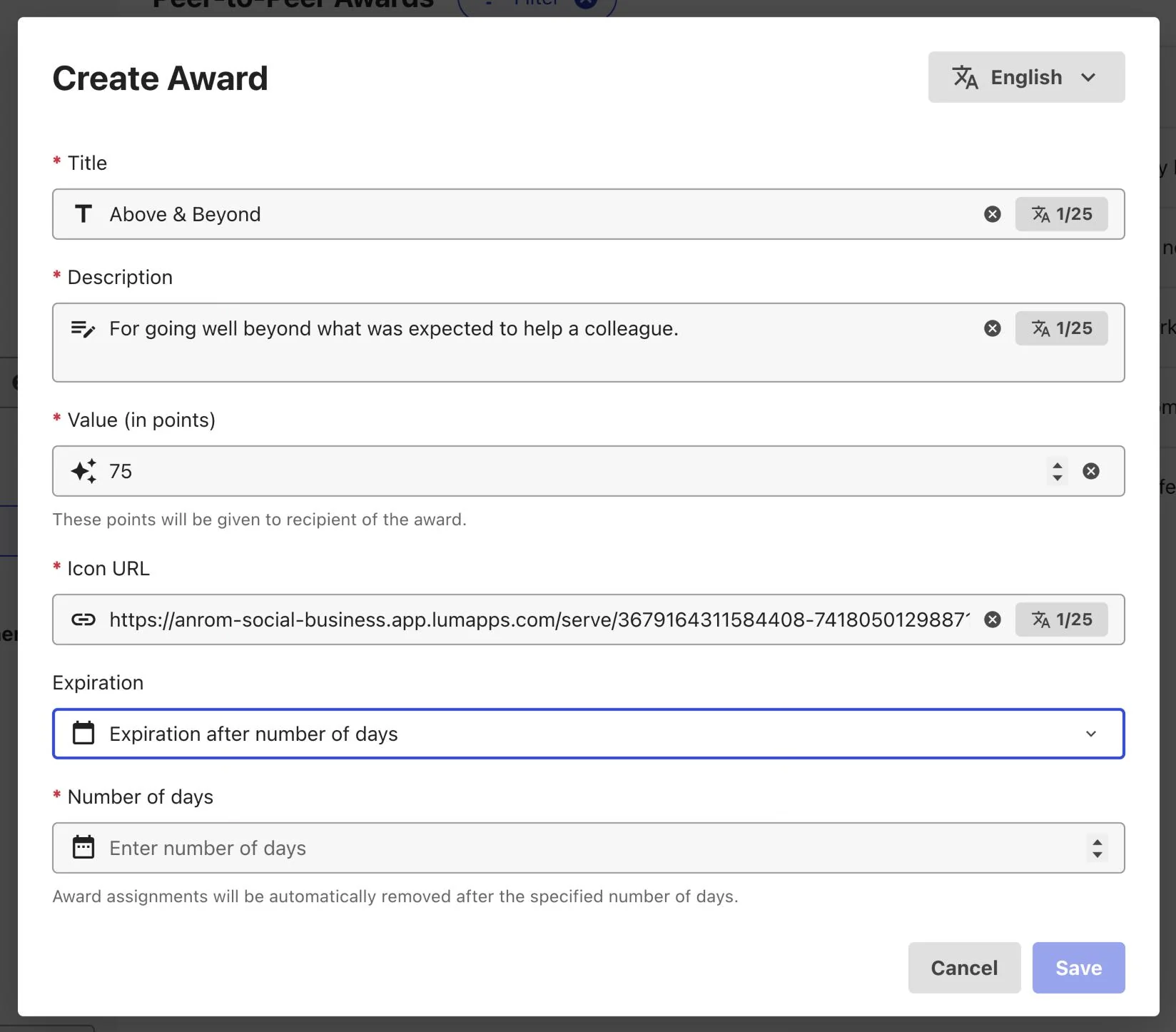
A good set of awards
Start with 4 to 8 awards that mirror your company values, such as Thank You, Team Player and Bright Idea. Give higher values to rarer, more meaningful awards.
Translate an award
Title, description and icon can be set in 25 languages. Open the award and use the language selector at the top right of the form. People see the award in their LumApps language; languages you leave empty use the default.
Edit an award and find its ID
Select the pencil icon next to an award. The Award ID at the top right of the form is what you need to import awards from a file.
A new value in points applies only to awards given from then on.
Archive an award
Awards are never deleted, so history stays intact. Select the archive icon next to the award and confirm with Archive. The award can no longer be given; awards already given stay on profiles, in the stream and in analytics. To bring it back, select Filter → Archived, then Activate.
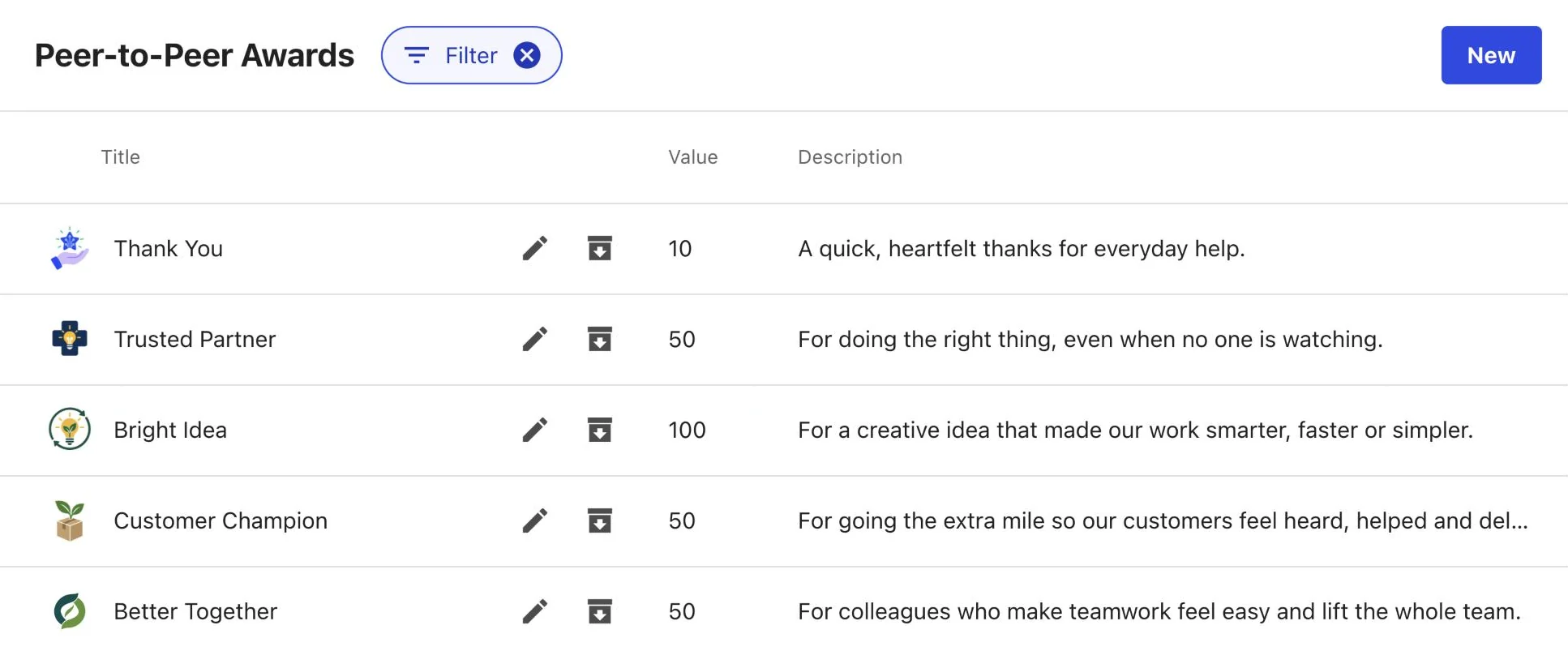
To find or edit awards across all programs, use All awards.
2. Choose who can give and receive
A person is offered an award only when both conditions are true:
- they are a Giver (or Advanced Giver) in the award's program
- the colleague they chose is a Receiver in the same program
You set these roles in the program's Participants step. See Programs.
| Role | What it allows |
|---|---|
| Giver | Give the program's awards to one or several colleagues. |
| Receiver | Receive the program's awards. |
| Advanced Giver | Also give one award to a whole LumApps group or segment at once. |
3. Put the Give Awards form on a page
- Open a LumApps page in edit mode and add the Employee Recognition by Linkers widget.
- In Select your widget, choose Give Awards.
- Choose the settings below and publish the page.
Choose a layout
| View | What employees get | Best for |
|---|---|---|
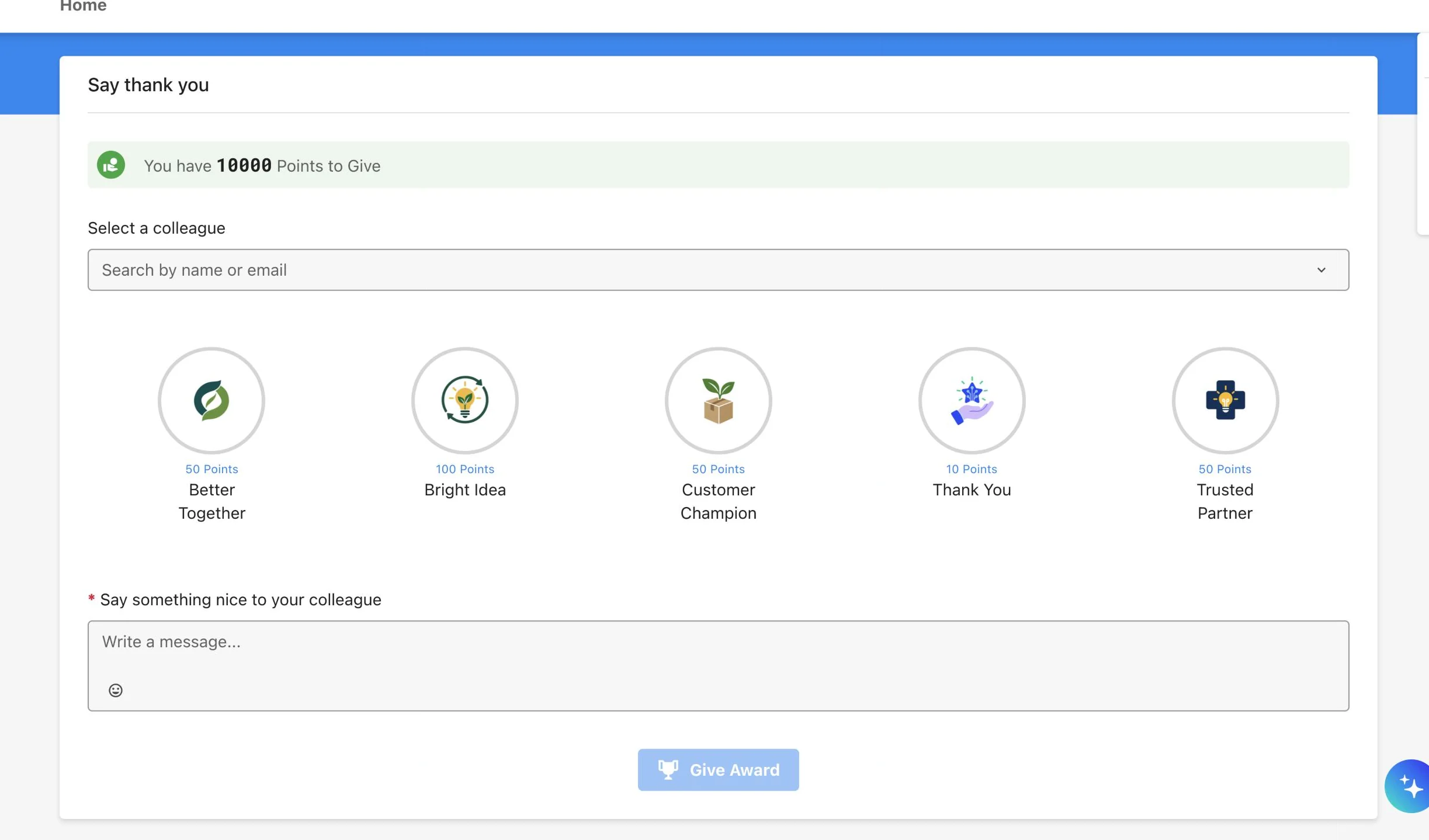
| Form (default) | Every field on one screen. | Desktop pages |
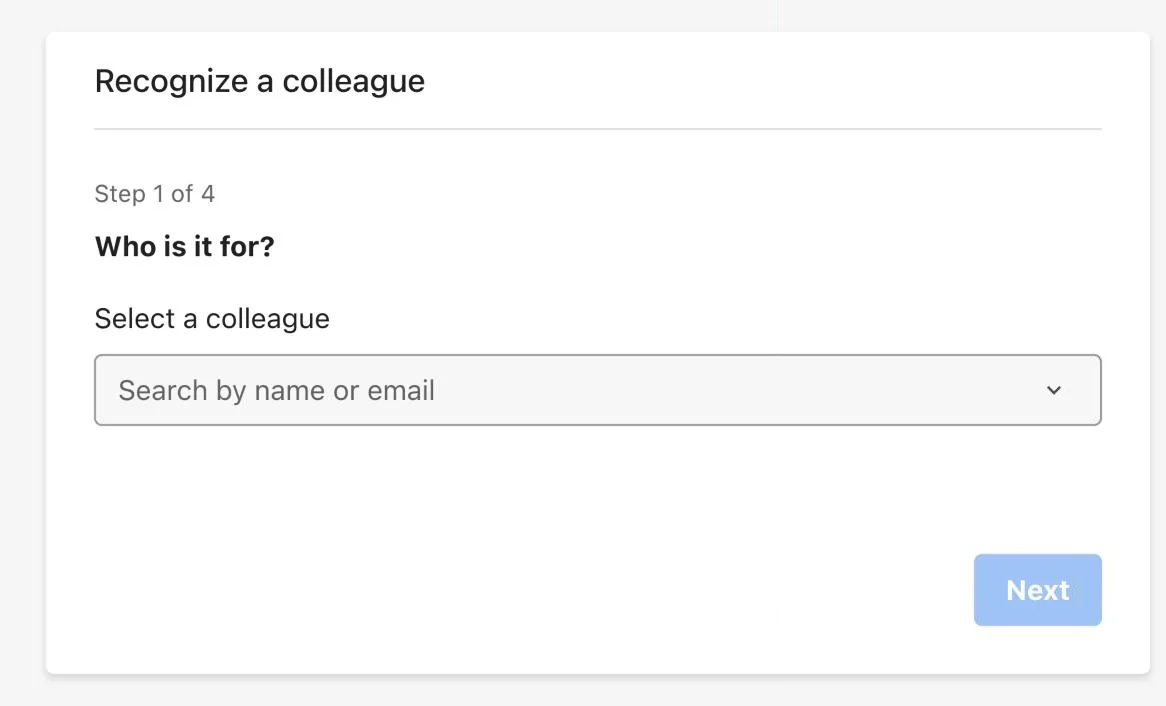
| Wizard | One question per screen, with Next and Back. | Phones and frontline workers |
Widget settings
| Setting | Default | What it changes for employees |
|---|---|---|
| Select a recognition program | All the giver's programs | Offers only the awards of the programs you choose. |
| Select a recognition program for branding and translation | Global settings | The wording (for example Kudos instead of Award) and colors. See Branding and wording. |
| Rows count per slide | 2 | How many rows of award badges show before paging. |
| Select kinds of giving awards | Peer-to-Peer award, Team award, Bulk award | Removing Team award or Bulk award hides that tab when a giver chooses several colleagues. |
| Order options | by Award name | Sorts awards by name, or by program and then name. |
| Hide widget | Off | When on, people with no awards to give don't see the widget at all. |
| Allow group awards | On | Shows the Groups tab in the colleague picker to Advanced Givers. |
| Primary color, Secondary color | Branding colors | Colors for this widget only. |
WARNING
If you remove every kind of giving award, the widget shows Give Awards widget not configured.
Example setups
| Goal | Settings |
|---|---|
| Main recognition form on a desktop page | Form, one program, branding from that program |
| Mobile-friendly "Recognize a colleague" | Wizard, one program |
| Compact "Quick kudos" box in a narrow column | Form, Rows count per slide 1, custom colors |
4. Add a Give Award button to profiles
So that people can recognize a colleague while looking at their profile:
- In the admin panel, go to Global Management → Global Settings.
- Turn on Display "Awards in profile", then Display "Give Award" button.
- Select Save.
The button appears on every profile, except your own. It needs the site code on the site. See Global settings.
5. How employees give an award
In the form
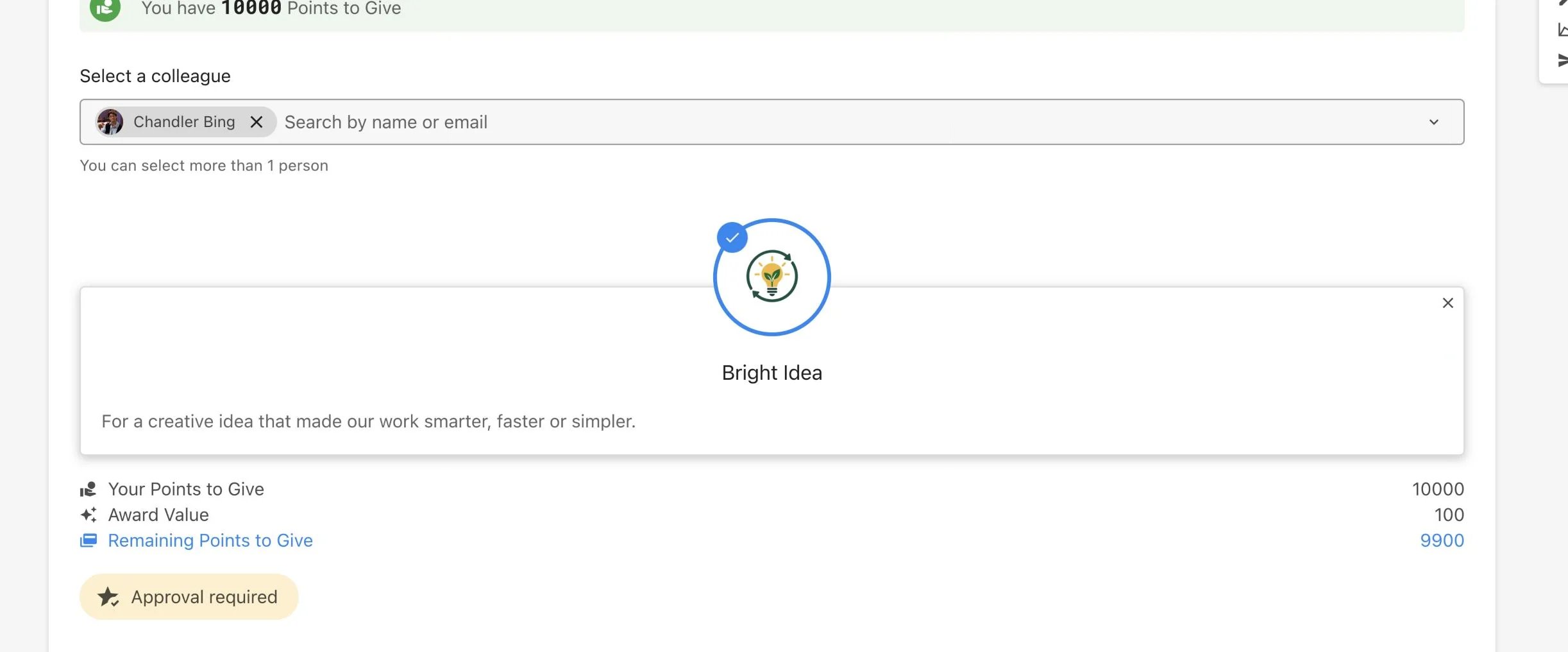
- Under Select a colleague, search by name or email and choose one or more people.
- Choose an award. Its description appears, so the giver can check it fits.
- Write a message: what the person did and why it mattered.
- Select Give Award.
A Success message appears and the form clears.
Advice for givers
Say what the person did and the difference it made: "Your checklist for the March release saved the support team hours of rework." The message is what colleagues read in the Awards Stream, and it's what skills are detected from.
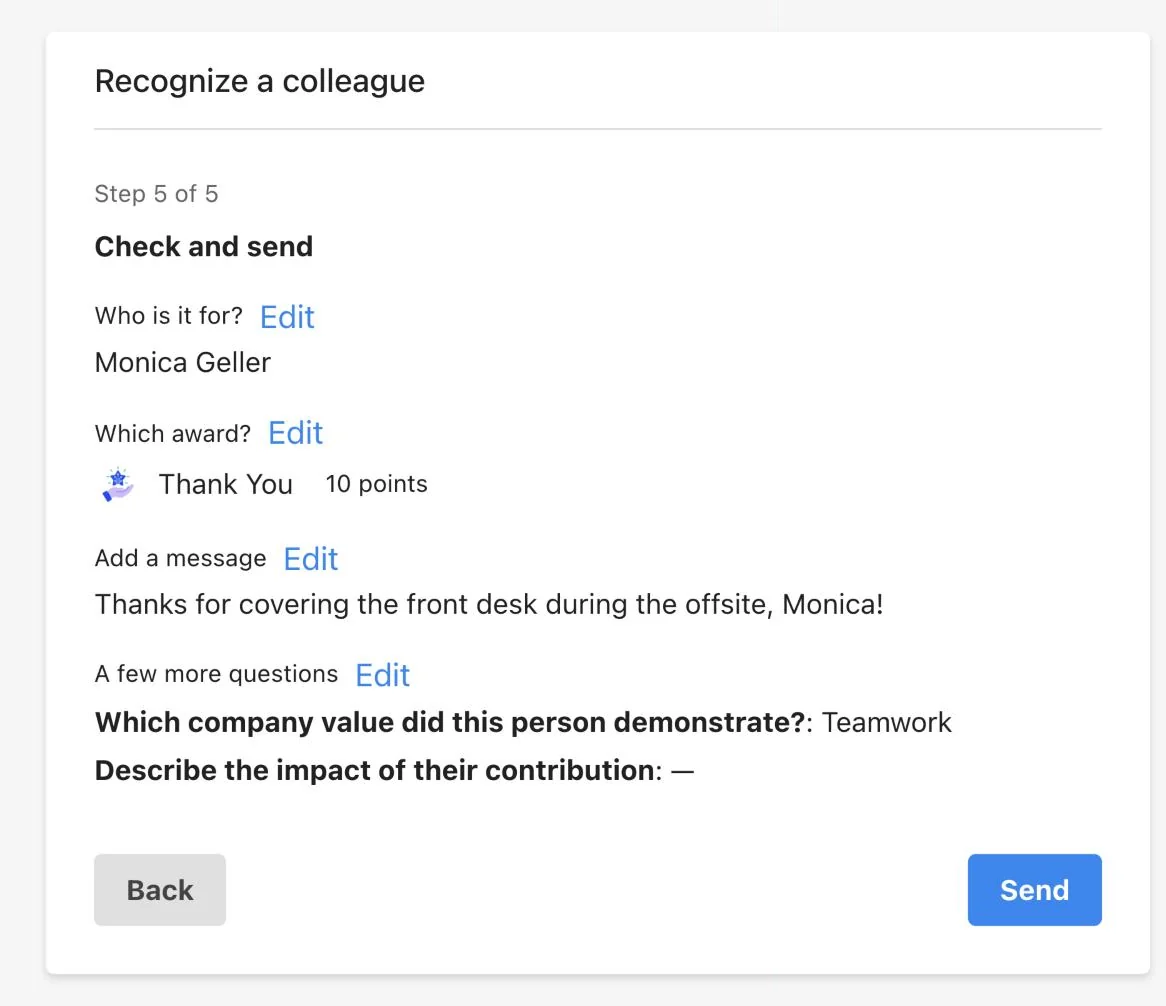
In the wizard
The same information, one screen at a time:
- Who is it for?
- Which award?
- Add a message
- A few more questions: only when the program has a nomination form.
- Check and send: review, use Edit to change an answer, and select Send.
To several people at once
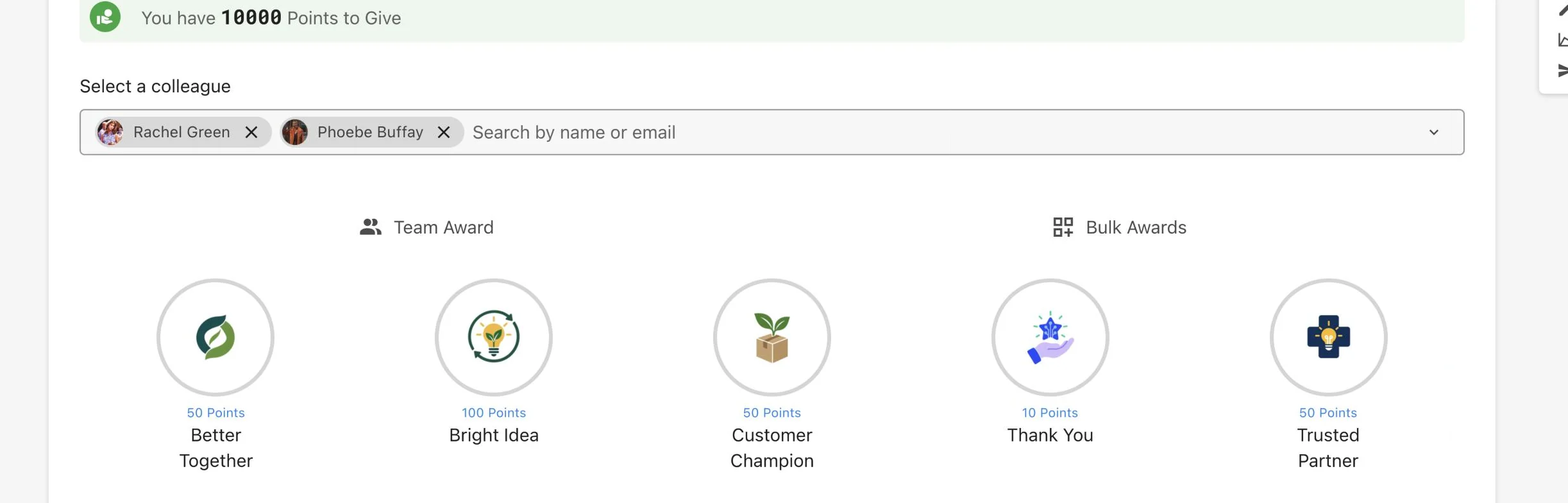
When a giver chooses two or more colleagues, two tabs appear above the awards:
- Team Award: everyone gets the same award and message. The points cost is multiplied by the number of people.
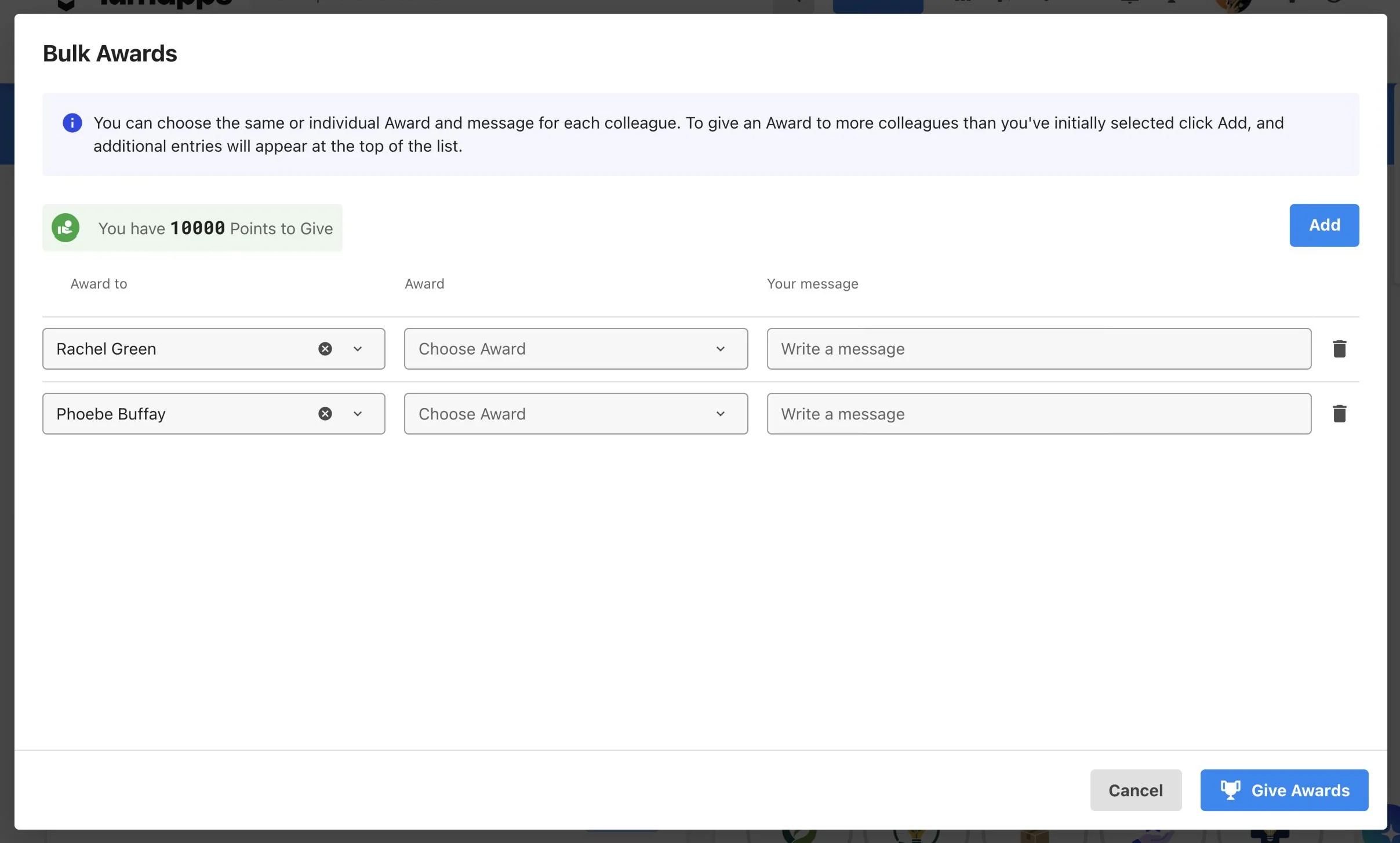
- Bulk Awards: opens a table where each person gets their own award and message. Add adds rows; Give Awards sends them all.
To a whole group
Advanced Givers see a Groups tab in the colleague picker, where they choose a LumApps group or segment instead of people. The award is delivered in the background and appears for everyone within about 10 minutes.
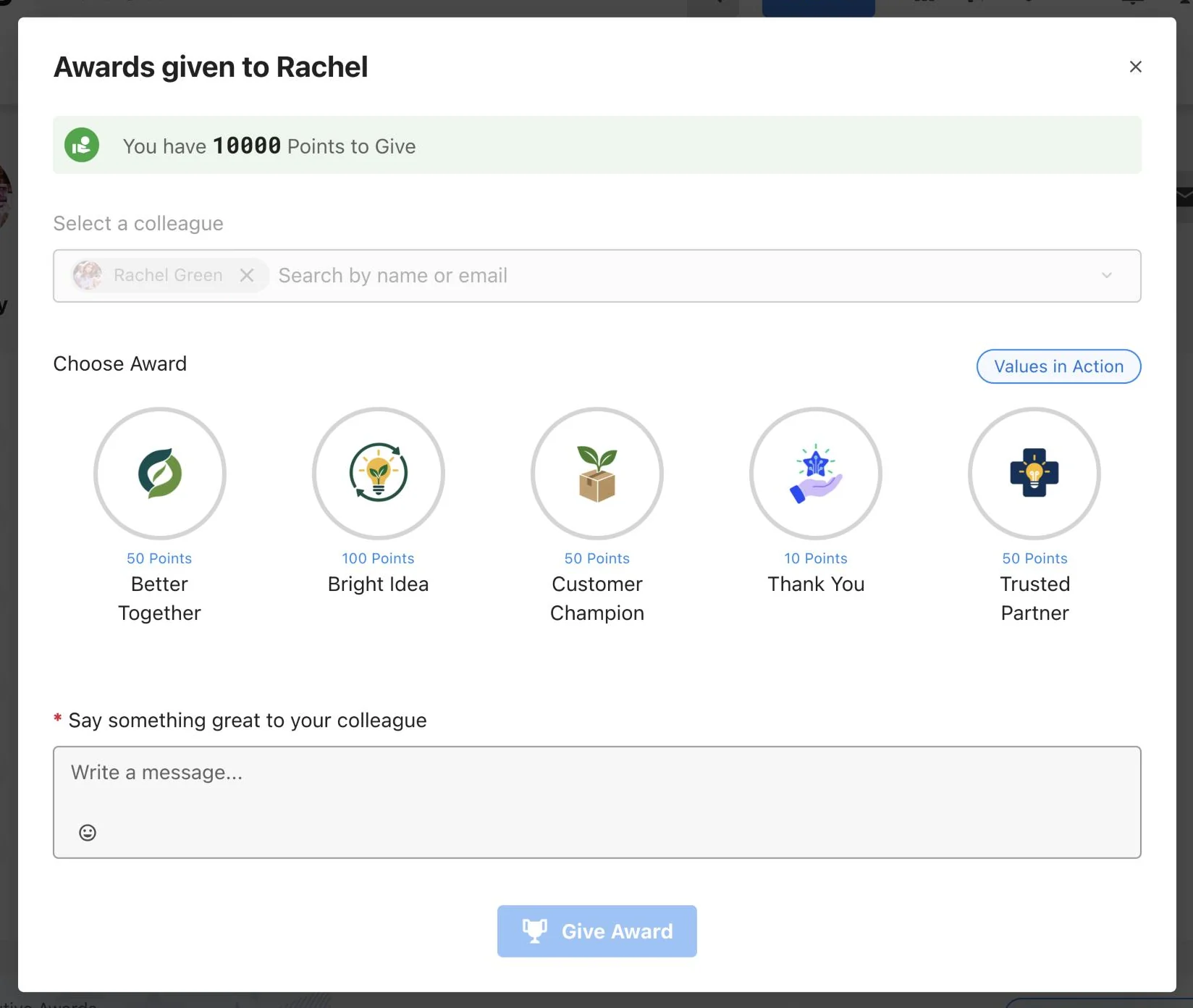
From a profile
- On a colleague's profile, select Give Award.
- Choose an award. To narrow the list to one program, choose it in All recognition programs.
- Write a message and select Give Award.
Other ways to give
- Under an article, to thank its author: see Recognize content authors.
- By scanning a QR code on a poster or badge: see QR codes.
- Many at once from an Excel file, by a Global Manager: see Import awards.
What changes the giving form
Several things in the form only appear because of a setting elsewhere. This table shows what the giver sees, why, and where it's set.
| The giver sees… | Because… | Set in |
|---|---|---|
| A green You have N Points to Give bar, and a points calculation under the chosen award | The organization uses a points budget. | Points and coins |
| Points Lacking instead of Remaining Points to Give, and a disabled button | The award costs more than the giver's remaining points. | The budget refills by itself; a Global Manager can also top it up. |
| N Points labels on award badges | Display award value is on, or a points budget is in use. | Points and coins |
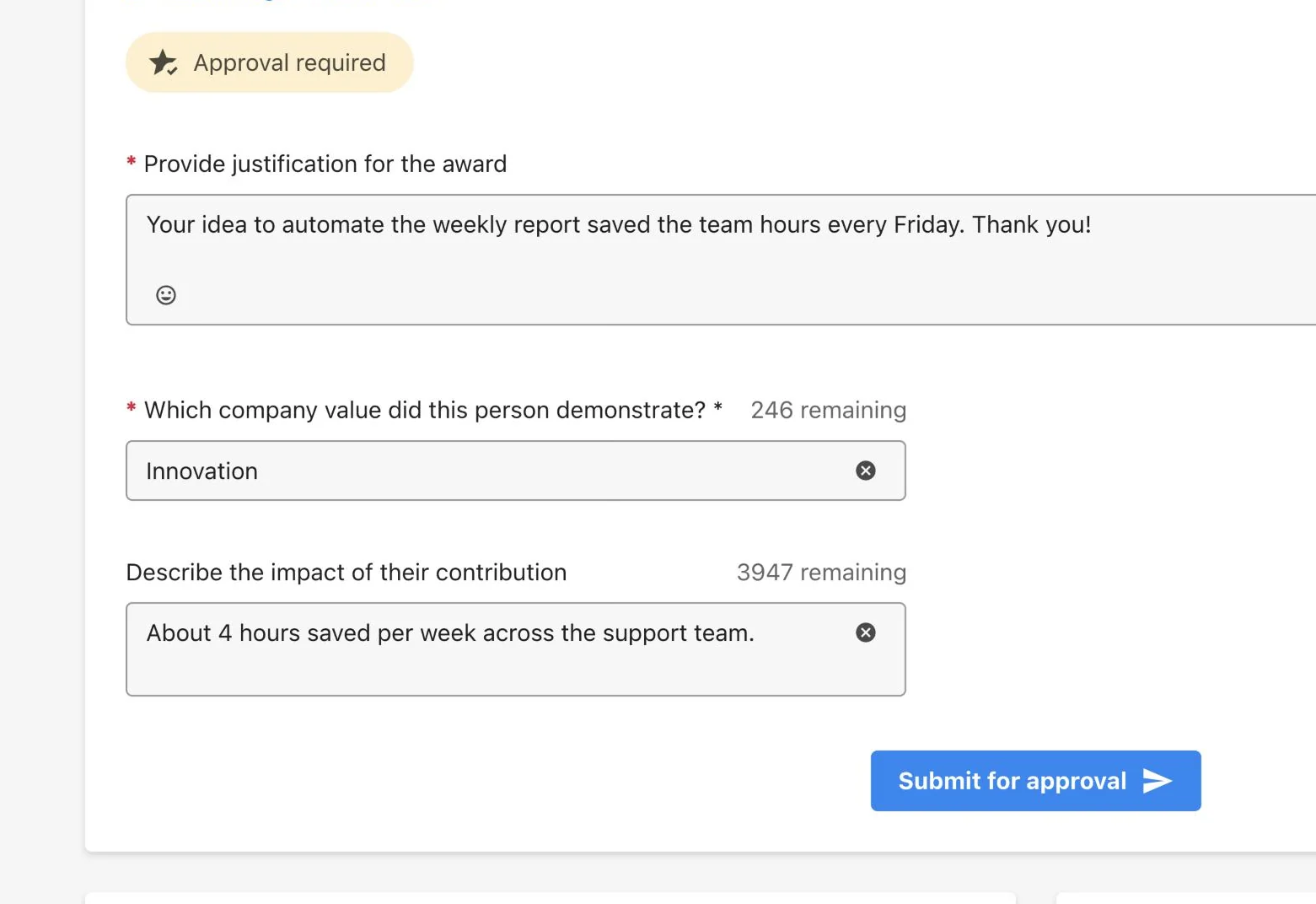
| An amber Approval required label, a Provide justification for the award field, and a Submit for approval button | The award's program requires approval. | Approvals |
| Extra questions under the message | The award's program has a nomination form. | Approvals |
| Team Award and Bulk Awards tabs | The giver chose several colleagues, and the widget allows these kinds. | Select kinds of giving awards, in the widget settings |
| A Groups tab in the colleague picker | The giver is an Advanced Giver, and the widget has Allow group awards on. | Participants and the widget settings |
| Different words, such as Give Kudo | The widget uses a program's branding. | Branding and wording |
| Fewer awards than expected | Only awards from programs shared by the giver and every chosen colleague are offered, limited to the widget's programs. | Check Choose who can give and receive and the widget settings. |
What happens after an award is given
If the program doesn't require approval, the award is published immediately. If it does, the same things happen once it's approved.
| What | Where to read more |
|---|---|
| The receiver gets a LumApps notification. | Notifications |
| The award appears in the public feed. | Awards Stream |
| It's added to the receiver's awards, in My Recognition and on their profile. | My Recognition and profiles |
| The receiver's Total Score grows by the award's points, and they earn the same number of coins when the marketplace is on. | Points and coins |
| The giver's Points to Give drop by the award's points. This happens at once, even while an award waits for approval. | Points and coins |
| Leaderboards update. | Leaderboards |
| Skills are detected in the message. | Skills |
| The award is counted in analytics. | Analytics |
The giver can edit the message later, and Global Managers can delete an award, from the Awards Stream.
Troubleshooting
| Symptom | Cause | Fix |
|---|---|---|
| "Unfortunately, you aren't a participant of selected recognition program." | The person isn't a Giver in any program the widget offers. | Add them as a Giver in Participants, or turn on Hide widget so non-givers don't see the form. |
| "Unfortunately, you and selected user aren't a participants of any recognition program." | The giver and the chosen colleague share no program where one gives and the other receives. | Check both people's roles in the program. |
| Insufficient balance. | The giver has too few Points to Give. | Wait for the budget to refill, or top it up. |
| "The group exceeds the maximum allowed limit of N users." | The group is larger than your organization's group award limit. | Choose a smaller group, or contact Linkers support about the limit. |
| Give Awards widget not configured. | Every kind of giving award was removed in the widget settings. | Add Peer-to-Peer award back. |
| An award was given but isn't in the Awards Stream | It's waiting for approval. | See Approvals. |
| No Give Award button on profiles | The option is off, or the site code isn't installed. | See Add a Give Award button to profiles. |
| A required question shows two asterisks | The question's name ends with an asterisk. | Remove it from the question's name in the nomination form; required questions are marked automatically. |