
Appearance
Leaderboards
A leaderboard turns recognition into a friendly ranking: who was recognized most this month, who has the highest score in a program, who gives the most. Each reader also sees their own position.
At a glance
Nothing needs to be set up in the admin panel. Everything about a leaderboard is decided in its widget settings, so you can place several different leaderboards on one page.
1. Put a leaderboard on a page
- Open a LumApps page in edit mode and add the Employee Recognition by Linkers widget.
- In Select your widget, choose Leaderboard.
2. Choose what it ranks
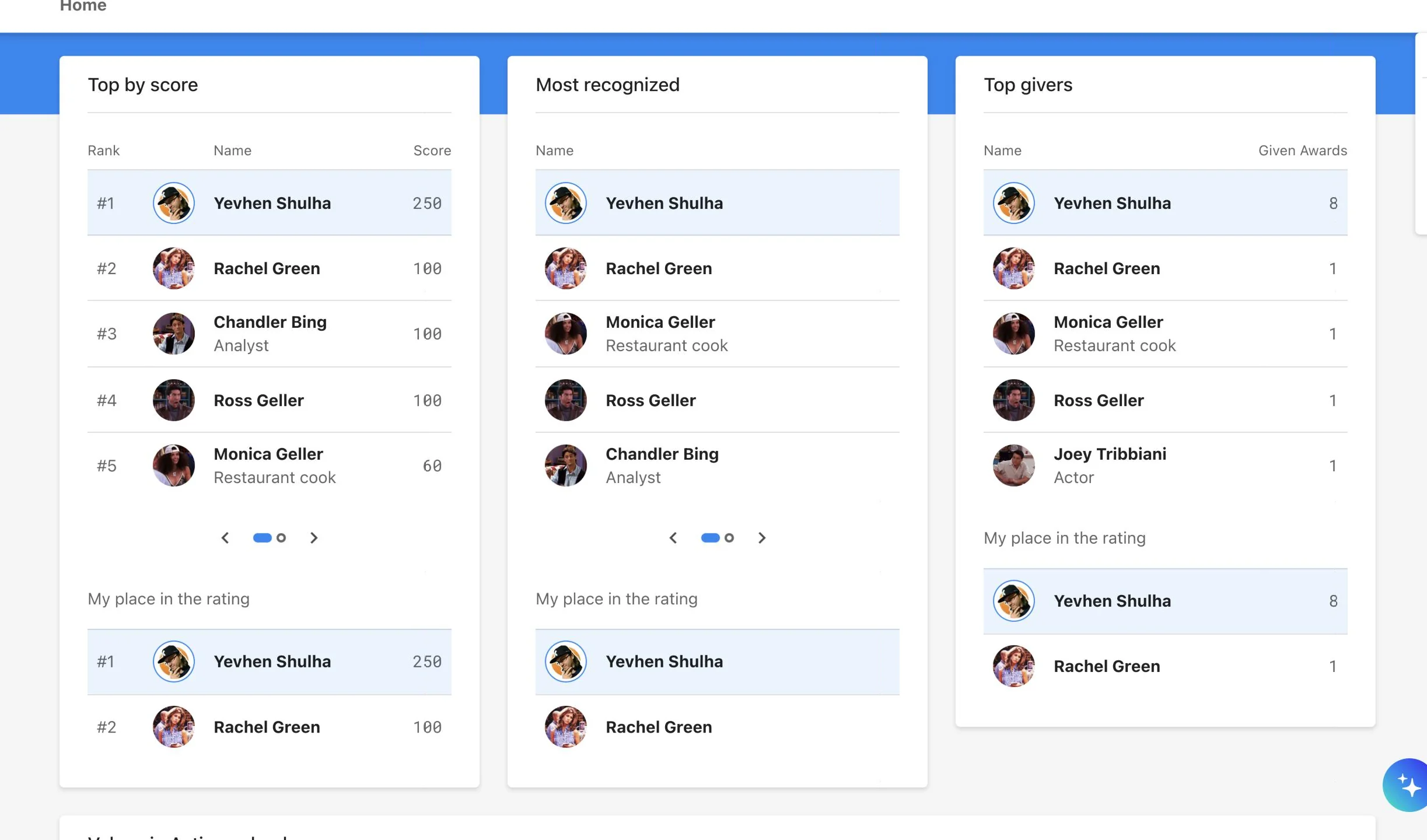
Ranking
| Ranking type | Ranks people by | Column shown |
|---|---|---|
| Leaderboard by Score (default) | The total points of the awards they received | Score |
| Leaderboard by Received Awards | The number of awards they received | Received Awards |
| Leaderboard by Given Awards | The number of awards they gave | Given Awards |
Scope
| Setting | Default | What it does |
|---|---|---|
| Filter leaderboard by award | All | Counts only the programs or awards you choose. |
| Filter leaderboard by groups | None | Ranks only members of the LumApps groups you choose, such as a department. |
| Filter leaderboard by date | All time | Counts awards given in the current or previous week or month, or a custom range. |
Size and columns
| Setting | Default | What it does |
|---|---|---|
| Number of top users to display in the leaderboard | 10 | How many people are ranked. |
| Number of users to display per page | 10 | Rows per page, at least 3. |
| Show user's Score in widget | Off | Shows the value column. Its label follows the ranking type. |
| Show ranks column in the widget | Off | Shows #1, #2 and so on. |
| Show my place in leaderboard | On | Shows the reader's own row under the list. |
| Select a recognition program for branding and translation | Global settings | Wording and colors. |
| Primary color | Branding color | Highlights and page dots. |
Example setups
| Goal | Settings |
|---|---|
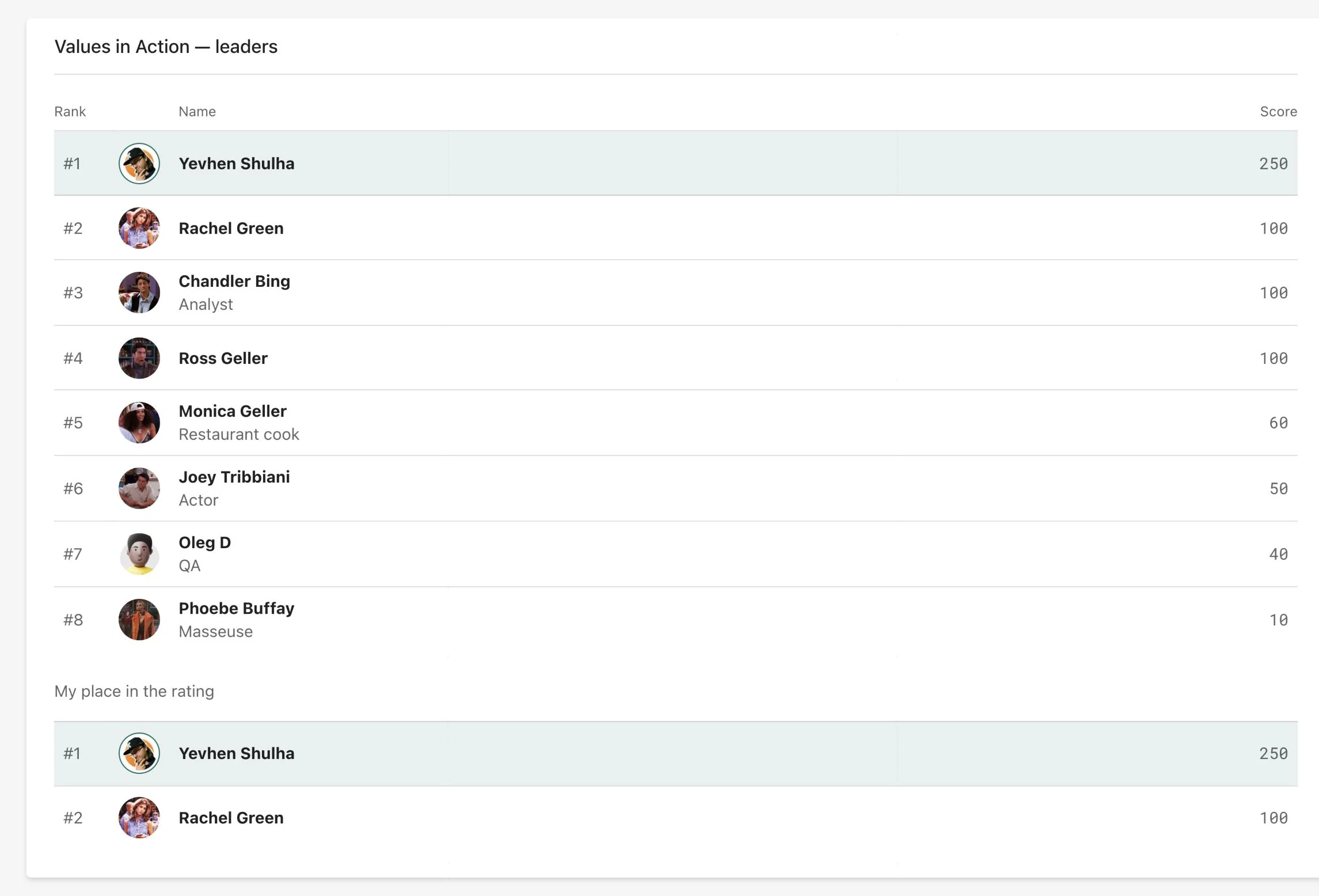
| Top recognized this month on the home page | By Score, current calendar month, score and ranks shown |
| Most recognized in Sales on a team page | By Received Awards, filtered by the Sales group |
| Our most generous colleagues | By Given Awards |
TIP
In narrow widgets, rank numbers can look cramped while you edit the page. They display correctly once the page is published.
3. What employees see
- Each row shows a person's name and job title, plus the rank and value if you turned those columns on. Selecting a person opens their profile.
- Dots under the list lead to more pages.
- My place in the rating shows the reader's own row, even when they're outside the top of the list. Until they have an award, it reads "It'll be here when you receive your first Award", or "…give your first Award" on a given-awards leaderboard.
- When nobody matches the leaderboard's scope, it shows Leaders coming soon.
How rankings are calculated
- Only published awards count. Awards waiting for approval, declined awards and deleted awards don't.
- An award's points are fixed when it's given. Changing an award's value later doesn't change past scores.
- A team or group award counts once for each person who received it.
- Automatic awards, such as birthday and automated awards, count for the people who receive them. They have no giver, so they never count on a given-awards leaderboard.
- The date filter uses the date the award was given.
- Ties have no defined order.
A Global Manager can also change a person's Total Score by hand in Coin balances.