
Appearance
Initial setup
These are the steps a Global Administrator does once, before anyone can use Employee Recognition. Follow the steps in order. Apart from waiting for Linkers to authorize your platform, plan about 30 minutes.
When you finish:
- Employee Recognition can read your users and groups and send notifications.
- The trophy icon appears in your intranet's top bar.
- Your recognition team, such as HR or Internal Communications, can open the admin panel without being Global Administrators.
From there, your recognition team continues with the Setup checklist.
Overview
Before you start
- You need to be a Global Administrator in LumApps. Only Global Administrators can see the System Administration section of the admin panel.
- Linkers must authorize your platform (step 2) before you install the extension. Wait for their confirmation before step 3.
- Have a password manager or another safe place ready for the application secret you'll create in step 5.
Step 1: Create a technical account
Employee Recognition works in the background: it reads users, groups and content, and sends notifications. To do this, it signs in to LumApps as a dedicated user called the technical account.
Use a dedicated account, not a real person's account. If you used your own account and you later left the company or changed role, Employee Recognition would stop working.
- In LumApps administration, open user management, under Platform.
- Create a new user:
- Name: something recognizable, such as Employee Recognition.
- Email: any address in your domain, such as
recognition@company.com. It doesn't need a real mailbox, because no one signs in with it. - Password: any long random password. You don't need to store it: no one signs in with this account, and Employee Recognition uses the application secret from step 5 instead.
- Give the new user the Global Administrator role, so it can read all users, groups and content, and send notifications.
- Save the user.
Make it easy to find
Use a name such as Employee Recognition so that other Global Administrators know what the account is for, and don't deactivate it by mistake.
Keep the account active
If the technical account is deactivated or loses its Global Administrator role, user sync, automated awards and notifications stop working.
If users come from your company directory
If LumApps users are created automatically from your company directory or identity provider, you may need your IT or identity team to create the account. Ask for a service account that is not removed by the directory sync.
Step 2: Ask Linkers to authorize your platform
Before Employee Recognition can work on your LumApps platform, Linkers must authorize it. You send two details:
- Open your LumApps intranet in your browser.
- Press Ctrl + ? on your keyboard. A window with information about your platform opens.
- Copy the Organization ID.
- Copy the address of your LumApps intranet from the browser's address bar, for example
https://yourcompany.lumapps.com. - Send both to Linkers at support@linkersconnect.com (support@linkersconnect.com), asking to authorize your platform for Employee Recognition.
Wait for Linkers to confirm before you continue.
Don't skip this step
If your platform isn't authorized, the admin panel only shows "Your organization domain was not yet authorized to use the Employee Recognition extension or service is temporary unavailable, please contact support."
Step 3: Install the extension
- In LumApps administration, go to Platform → Extensions → Library.
- Search for Employee Recognition by Linkers.
- Open it and select Install.
The extension now appears under Platform → Extensions → Installed extensions. It isn't active yet.
Step 4: Activate the extension and open the admin panel
Activate the extension before you configure anything.
- Go to Platform → Extensions → Installed extensions.
- Select the pencil icon next to Employee Recognition by Linkers, then open the Settings tab.
- Turn on Activation (Extension will be available on your platform).
- Select Save.
- Only now, select the long blue Configure Employee Recognition button, under Extension global settings.
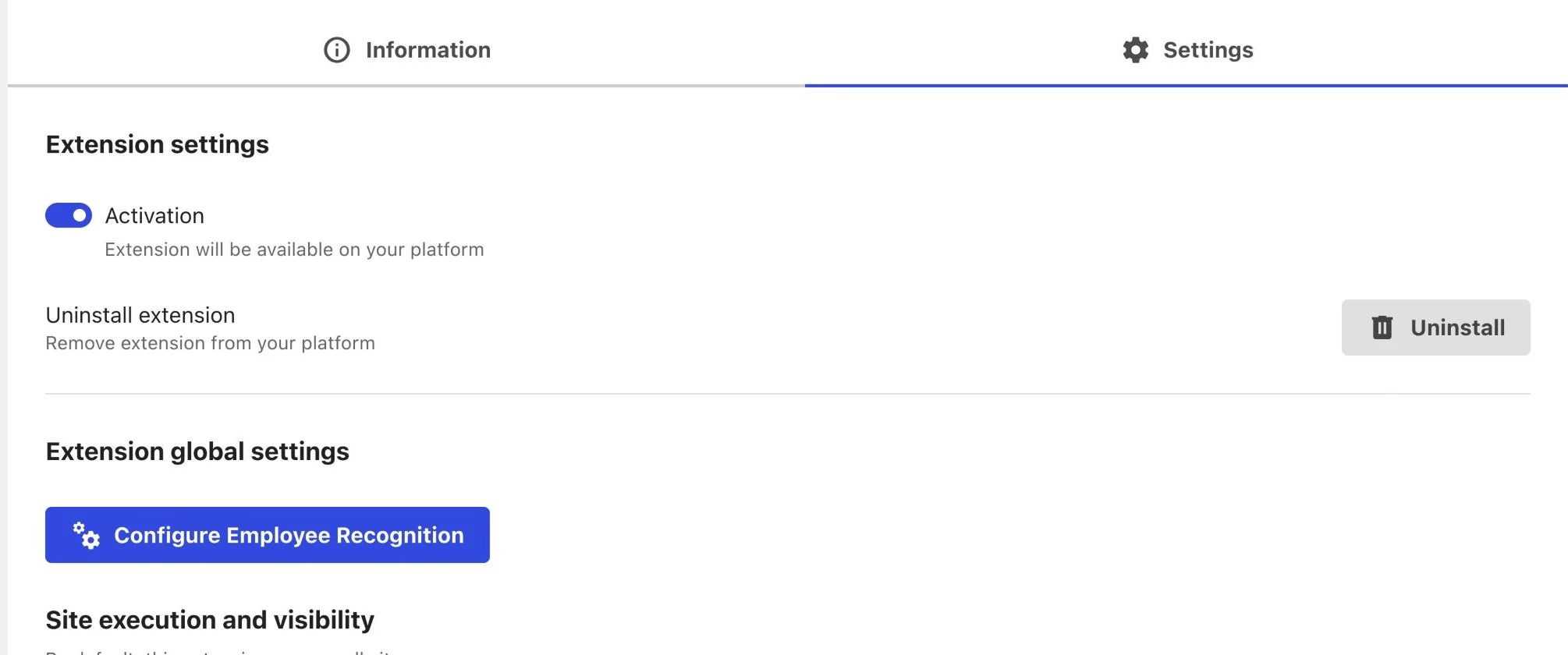
The admin panel opens. Because you opened it from the extension settings as a Global Administrator, you see the System Administration section at the top of the menu. You'll work through its four pages in order.
A yellow Connector is not configured banner is normal at this stage. It disappears after step 6.
Coming back later
To open the admin panel again as a Global Administrator, repeat items 1, 2 and 5 of this step.
Step 5: Create an application
The application gives Employee Recognition its own credentials (an ID and a secret) for LumApps.
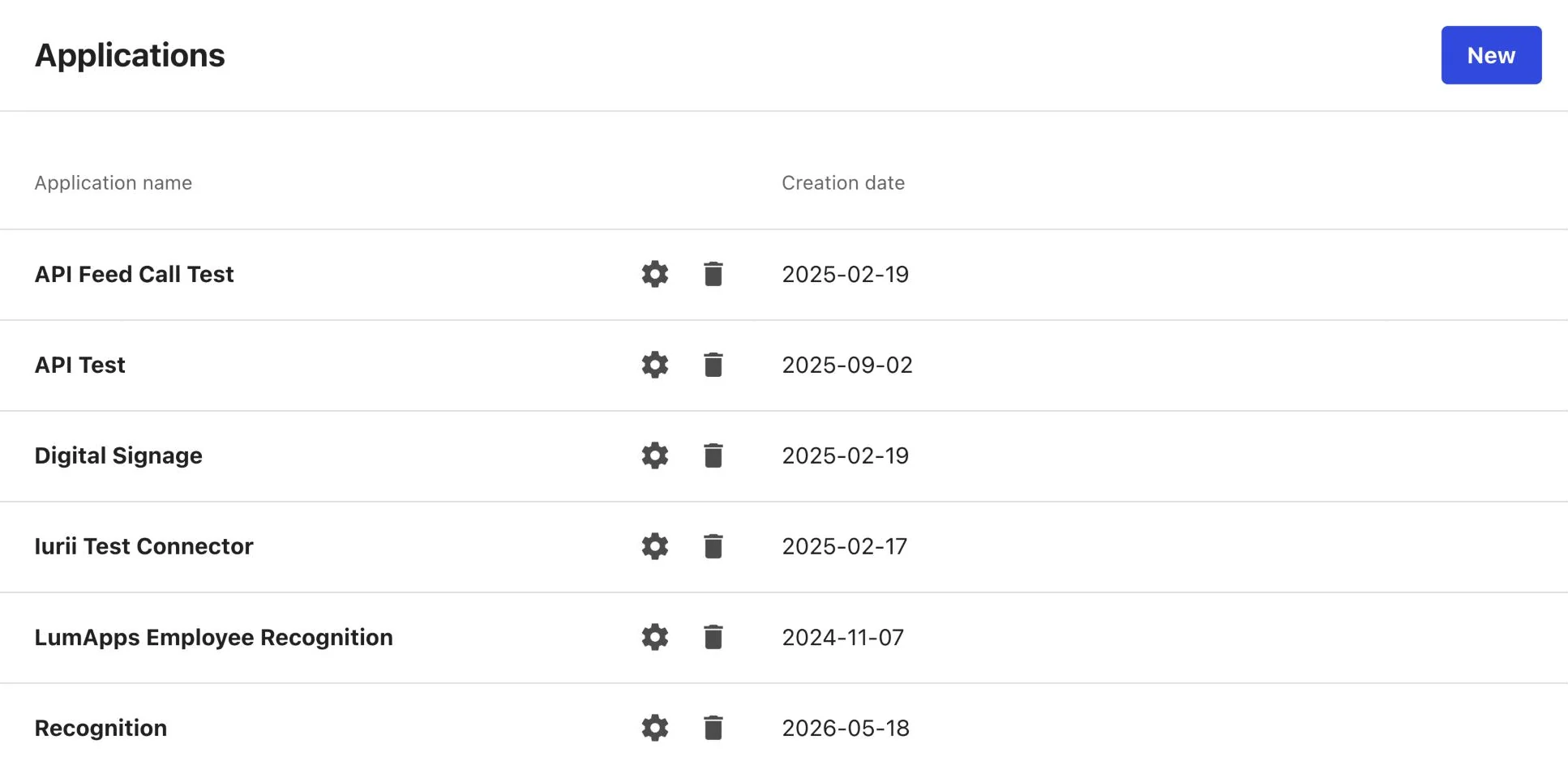
Go to System Administration → Applications and select New.
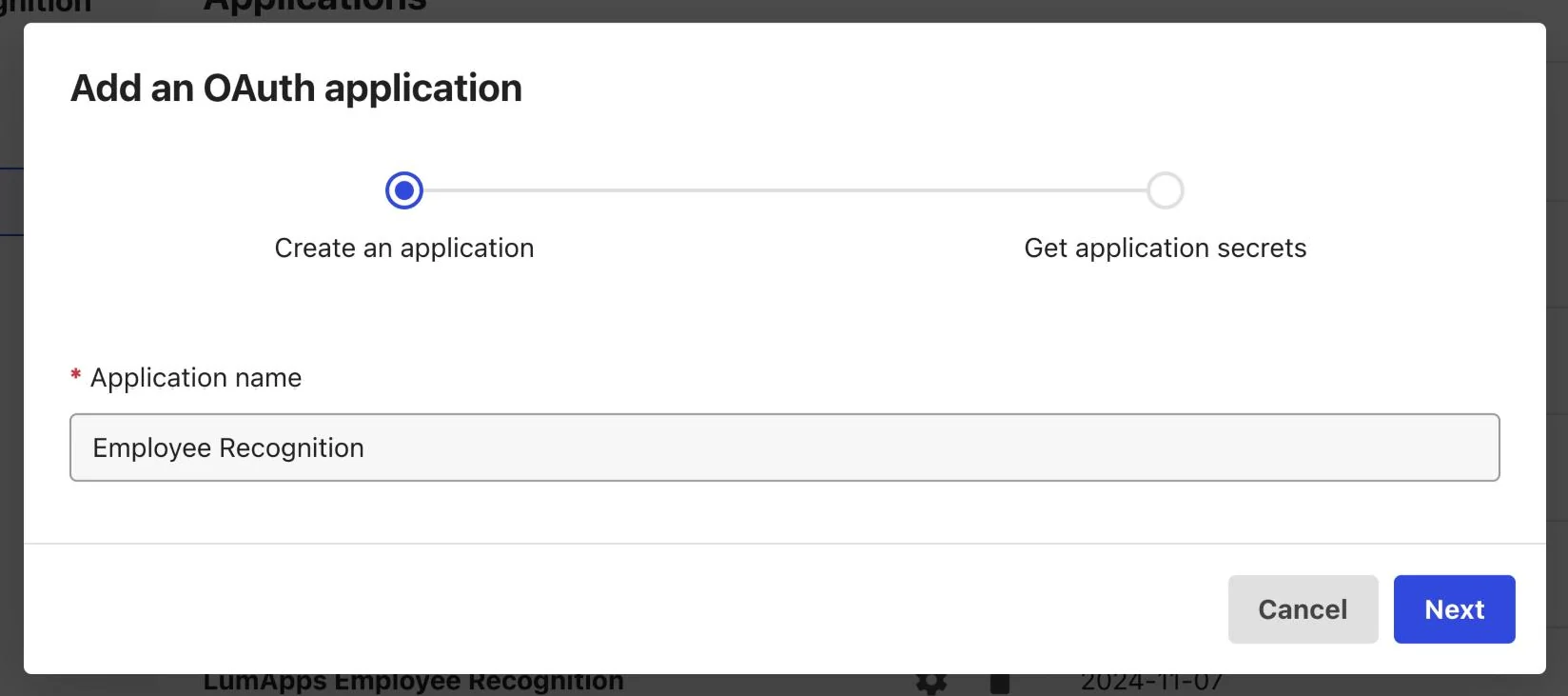
Enter an Application name, such as Employee Recognition, and select Next.
Select show application secret and copy the secret into your password manager.
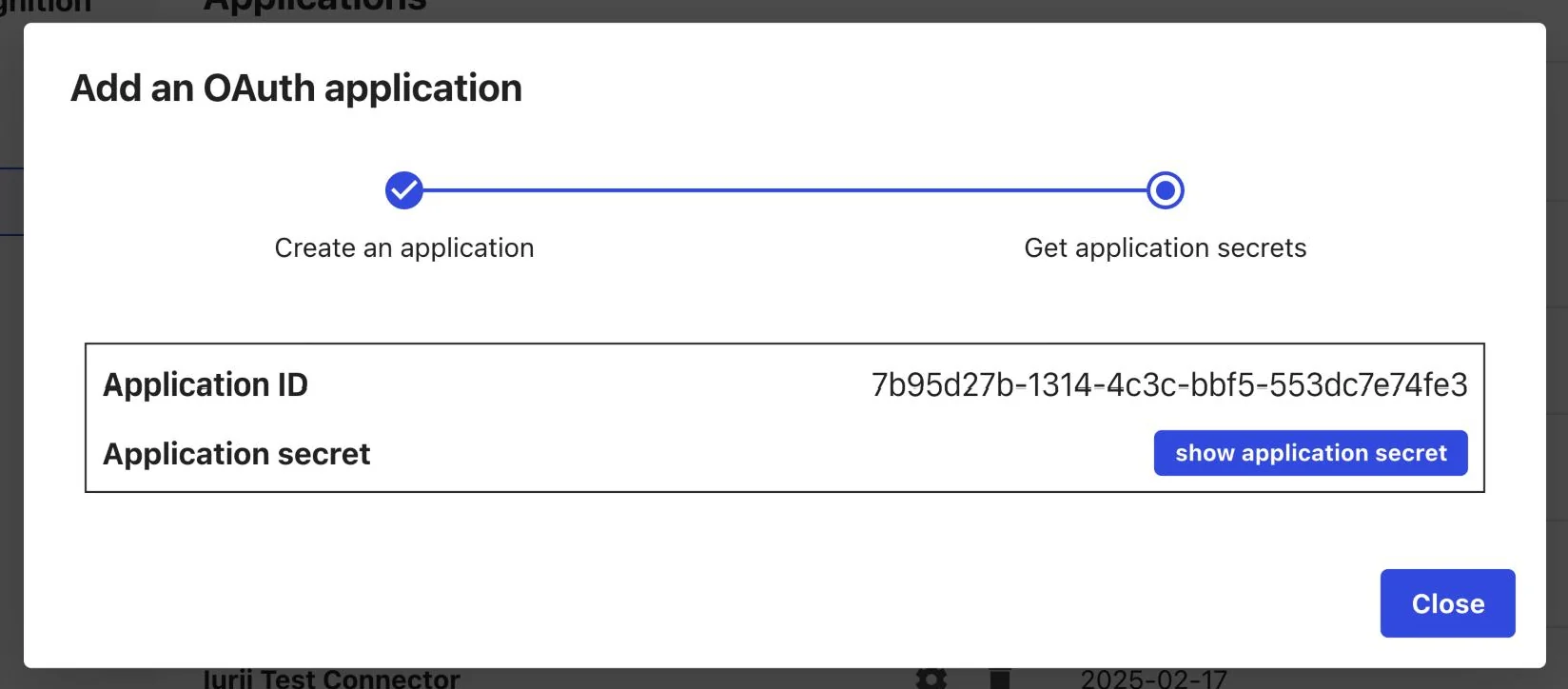
Select Close, tick I confirm that I saved the secret, and select OK.
The secret is shown only once
You need the secret in the next step, and you can't display it again. If you lose it, create a new application.
Step 6: Connect to LumApps
- Go to System Administration → Connectors. The LumApps tab is open.
- In Technical account, choose the account you created in step 1.
- In Application, choose the application you created in step 5.
- Paste the secret into Application Secret.
- Select Save.
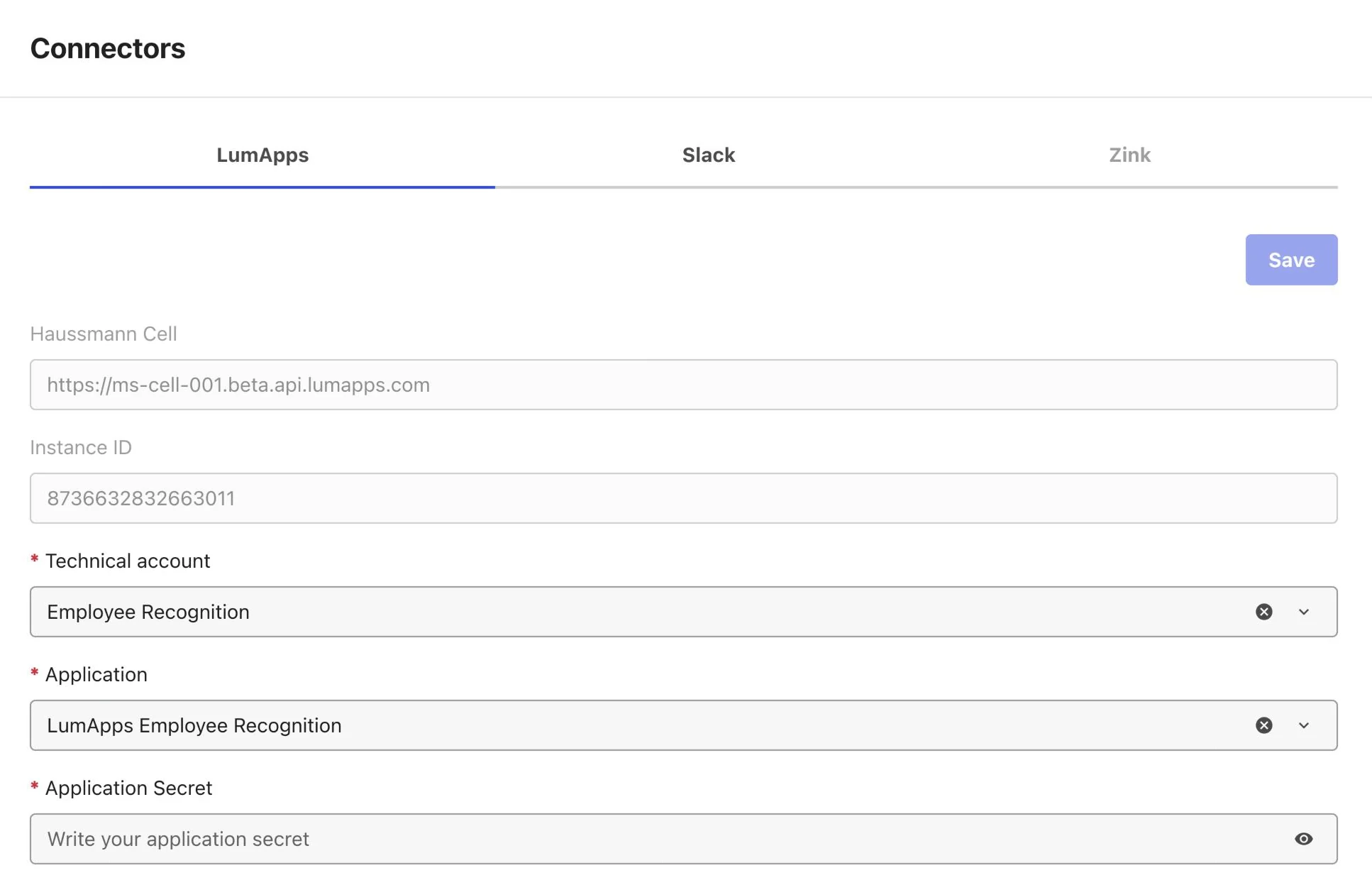
Employee Recognition checks the details with LumApps before saving. When they're accepted, a success message appears and the yellow banner disappears.
If you see an error, check that you chose the right account and application, and that you pasted the whole secret.
Step 7: Add the trophy icon to your site
Widgets work on pages as soon as the extension is active. But several features are added to every page of a site by a short installation code:
- the trophy icon in the top bar, which opens My Recognition and the Recognition Management link to the admin panel
- notifications that open when someone receives an award, has an award to approve, or has an order update
- awards, skills and the Give Award button on profiles
- awards under articles
- the QR code giving flow
Everyone on the site will see it
Once you add the code, everyone who visits that site sees the trophy icon and the other features. If you're still testing internally, don't add the code to your main intranet site yet. Create a separate test site in LumApps, add the code there, and invite only your project team. Add it to your main site when you're ready to launch.
Without the trophy icon, only Global Administrators can reach the admin panel
The trophy icon is how everyone else, including Global Managers and program managers, opens the admin panel: trophy icon → Recognition Management. Until the code is installed on at least one site they can visit, only Global Administrators can open the admin panel, through the extension settings.
Go to System Administration → Installation.
Select the Copy icon next to the code box.
Select the Administration → Style link. The style settings of the current site open in a new tab.
To install on another site, such as your test site, open that site's administration instead and go to Style.
Open the Style tab and select Custom code.
Paste the code into Head tag (HTML).
Select Save changes.
Reload any page of the site: the trophy icon appears in the top bar.
The code always loads the latest version of Employee Recognition, so you never need to change it. Repeat these steps for each site where you want the features, unless the site inherits its style from another site.
Limit the extension to your test site
While testing, you can also make the whole extension, including widgets, run only on your test site. See Limit Employee Recognition to some sites.
Step 8: Give your recognition team access
Global Administrators can always open the admin panel. Everyone else needs a role.
The people who will run recognition, usually the HR or Internal Communications team, need the Global Manager role. It lets them open the admin panel through trophy icon → Recognition Management, create programs and marketplaces, and manage every organization-wide setting, without being Global Administrators.
- Go to System Administration → Permissions.
- On the People tab, search for a person in Add global manager and press Enter.
- To give the role to a whole team, open the Groups tab and search for a LumApps group in Add groups. Everyone in the group becomes a Global Manager, and when the team changes, updating the group is enough.
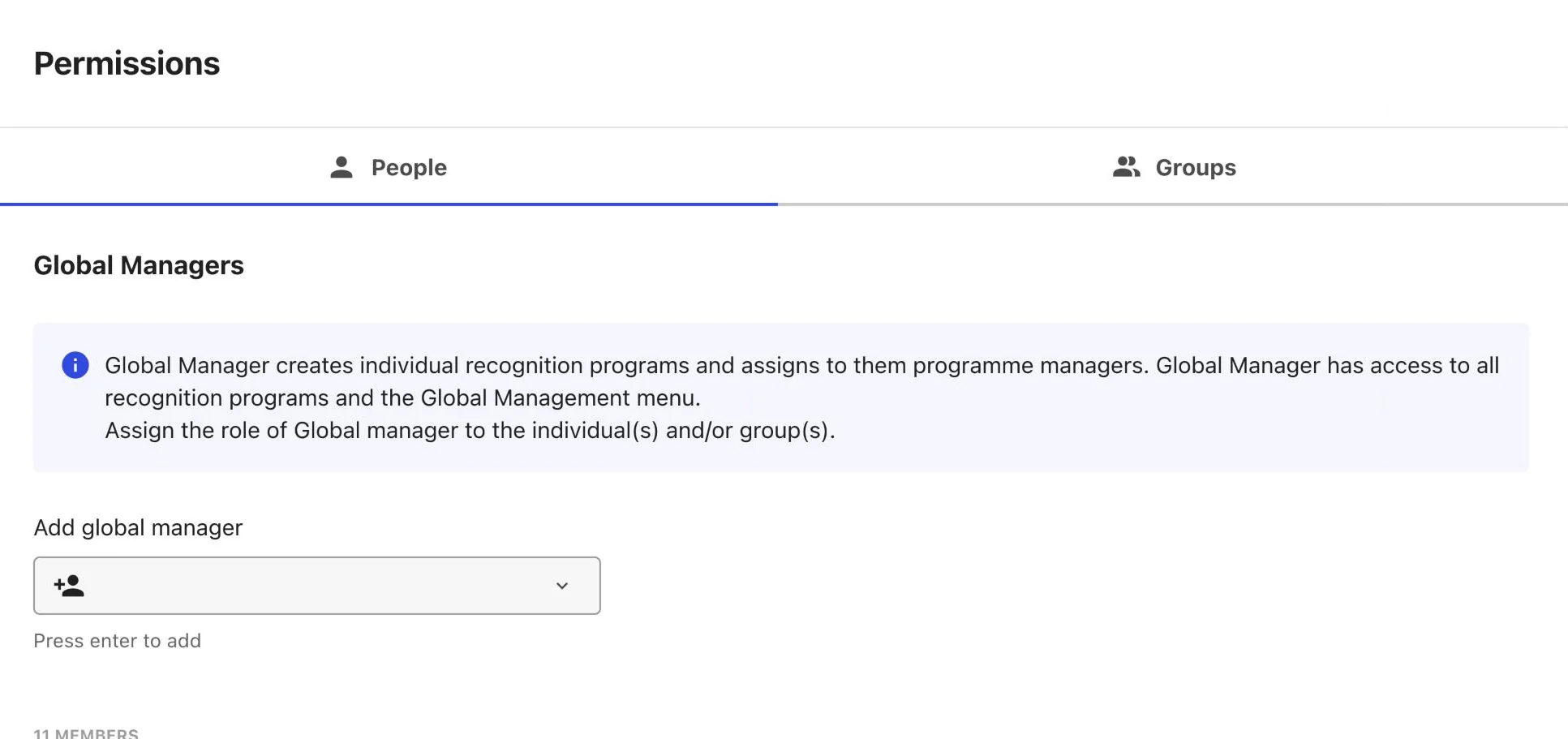
Changes are saved immediately. There is no Save button.
Global Managers don't see System Administration
Global Managers see every section of the admin panel except System Administration, which stays reserved for Global Administrators. Global Managers then give other roles themselves, such as program managers, approvers and marketplace managers. See Roles and permissions.
Step 9: Check that everything works
- In the admin panel, check that no yellow connector banner is shown.
- Close the admin panel and open a page of the site where you installed the code. The trophy icon is in the top bar.
- Ask one of your Global Managers to open the site, select the trophy icon, then Recognition Management. The admin panel opens with the Global Management section.
If something doesn't work, see Troubleshooting.
What's next
Hand over to your Global Managers. They continue with the Setup checklist: points and coins, the first recognition program, awards, the marketplace and widgets.