
Appearance
Tour of the admin panel
Everything about Employee Recognition is set up in one place inside LumApps: the admin panel, also called Recognition Management. It opens as a full-screen window on top of the LumApps page you are on.
Open the admin panel
There are two ways in. Both open the same panel, but only the second one, for Global Administrators, also shows the System Administration section.
As a program manager or Global Manager:
- Select the trophy icon in the LumApps top bar to open My Recognition.
- Select Recognition Management at the top right of the popup.
This needs the site code on the site, so the trophy icon appears, and a recognition role such as Global Manager. Without both, people who aren't Global Administrators can't open the admin panel.
As a Global Administrator (to also see System Administration):
- In LumApps, open the administration (gear icon) and go to Platform → Extensions → Installed extensions.
- Select the pencil icon next to Employee Recognition by Linkers, then open the Settings tab.
- Select Configure Employee Recognition.
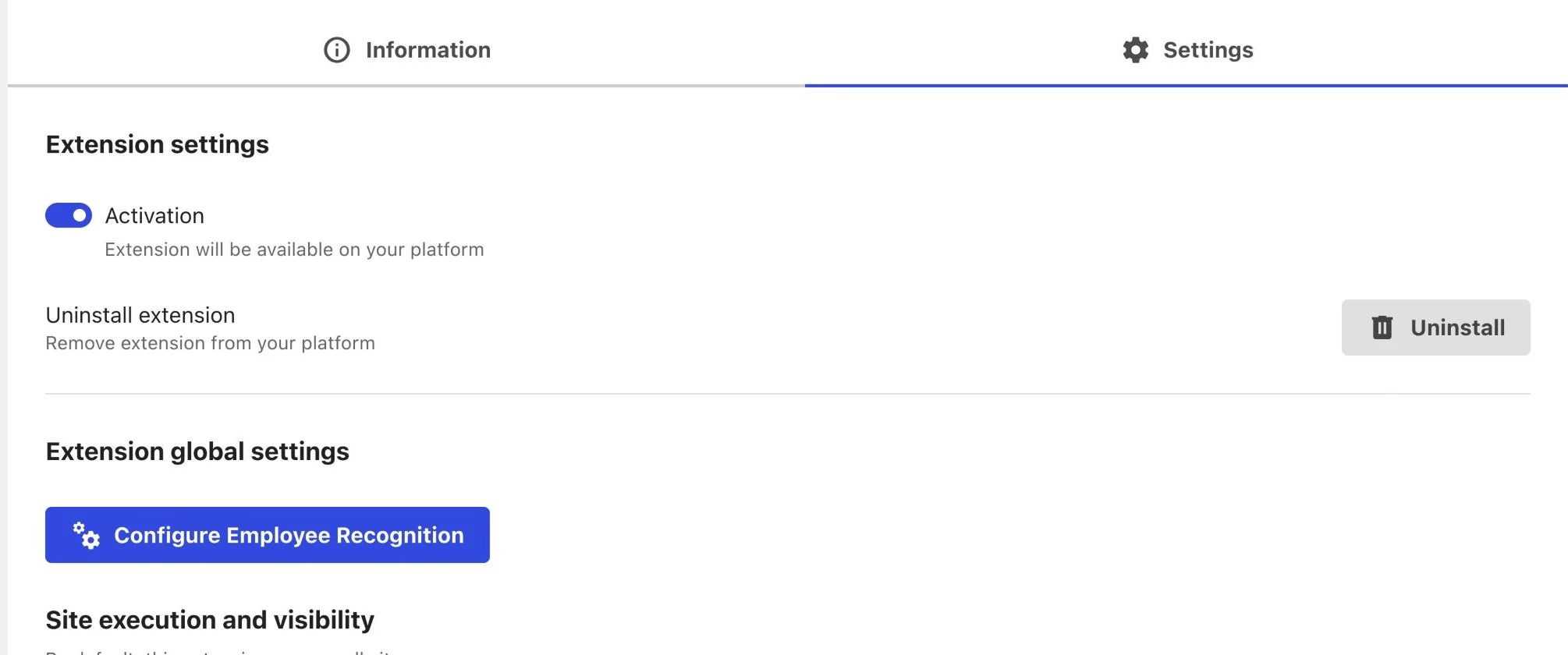
To close the panel, select the back arrow at the top left. You return to the LumApps page underneath.
Find your way around
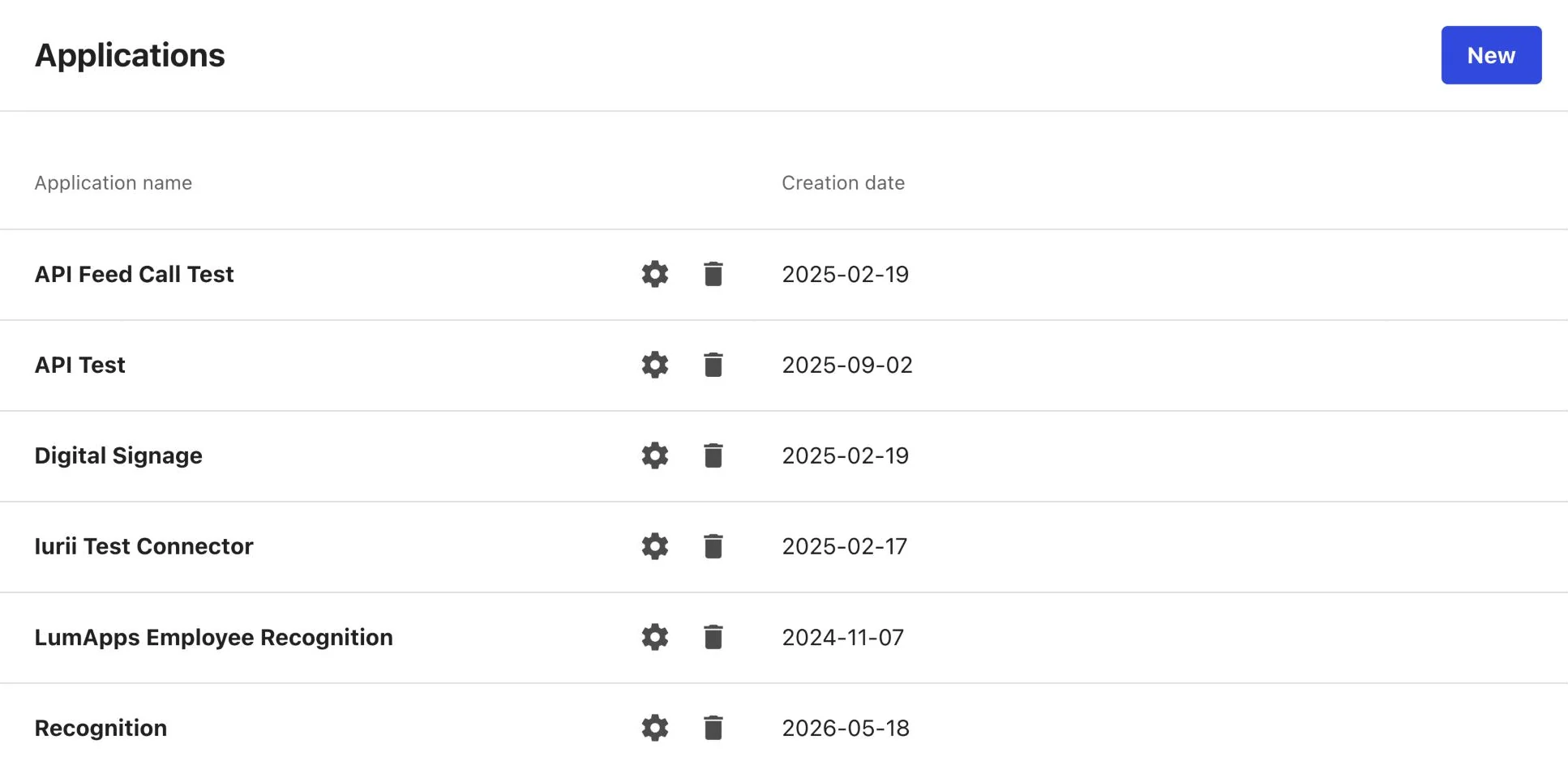
The left sidebar has four zones. You only see the zones your role allows.
| Zone | What it contains |
|---|---|
| System Administration | Connecting Employee Recognition to LumApps: Applications, Connectors, Installation and Permissions. Global Administrators only. |
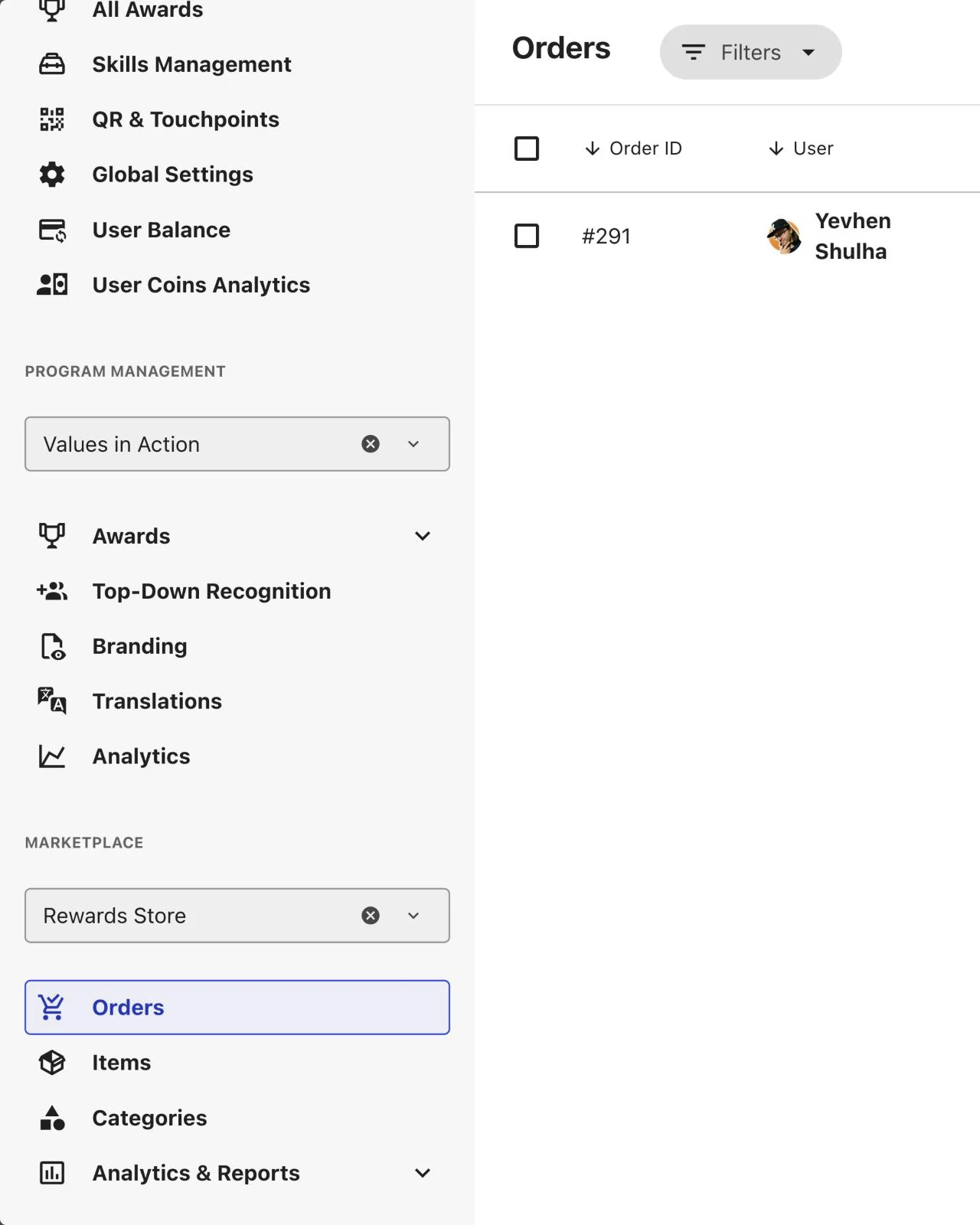
| Global Management | Organization-wide settings and tools: Recognition Programs, Marketplaces, Awards Import, Award Approvals Review, Global Top-Down Recognition, Points & Marketplace, Global Branding, Global Translations, Global Analytics, All Awards, Skills Management, QR & Touchpoints, Global Settings, User Balance and User Coins Analytics. |
| Program Management | Everything that belongs to one program: its Awards (Peer-to-Peer, Birthday, Workiversary & Newcomers, Automated), Top-Down Recognition, Branding, Translations and Analytics. |
| Marketplace | Everything that belongs to one marketplace: Orders, Items, Categories and Analytics & Reports. |
Choose a program or marketplace first
The Program Management and Marketplace zones start with a picker. Their pages stay greyed out until you choose a program (Select a program) or a marketplace (Select a marketplace). Every page in the zone then works on your choice.
Good to know
- Opening a Marketplace page clears the program picker. When you go back to Program Management, choose the program again.
- After a browser reload, both pickers start empty (or with the first marketplace).
- The red number next to Award Approvals Review is the count of awards waiting for approval across your organization (shown up to 99).
Messages you might see
| Message | What it means | What to do |
|---|---|---|
| Unsaved changes | You are leaving a page with changes you haven't saved. | Select Cancel to stay and save, or Leave to discard. |
| Connector is not configured / Connector is not working (yellow banner) | Employee Recognition can't reach LumApps, so user sync and notifications stop. | Ask a Global Administrator to check the connector. |
| Licence expiring soon or expired (banner) | Your subscription is close to its end date, or past it. | Use the link in the banner to contact Linkers support. |
More messages are covered in Troubleshooting.